Introduction
Every Microsoft 365 user has encountered it at some point: Outlook won’t send emails, Office displays an “unlicensed product” error, Teams refuses to schedule meetings properly, or the activation process fails inexplicably. These frustrating moments can derail productivity and lead to hours of wasted time searching forums and trying random fixes.
Enter the Microsoft Support and Recovery Assistant (SaRA)—a dedicated diagnostic tool designed specifically to tackle these exact problems. This free utility from Microsoft automates the troubleshooting process, saving users from the trial-and-error approach that often accompanies technical issues. By running targeted tests and scans, SaRA identifies the root causes of common Microsoft software problems and, in many cases, applies fixes automatically .
This comprehensive guide explores everything you need to know about the Microsoft Support and Recovery Assistant: what it does, how it works, its key features, supported scenarios, and the recent changes Microsoft has implemented. Whether you’re an individual user struggling with Office activation or an IT administrator managing hundreds of devices, understanding SaRA’s capabilities will help you resolve issues more efficiently and get back to work faster.
What Is the Microsoft Support and Recovery Assistant?
Overview and Purpose
The Microsoft Support and Recovery Assistant is a free troubleshooting tool that diagnoses and resolves common issues affecting Microsoft 365 applications, Outlook, Teams, and related services. Often abbreviated as SaRA, this utility simplifies the troubleshooting process by replacing numerous manual trial-and-error steps with an automated, guided experience .
SaRA works by conducting a series of tests on your system to identify the underlying cause of problems you might encounter with Microsoft services. One of its significant advantages is the capability to automatically fix many of the issues it diagnoses. For problems requiring manual intervention, the tool provides clear, step-by-step guidance to help users resolve them effectively .
The tool operates on the principle of proactive problem-solving. Microsoft advises users to employ SaRA at the first sign of trouble with their products. This approach can save considerable time and effort by quickly determining whether the issue stems from the user’s computer, the Microsoft software itself, or potentially Microsoft’s servers .
Why SaRA Matters
For many users, the alternative to SaRA involves spending hours searching online forums, trying multiple suggested fixes, and potentially making the problem worse. SaRA eliminates this uncertainty by providing official, Microsoft-approved diagnostics and solutions.
The tool has gained particular popularity among IT professionals and support teams because of its ability to:
- Automate checks that would otherwise require extensive manual effort
- Generate detailed configuration reports useful for escalation to higher-level support
- Apply fixes safely without requiring deep technical knowledge
- Reduce resolution time significantly compared to manual troubleshooting methods
Key Features and Capabilities
Automated Diagnosis
The core strength of SaRA lies in its automated diagnostic capabilities. Instead of users guessing which component might be causing the problem, the tool runs comprehensive scans on affected applications. It analyzes configuration settings, checks for common known issues, and identifies potential conflicts or corruption .
Once a diagnosis is made and the issue identified, SaRA provides comprehensive troubleshooting steps as a resolution. This systematic approach removes the guesswork from troubleshooting, making it accessible to users with varying levels of technical expertise .
Targeted Troubleshooting
Unlike general-purpose system repair tools, SaRA focuses specifically on Microsoft applications and services. This specialization allows it to perform deep analysis of Microsoft-specific configurations, registry settings, and application states that generic tools would overlook.
The tool’s diagnostic capabilities cover a wide range of Microsoft services, including :
- Office applications: Word, Excel, PowerPoint, and other Office suite programs
- Outlook email service: Email delivery, calendar sync, and configuration issues
- Microsoft Teams: Meeting scheduling, add-in functionality, and connectivity problems
- OneDrive: Cloud storage sync and access issues
- Skype for Business: Communication and meeting problems
Background Monitoring
SaRA includes monitoring capabilities that work in the background to detect potential issues early. This proactive function can notify users of problems in their infancy stage, potentially preventing more serious disruptions before they occur .
Detailed Reporting
When making a diagnosis, the tool gathers all relevant information about the issue. This comprehensive data collection can be particularly helpful when communicating with IT professionals or Microsoft support teams who may require detailed technical information to resolve complex problems .
User-Friendly Interface
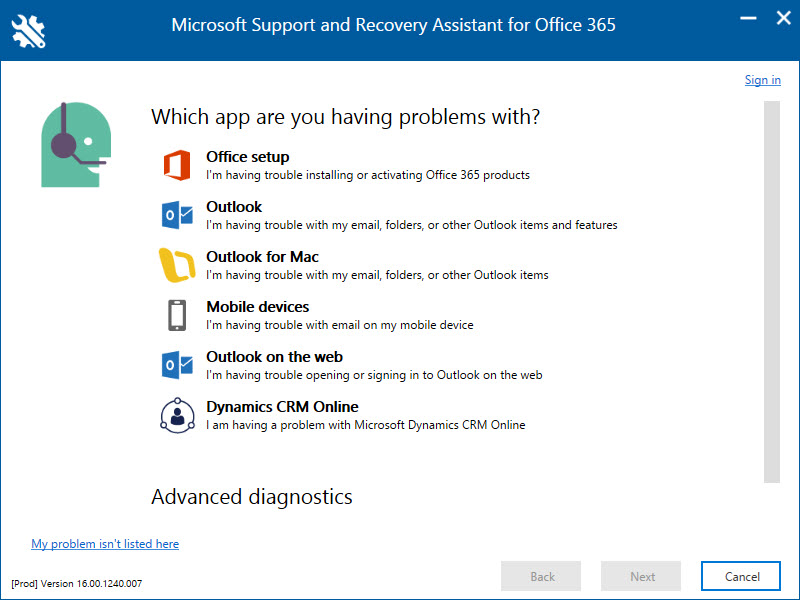
Microsoft designed SaRA with accessibility in mind. The tool guides users through the diagnostic process with clear on-screen instructions, making it usable even for those with minimal technical knowledge. The step-by-step approach ensures users understand what’s happening and what actions are being taken .
Supported Scenarios and Use Cases
Outlook Diagnostics
One of SaRA’s most frequently used functions is the Outlook scan. This scenario examines Outlook for known issues and generates a comprehensive configuration report for Outlook, Office, and Windows. Users can run either a full scan or an offline scan depending on their needs .
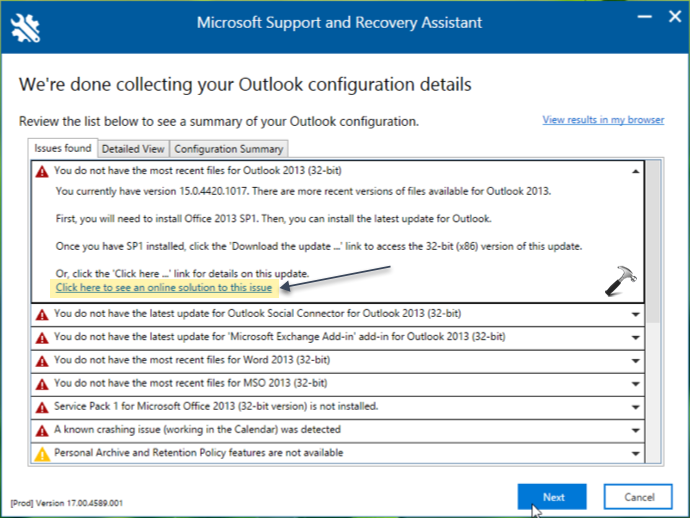
The Outlook scan is particularly valuable for resolving:
- Email send/receive failures
- Connection issues to Exchange servers
- Corrupted profile problems
- Performance degradation in large mailboxes
Office Activation Issues
Office activation problems represent one of the most common reasons users turn to SaRA. The tool performs automated checks and recoveries to reset activation-related settings, allowing users to successfully activate subscription versions of Office .
This scenario addresses:
- “Unlicensed Product” error messages
- Product key issues
- License verification failures
- Activation server communication problems
Office Uninstallation
When users cannot fully remove Office through the standard Control Panel method, SaRA provides a cleanup option that thoroughly scrubs any version of Office from a device. This “OfficeScrubScenario” ensures no leftover files or registry entries interfere with future installations .
Teams Meeting Add-In for Outlook
For users experiencing issues with the Teams Meeting Add-in for Outlook, SaRA offers automated checks and recoveries to help get the add-in functioning correctly. This is particularly useful in enterprise environments where Teams integration is essential .
Office Shared Computer Activation
In environments where multiple users share a computer (such as educational settings or shared workstations), SaRA can enable or disable Office Shared Computer Activation through automated checks and recoveries .
Outlook Calendar Checks
The tool can scan Outlook calendars for dozens of known problems using the Calendar Checking tool (CalCheck). This helps identify and resolve issues with calendar synchronization, meeting scheduling, and appointment conflicts .
Reset Office Activation
When users need to clear previous activations, SaRA can remove related licenses and cached Office account information. This resets Office applications to a clean state, allowing reactivation with a different Office account or under a different license mode .
The Enterprise Version: For IT Administrators
What Makes It Different
Microsoft provides a separate Enterprise version of the Support and Recovery Assistant designed specifically for IT administrators. Unlike the standard version, which runs through a graphical interface, the Enterprise version is a self-contained, diagnostic tool that operates at the command line or through scripts such as PowerShell .
This version is particularly useful for administrators who need to run the tool on computers within their organization remotely. For resolving issues on a single computer, Microsoft recommends using the full version of the Assistant, while the Enterprise version is better suited for scenarios where multiple devices are affected .
Supported Enterprise Scenarios
The Enterprise version supports the same scenarios as the standard version, including Outlook scans, Office uninstallation, activation issues, and Teams add-in diagnostics .
Download and Execution Process
For administrators, using the Enterprise version involves several steps :
- Download: Obtain the tool from Microsoft’s official download location
- Extract: Unzip the downloaded file to a folder accessible from the user’s computer
- Command Prompt: Open an elevated Command Prompt window (run as administrator)
- Navigate: Navigate to the folder containing the extracted files
- Execute: Run the Assistant using the appropriate switches for the desired scenario
Scripting Capabilities
Because the Enterprise version is a command-line executable, administrators can script it to simplify the experience and add functionality. Sample scripts provided by Microsoft can help with:
- Copying Assistant Enterprise files to clients from specified locations
- Running scenarios with specific switches and parameters
- Collecting log files generated during execution
- Creating consolidated .zip files containing all log information
Version Lifecycle and Updates
Microsoft releases new builds of the Enterprise version of SaRA several times per year. Each build has a limited lifespan—it stops working 90 days after the creation date listed for the SaRAcmd.exe file. This policy ensures administrators always use the latest version with the most features and stability. Regular updates require replacing existing files with the latest version files to keep the Assistant up-to-date .
Version History
The Enterprise version has seen regular updates with improvements and new capabilities. Recent versions include:
| Release Date | Version |
|---|---|
| May 30, 2025 | 17.01.3309.000 |
| March 11, 2025 | 17.01.2877.000 |
| December 10, 2024 | 17.01.2546.000 |
| September 10, 2024 | 17.01.2300.000 |
| June 11, 2024 | 17.01.1903.000 |
These frequent updates reflect Microsoft’s commitment to keeping the tool effective against evolving issues and vulnerabilities .
System Requirements and Compatibility
Operating Systems
SaRA supports a wide range of Windows operating systems, including:
- Windows 11
- Windows 10
- Windows 8 and 8.1
- Windows 7
The tool is specifically designed for Windows environments and does not have a native macOS version. Mac users requiring similar functionality would need to seek alternative solutions.
Platform Support
According to the CNET software listing, SaRA has a relatively modest download footprint, with the version 17.00.7513.007 available for Windows platforms. While specific installation size varies, the tool remains lightweight compared to full Office installations .
Important Note on New Outlook and New Teams
Microsoft has noted that Support and Recovery Assistant scenarios are not available for the “new Outlook” and “new Teams” applications. Users of these newer versions may need to use alternative troubleshooting methods or rely on in-app support features .
Recent Changes and the Transition to Get Help
The Shift Away from Standalone SaRA
Starting in November 2024, Microsoft made significant changes to how users access troubleshooting for Office and Microsoft 365 issues. The standalone Support and Recovery Assistant application has been gradually phased out, with functionality migrating to the “Get Help” app integrated into Windows .
This transition has generated considerable discussion and, in many cases, frustration among users who relied on SaRA’s more comprehensive and polished interface.
User Reactions to the Change
Community feedback has been notably critical of the transition. Many users expressed disappointment with the new approach:
One user commented: “Get Help is HOT GARBAGE. Pure and simple. It introduces significant delays because it is all ‘online’ and all it does is call to the SaRA command line tool. Stop trying to be Apple. Stop fixing things that are not broken. The SaRA tool was ONE tool that actually worked” .
Another user stated: “I absolutely hate the Get Help app… It does not function anything like SaRA did at all. It was quick and simple for myself and my team to use SaRA for many different things. Get Help is really dumbed down and quite honestly sucks” .
These sentiments reflect a common pattern in software transitions: even well-intentioned changes can meet resistance when they disrupt established workflows.
Security and Modernization Rationale
Despite the criticism, Microsoft’s decision aligns with a broader strategy of reinforcing security across its environments. The new Get Help solution is considered to have a more secure infrastructure than the legacy SaRA tool. It can be executed via command line, including remotely by administrators using PowerShell scripts, maintaining operational flexibility while improving control and data protection .
Microsoft has emphasized that the architecture behind Get Help was specifically designed to meet current enterprise security demands, particularly in distributed environments more exposed to risks .
Part of a Larger Pattern
The retirement of SaRA is not an isolated case. Microsoft has been systematically eliminating features and tools considered obsolete or incompatible with current security and usage standards. Recent examples include:
- The end of autofill password features in Microsoft Authenticator
- Plans to retire Microsoft Publisher from Microsoft 365 by 2026
- Discontinuation of the Microsoft Lens application
These changes reflect Microsoft’s broader strategy of portfolio simplification and consolidation of tools onto more modern, integrated platforms.
Practical Tips for Using SaRA
When to Use SaRA
SaRA is most effective for:
- Office activation and licensing issues
- Outlook connectivity and performance problems
- Teams meeting add-in failures
- Office uninstallation issues
- Calendar synchronization problems
Users should consider running SaRA at the first sign of trouble with these applications, as the tool can often identify and fix issues before they escalate .
Troubleshooting SaRA Issues
If SaRA itself encounters problems, users have reported several workarounds :
Deleting Cache Files: Some users resolved issues by deleting the “2.0” folder from %userprofile%\AppData\Local\Apps and then reinstalling the tool .
Registry Fix: For Office uninstallation issues, adding a specific registry key can resolve problems:
REG ADD "HKCU\Software\Microsoft\Windows\CurrentVersion\Uninstall\SaRA" /v "SaraInstalled" /t REG_SZ /d "0" /fAfter making this change, restart the computer before attempting to run SaRA again .
Clean Boot: Performing a clean boot of Windows can help determine whether background programs are interfering with SaRA’s operation .
Download Safety
Always download SaRA directly from Microsoft’s official website to ensure the safety and reliability of the tool. Third-party download sites may offer outdated or modified versions that could compromise security .
SaRA vs. Alternative Troubleshooting Tools
Comparison with General System Tools
While Windows includes various general troubleshooting tools, SaRA offers specialized advantages for Microsoft-specific issues:
Depth of Analysis: SaRA performs more comprehensive checks on Microsoft application configurations than general system tools.
Microsoft-Specific Knowledge: The tool incorporates Microsoft’s internal knowledge of known issues and recommended fixes, providing solutions that reflect official guidance.
Automated Fixes: Unlike generic troubleshooters that only identify problems, SaRA can often apply fixes automatically.
Alternatives for Unsupported Scenarios
For issues not covered by SaRA or for users who have migrated to Get Help, alternatives include:
Manual Troubleshooting: Following Microsoft’s official support documentation for specific issues.
Microsoft Support: Contacting Microsoft support directly for complex or persistent problems.
Community Forums: Leveraging the Microsoft Community and Microsoft Q&A for user-submitted solutions and workarounds.
Frequently Asked Questions
What is the Microsoft Support and Recovery Assistant used for?
The Microsoft Support and Recovery Assistant is a free diagnostic tool that identifies and resolves common issues with Microsoft 365 applications, Outlook, Teams, and related services. It automates troubleshooting by running tests, identifying problems, and applying fixes where possible. The tool covers scenarios including Office activation, Outlook configuration, Teams add-in issues, and Office uninstallation. For issues requiring manual intervention, SaRA provides clear guidance to help users resolve problems effectively .
Is the Microsoft Support and Recovery Assistant still available?
Microsoft began phasing out the standalone Support and Recovery Assistant in November 2024, migrating its functionality to the “Get Help” app integrated into Windows. While the tool may still be accessible in some scenarios, Microsoft recommends using Get Help for troubleshooting Microsoft 365 and Office issues going forward. This change is part of Microsoft’s broader strategy to enhance security and modernize its troubleshooting infrastructure .
Can SaRA fix Office activation problems?
Yes, SaRA includes specific scenarios for addressing Office activation issues. The tool runs automated checks to identify activation-related problems and attempts to reset settings that may be preventing successful activation. It can help resolve “Unlicensed Product” errors, product key issues, license verification failures, and activation server communication problems. In many cases, SaRA can apply fixes automatically without requiring manual intervention .
Does SaRA work on Mac computers?
No, the Microsoft Support and Recovery Assistant is a Windows-only tool. It supports Windows 11, Windows 10, Windows 8, Windows 8.1, and Windows 7. Mac users experiencing issues with Microsoft applications for macOS would need to use alternative troubleshooting methods or contact Microsoft support directly .
Is the Enterprise version of SaRA different from the standard version?
Yes, the Enterprise version of SaRA is designed specifically for IT administrators. Unlike the standard version with a graphical interface, the Enterprise version runs at the command line or through scripts such as PowerShell. This makes it suitable for running remotely on multiple computers within an organization. It supports the same scenarios as the standard version, including Outlook scans, Office uninstallation, and activation issues, but with additional capabilities for automation and scripting .
Conclusion
The Microsoft Support and Recovery Assistant has served as an invaluable tool for users and IT professionals dealing with Microsoft 365 and Office issues. Its ability to automate diagnostics and apply fixes has saved countless hours of manual troubleshooting and helped resolve problems that might otherwise require professional intervention.
The tool’s comprehensive capabilities—from Outlook scans and Office activation fixes to Teams add-in diagnostics and calendar checks—have made it a go-to resource for Microsoft support. While the Enterprise version continues to provide essential functionality for administrators, individual users are increasingly directed toward the new Get Help app, which inherits the diagnostic engine with enhanced security.
This transition represents both progress and loss. The security improvements and modernization are welcome, but the less polished user experience and reduced accessibility have frustrated many long-time users. As with any significant software change, adaptation will take time.
For now, understanding how SaRA works and what problems it can solve remains valuable knowledge. Whether you’re using the legacy tool while it remains available, transitioning to Get Help, or managing enterprise environments through the command-line version, the fundamental diagnostic capabilities continue to provide a reliable path to resolving common Microsoft software issues.
In the broader context of digital troubleshooting, SaRA exemplifies how specialized tools can democratize technical support—making it accessible to users of all skill levels while providing the depth and accuracy that professionals demand. As Microsoft continues to evolve its support ecosystem, the legacy of SaRA’s approach to problem-solving will likely influence future tools and strategies for years to come.