Introduction
Imagine this scenario: You’re in the middle of an important video conference on your PC, wearing your best headphones, and you receive an urgent audio message on your smartphone. Without missing a beat, you want to listen to it through your computer’s high-quality speakers or the headphones already on your head, but the hassle of switching devices or removing headphones feels like a productivity killer.
This is precisely where the Bluetooth Audio Receiver application steps in to solve a surprisingly common problem. This free Windows tool transforms your computer into a Bluetooth speaker, allowing you to stream audio from your smartphone, tablet, or any other compatible Bluetooth device directly to your PC’s sound system .
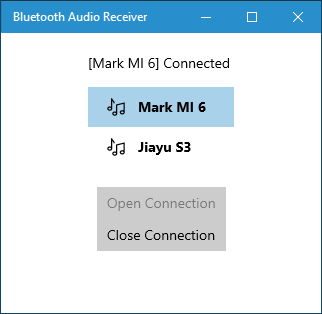
The Bluetooth Audio Receiver, developed by Mark Smirnov and available through the Microsoft Store, leverages a feature introduced in Windows 10 version 2004 called Bluetooth A2DP Sink . This native capability is what allows a PC to receive audio over Bluetooth, rather than only sending it out to speakers and headphones—which has been the traditional role of Windows machines.
This comprehensive guide explores everything you need to know about this handy application. We’ll examine its features, setup process, system requirements, practical use cases, alternatives, and answer common questions. Whether you’re a casual user looking to stream music from your phone to PC speakers or a professional wanting to manage audio across multiple devices, understanding this tool can significantly enhance your digital audio experience.
What Is Bluetooth Audio Receiver?
Overview of the Application
Bluetooth Audio Receiver is a free Windows application designed to turn your PC into a Bluetooth audio sink—essentially, a Bluetooth speaker . The app was created to fill a notable gap in Windows functionality: while the operating system has long supported transmitting audio to Bluetooth speakers and headphones, the ability to receive audio from other devices has not been a standard feature.
The app simplifies the process of connecting your PC to Bluetooth-enabled audio sources such as smartphones, tablets, and other portable devices . Once connected, any audio played on the source device—whether music, podcasts, video soundtracks, or voice calls—will play through your computer’s speakers or headphones.
The Technology Behind It: A2DP Sink
The Bluetooth Audio Receiver application relies on a specific Bluetooth profile called Advanced Audio Distribution Profile (A2DP) . More specifically, it uses the “Sink” role within this profile.
In a typical scenario involving Bluetooth audio, your PC has acted as an A2DP Source—the device that sends audio out to Bluetooth speakers or headphones . With the A2DP Sink functionality introduced in Windows 10 May 2020 Update (version 2004), the PC can now be an A2DP Sink—the device that receives audio .
The Bluetooth Audio Receiver acts as a connection manager for this built-in feature. It doesn’t install new Bluetooth drivers or replace your existing Bluetooth hardware’s functionality. Rather, it provides a user-friendly interface to manage the A2DP Sink connections that Windows now supports .
Developer Background
The application was developed by Mark Smirnov and is distributed through the Microsoft Store . This distribution method provides an extra layer of security, as Microsoft conducts regular virus checks on apps available through its store . The app has seen several updates, with version 1.1.5.0 being a notable release that included performance enhancements, bug fixes, and unspecified improvements .
Key Features of Bluetooth Audio Receiver
Simple and Intuitive Interface
One of the most frequently praised aspects of the Bluetooth Audio Receiver is its straightforward design . Users consistently highlight how easy it is to set up and use, making it accessible even for those who aren’t particularly tech-savvy .
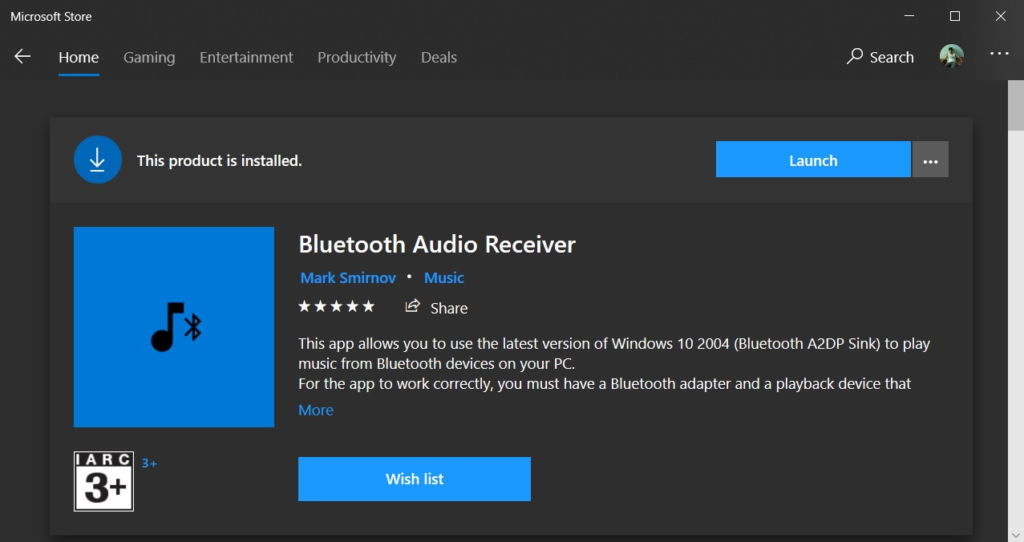
The app’s compact and unobtrusive design ensures it doesn’t clutter your desktop or interfere with other applications . It follows the principle that a utility tool should be functional without being overwhelming.
High-Quality Audio Streaming
The Bluetooth Audio Receiver supports the A2DP protocol, which is designed for high-quality audio transmission . This means users can expect clear, consistent sound when streaming from their Bluetooth devices.
The quality of audio depends on several factors:
- The Bluetooth version and codec support on both devices
- The distance between devices
- The presence of potential interference
Despite these variables, the application generally provides a reliable streaming experience suitable for music listening, podcast enjoyment, and even video watching.
Wide Compatibility
The application is designed to work with any device that supports A2DP audio transmission . This encompasses most modern:
- Smartphones (Android and iOS)
- Tablets
- Portable media players
- Laptops
While many users specifically use the app to stream from Android phones to Windows PCs, it should work with any Bluetooth device that can send A2DP audio .
Low Latency Performance
The efficient design of the application results in minimal audio delay . This low latency makes the app suitable not just for music streaming but also for watching videos and even gaming scenarios where audio sync is crucial.
Minimized latency is particularly valuable when:
- Watching videos from a phone on a PC with better speakers
- Using the PC’s audio system for games played on a phone
- Ensuring lip-sync accuracy in video content
User-Friendly Setup
The app simplifies what could otherwise be a complex connection process. Rather than navigating technical Bluetooth configuration menus, users can connect their devices with a few simple clicks .
System Requirements and Compatibility
Operating System Requirements
The Bluetooth Audio Receiver has specific Windows version requirements due to its reliance on the A2DP Sink feature :
| Requirement | Details |
|---|---|
| Minimum OS | Windows 10 version 2004 (build 19041) or later |
| Supported OS | Windows 10, Windows 11 |
| Platform | Windows (x86, x64) |
The app will not work on earlier versions of Windows 10 that predate the May 2020 Update because the underlying A2DP Sink functionality wasn’t available .
Hardware Requirements
To use Bluetooth Audio Receiver, your PC needs:
Bluetooth Hardware: Either a built-in Bluetooth adapter or an external USB Bluetooth dongle . Many modern laptops and some desktop motherboards include Bluetooth support. If your PC doesn’t have Bluetooth, you can purchase a reasonably priced USB dongle to add this capability .
A2DP-Compatible Source Device: The device you want to stream from (typically a smartphone or tablet) must support the A2DP profile. Most modern smartphones do, but it’s worth confirming before troubleshooting potential connection issues .
Windows 10/11: The app is exclusively for Windows and does not support macOS or Linux platforms.
File Size and Installation
The application has a modest file size of approximately 25.7MB, making it a lightweight addition to your PC . It is distributed through the Microsoft Store, which simplifies the installation process and ensures users receive an authentic, malware-free version .
How to Use Bluetooth Audio Receiver: A Step-by-Step Guide
Prerequisites
Before beginning the setup, ensure you have :
- A Windows 10 or 11 PC with the May 2020 Update (version 2004) or later installed
- A Bluetooth adapter (built-in or USB dongle) properly installed and functioning
- A smartphone, tablet, or other A2DP-compatible device
- Both devices charged and within Bluetooth range (approximately 10 meters/33 feet)
Step 1: Install the App
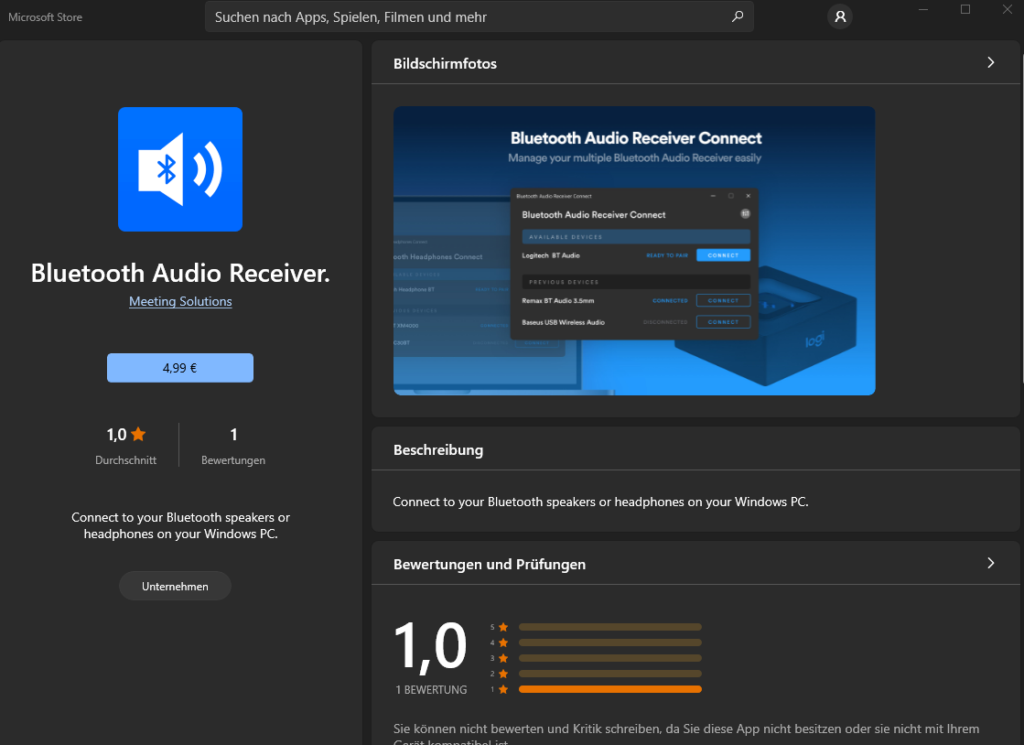
Open the Microsoft Store on your Windows PC and search for “Bluetooth Audio Receiver” (developer: Mark Smirnov) . Click the “Install” or “Get” button to download and install the application. Once the installation completes, launch the app from your Start menu.
Step 2: Set Up Bluetooth on Your PC
Navigate to your PC’s Bluetooth settings:
- Go to Settings > Devices > Bluetooth & other devices (Windows 10) or Settings > Bluetooth & devices (Windows 11)
- Make sure Bluetooth is turned on
- Your PC should now be discoverable to other devices
Step 3: Pair Your Device
On your smartphone or tablet:
- Open the Bluetooth settings
- Make sure Bluetooth is enabled
- Scan for available devices
- Look for your PC’s name in the device list
- Select it and initiate pairing
On your PC, a pairing confirmation prompt may appear (depending on your device). Confirm the PIN displayed matches on both devices (if required). Allow the pairing process to complete.
Step 4: Connect Through the App
- Open the Bluetooth Audio Receiver app on your PC
- A list of paired Bluetooth audio devices should appear
- Find and select your smartphone from the list
- Click the “Open Connection” or similarly labeled button
- The app should now show a connection status
Step 5: Start Streaming
Once connected, you can play any audio on your smartphone—music, videos, podcasts, or voice calls—and the sound should output through your PC’s speakers or headphones . In most cases, audio routes automatically once the connection is established.
Potential Issues and Troubleshooting
Device Not Discoverable: Ensure Bluetooth is enabled on both devices and that the source device is in discovery mode.
Device in List But Won’t Connect: Try removing the device from Windows Bluetooth settings, re-pairing it, and then connecting through the app again .
No Audio After Connection: Check that your PC’s sound output device is set to the correct speakers/headphones. Ensure the volume isn’t muted on either device.
App Doesn’t Work on Windows Updates: If the app stops functioning after a Windows update, ensure the app is updated through the Microsoft Store .
Practical Use Cases for Bluetooth Audio Receiver
Enhancing Home Entertainment
The Bluetooth Audio Receiver can significantly improve home entertainment setups. Many people have high-quality speakers connected to their PCs—perhaps a set of studio monitors, a soundbar, or a home theater system. With this application, users can stream audio from their phones to these superior speakers without investing in a separate Bluetooth receiver or sound system .
Streamlining Work From Home
For remote workers, the app offers a practical solution to a common dilemma. When your headphones are connected to your PC for work calls, you can still listen to audio from your phone without needing to switch devices . Whether checking a quick voice message, listening to a podcast during a break, or reviewing a video sent by a colleague, the audio plays through your existing setup.
Eliminating the “Accidental Mic” Problem
A subtle but appreciated benefit is the ability to avoid the “accidental mic” issue . This occurs when someone is in a video conference or playing a game with a headset, then plays something on their phone, causing the phone’s audio to be picked up by the PC’s microphone and broadcast to others. By routing the phone’s audio through the PC, the sound remains local and doesn’t cause disruptions.
Multi-Device Audio Management
Power users managing audio from multiple sources can benefit from the app’s capability to aggregate audio. Content creators, streamers, and podcasters may find this useful for incorporating phone-based audio into their PC-based production workflows.
Using Legacy Devices
The app can breathe new life into PCs used in secondary roles. An older laptop or desktop with good speakers can become a central audio hub for the household, receiving streams from various family members’ devices .
Limitations and Considerations
Windows Version Dependency
The most significant limitation is the app’s dependency on Windows 10 version 2004 or later. Users on older Windows versions cannot use this application . For those on older systems, alternatives like Bluesoleil or other third-party Bluetooth stacks may be required to achieve similar functionality .
Device Compatibility Factors
While most modern phones support A2DP, not every Bluetooth device will work seamlessly. Some devices may have limited codec support or implementation quirks that affect the connection quality.
No AVRCP Support
One frequently mentioned limitation is the lack of support for Audio/Video Remote Control Profile (AVRCP) . This profile is what allows a receiving device to control playback on the source device (play, pause, skip, adjust volume). Because AVRCP isn’t implemented, users must control playback from the source device itself.
No HSP/HFP Support
The app doesn’t support Headset Profile (HSP) or Hands-Free Profile (HFP) . This means it primarily works for music/media audio streaming, not for using the PC as a hands-free device for phone calls. For such functionality, other apps or the “Your Phone” companion app may be more suitable.
Potential for Background App Termination
As a Universal Windows Platform (UWP) application, the Bluetooth Audio Receiver might stop functioning if Windows terminates it to save resources, particularly if the app is running in the background without focus . This is a Windows behavior rather than a flaw in the app itself. Ensuring the app’s background permissions are correctly set (Settings > Privacy > Background Apps) can help mitigate this issue.
Alternatives to Bluetooth Audio Receiver
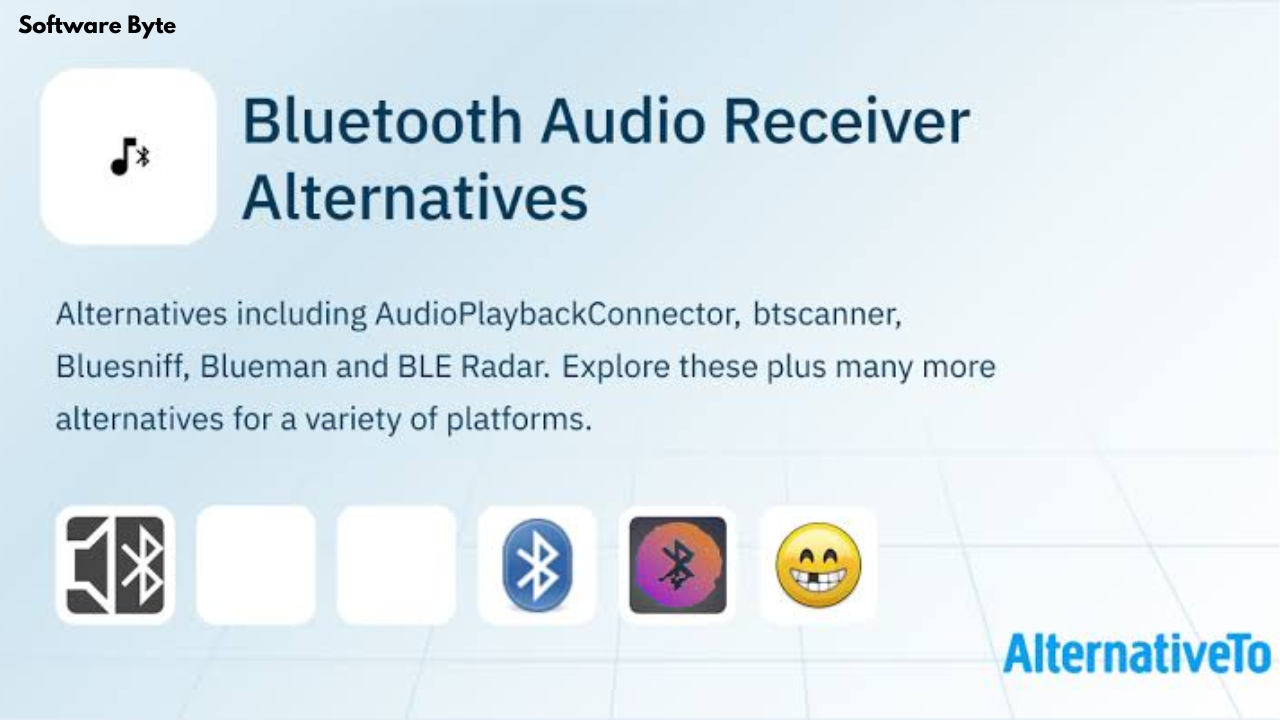
VB-Audio Voicemeeter
Voicemeeter is a powerful virtual audio mixer that offers advanced routing capabilities . While not a dedicated Bluetooth receiver, it can manage audio from Bluetooth devices when used in conjunction with a Bluetooth adapter. It is better suited for streamers, podcasters, and power users who need complex audio routing, equalization, and mixing functionality .
BluetoothWave
This open-source alternative provides A2DP Sink management with a focus on minimalism and privacy . It features system tray integration, auto-reconnect functionality, and portability. BluetoothWave requires no installation and tracks zero telemetry .
AudioPlaybackConnector
Another open-source solution, AudioPlaybackConnector, is designed for Windows 10 version 2004 and later . It provides a modern, minimalistic interface and hides in the system tray for convenient access. It is particularly beneficial for users who prefer a lightweight solution that integrates smoothly into the Windows ecosystem .
Bluesoleil
This third-party Bluetooth stack can provide A2DP sink functionality on systems where the native Windows implementation doesn’t suffice . It is a commercial solution with more comprehensive Bluetooth profile support, though it may require a compatible Bluetooth adapter.
MediaPortal
For users wanting an all-in-one media center solution, MediaPortal includes Bluetooth audio receiving capabilities . It offers extensive features for TV recording, streaming, and media playback, making it a comprehensive solution for home entertainment.
Bluetooth Auto Connect
While not an audio receiver itself, this utility simplifies the connection process by automatically connecting paired devices when they come into range . This convenience can complement other receiver software.
Alternative Feature Comparison
| Feature | Bluetooth Audio Receiver | VB-Audio Voicemeeter | BluetoothWave | AudioPlaybackConnector |
|---|---|---|---|---|
| A2DP Sink | Yes | Yes (with adapter) | Yes | Yes |
| Virtual Mixer | No | Yes | No | No |
| Auto-Reconnect | No | No | Yes | Unknown |
| System Tray | No | Yes | Yes | Yes |
| Open Source | No | No | Yes | Yes |
| Pricing | Free | Free (Donationware) | Free | Free |
Frequently Asked Questions
What is Bluetooth Audio Receiver for Windows?
Bluetooth Audio Receiver is a free application that allows a Windows PC to function as a Bluetooth speaker. It streams audio from a smartphone, tablet, or other compatible Bluetooth device to the PC’s speakers or headphones. The app leverages the A2DP Sink feature introduced in Windows 10 version 2004 to make this possible .
How do I install and set up Bluetooth Audio Receiver?
Install the app from the Microsoft Store, then ensure your PC’s Bluetooth is turned on and pair your smartphone with the PC. Open the app, select your phone from the list, and click “Open Connection” . Once connected, any audio played on the phone will stream to the PC’s speakers . See the detailed step-by-step guide in this article for more instructions.
What are the system requirements for Bluetooth Audio Receiver?
The app requires a PC running Windows 10 version 2004 (build 19041) or later, or Windows 11 . The PC must have Bluetooth hardware, either built-in or via a USB dongle, and the source device must support the A2DP profile .
Why can’t I hear audio after connecting my device?
First, check that your PC’s sound output is set to your speakers or headphones. Ensure neither the source device nor the PC volume is muted . Try re-pairing the devices or restarting the app. If the issue persists, verify that the source device is connected through the app’s “Open Connection” button and not just paired in Windows settings .
Is Bluetooth Audio Receiver safe to download and use?
The application is distributed through the Microsoft Store, which Microsoft regularly scans for malicious software, making it a secure option . The developer, Mark Smirnov, has maintained the app with updates to ensure its continued functionality and safety. To be safe, always download the app through the official Microsoft Store and avoid third-party download sites.
Conclusion
The Bluetooth Audio Receiver application offers a practical and affordable solution for a surprisingly common problem: connecting your smartphone’s audio to your PC’s sound system without wires. By leveraging the A2DP Sink feature built into recent versions of Windows 10 and 11, the application fills a gap in the operating system’s native Bluetooth capabilities.
For casual users seeking to stream music from their phone to their PC speakers, the app provides a remarkably simple setup and consistent performance. It’s also a welcome tool for professionals who want to route all audio through their PC to maintain focus and avoid the distractions of switching between devices. For power users, the application serves as a solid foundation for multi-device audio management, though they may find alternatives with more advanced features better suited to their needs.
That said, the app is not without limitations. Its dependency on Windows 10 version 2004 or later means it’s not available to users on older operating systems. The lack of AVRCP and HSP/HFP support limits its functionality for call management and playback control. And for those requiring more robust audio routing and mixing capabilities, a tool like Voicemeeter or an open-source alternative may be worth considering.
Despite these limitations, the Bluetooth Audio Receiver remains an essential utility for millions of Windows users. Its user-friendly interface, minimal latency, and reliable performance make it an excellent choice for transforming a PC into the central audio hub of a modern digital life. With its availability through the secure Microsoft Store and its continuous updates from the developer, it stands as a testament to the power of third-party apps to enhance and extend the capabilities of the Windows ecosystem.
Whether you’re a music lover looking to get the most out of your speakers, a professional wanting to streamline your workflow, or simply someone who appreciates clever software that solves real problems, the Bluetooth Audio Receiver is a worthy addition to your digital toolkit.