If you have ever spent hours manually formatting citations, searching through piles of PDFs for a single quote, or trying to keep your research organized across multiple devices, you already know the pain. Academic research generates an enormous amount of material—papers, books, notes, highlights, and references—and keeping it all straight can become a full-time job in itself.
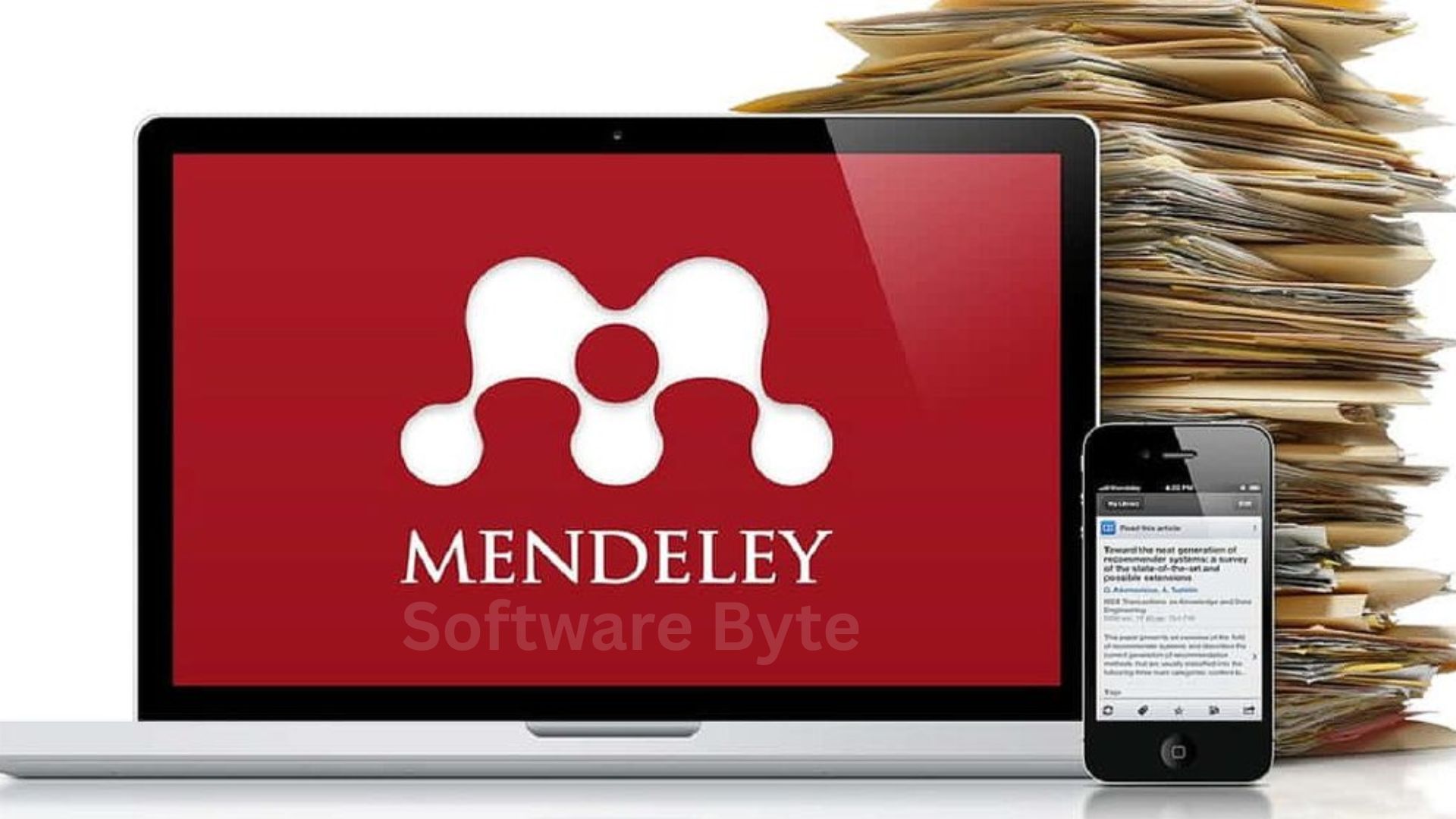
That is where Mendeley Desktop comes in. Designed specifically for students, academics, and researchers, Mendeley acts as a central hub for your entire research workflow. It organizes your PDF library, extracts metadata automatically, lets you annotate and highlight documents, and integrates directly with Microsoft Word and LibreOffice to generate citations and bibliographies in thousands of journal styles.
But Mendeley is more than just a fancy reference manager. It also functions as an academic social network, allowing you to share papers with collaborators, discover trending research in your field, and even find potential research partners. In this comprehensive guide, I will walk you through every feature, explain installation step by step, weigh the pros and cons based on real user experiences, and answer the most common questions about this powerful tool.
Whether you are a first-year undergraduate writing your first term paper or a tenured professor managing a lab’s collective research, this article will help you get the most out of Mendeley Desktop.
Software Overview
Mendeley Desktop is a free reference manager and academic social network developed by Elsevier. It helps researchers organize their documents, collaborate with colleagues, and discover the latest research in their field.
At its core, Mendeley does three things exceptionally well:
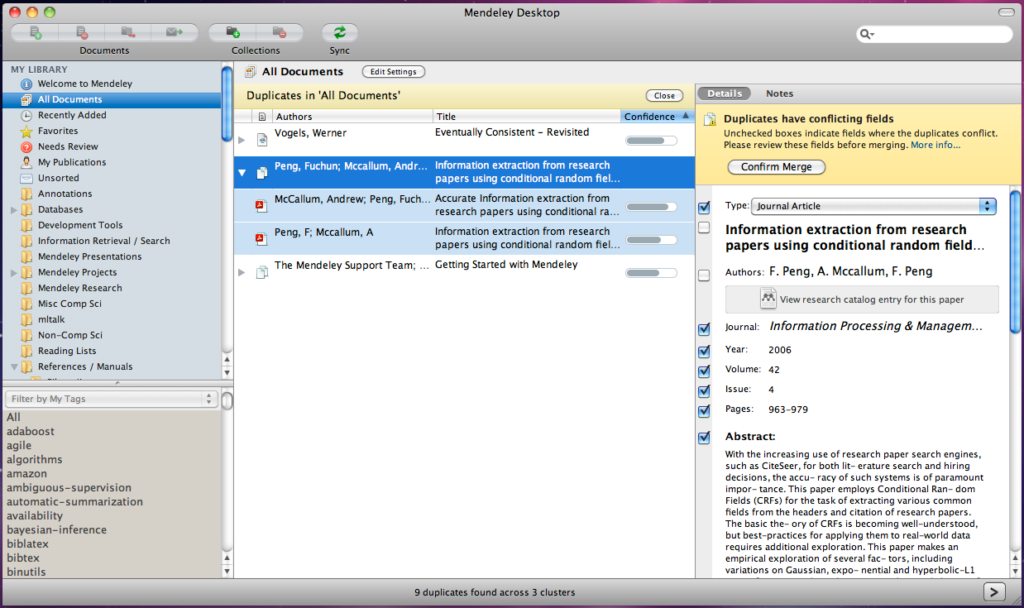
- Library organization: It automatically extracts author, title, journal, and other metadata from PDFs, then lets you organize papers into folders, add tags, and search across the full text of every document.
- Citation and bibliography generation: A plugin for Microsoft Word and LibreOffice allows you to insert citations as you write and automatically generate a formatted bibliography in any citation style (APA, MLA, Chicago, Harvard, IEEE, and thousands more).
- Cloud sync and collaboration: Your library syncs across devices (Windows, Mac, Linux, iOS, Android), and you can share papers and annotations with up to 50 colleagues.
Mendeley also includes built-in PDF annotation tools (highlighting, sticky notes, text selection), a research discovery engine that suggests relevant papers based on your library, and usage statistics that show who is reading and citing publications in your field.
The software is free to use with 2 GB of personal cloud storage. Paid plans are available for additional storage and collaboration features. Mendeley Desktop runs on Windows, macOS, and Linux, making it a cross-platform solution for researchers everywhere.
Main Features (Detailed Descriptions)
1. PDF Library Management
Mendeley’s primary job is to help you organize your growing collection of research papers. When you add a PDF to your library, Mendeley automatically:
- Extracts metadata: It reads the PDF and identifies the title, authors, publication date, journal name, volume, issue, and page numbers. This information populates your reference database without manual data entry.
- Renames files (optional): You can configure Mendeley to automatically rename PDF files using a template (e.g., “Author – Year – Title.pdf”).
- Organizes by folder: Create custom folders for different projects, courses, or topics. A paper can belong to multiple folders without duplication.
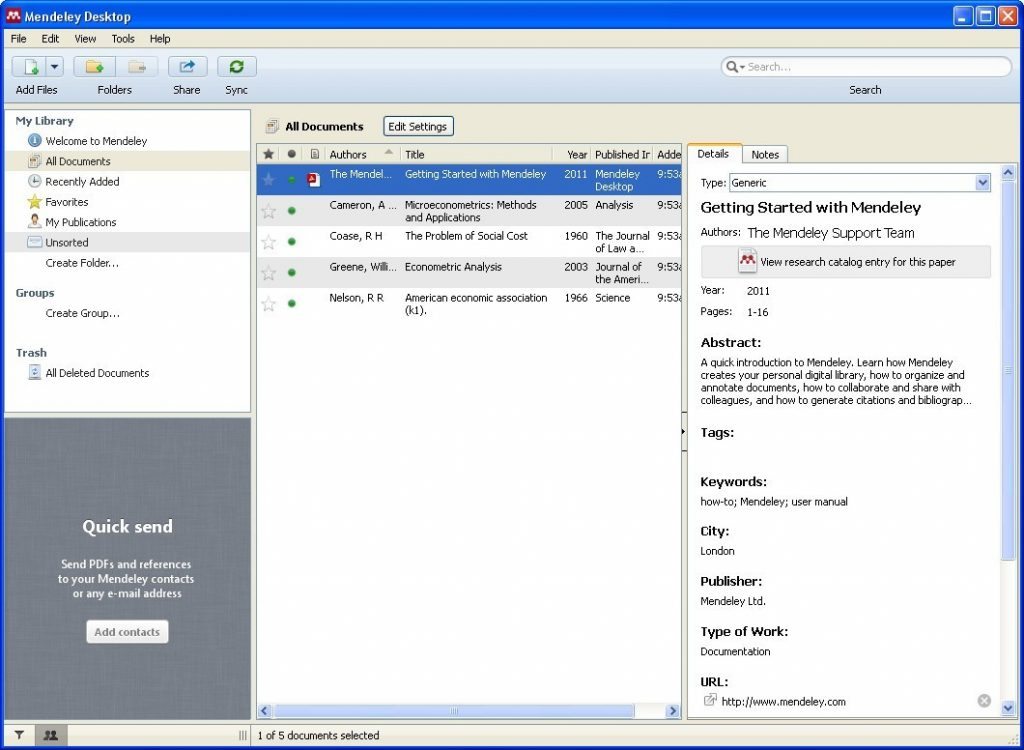
The library interface displays your papers in a clean, searchable list. You can sort by author, year, title, or date added. A powerful search box lets you find any word across all your PDFs—including the full text of every document.
2. PDF Annotation and Highlighting
Reading research papers is active work. Mendeley provides a full suite of annotation tools directly within the desktop application:
- Highlighting: Select text and apply a colored highlight (yellow, green, blue, red, or pink).
- Sticky notes: Add notes that attach to specific locations in the document. These appear as small icons that expand when clicked.
- Text selection and copy: Copy quoted passages directly into your writing.
- Search within PDF: Find specific terms inside a single document.
All annotations are saved with your library and synced across devices. Your notes and highlights stay attached to the correct paper even when you switch computers.
3. Citation and Bibliography Generator
This is the feature that saves the most time. Mendeley installs a plugin for Microsoft Word (Windows and Mac) and LibreOffice that adds a Mendeley toolbar. With it, you can:
- Insert citations as you write, selecting papers from your library by author, title, or year.
- Choose from thousands of citation styles (APA 7th, MLA 9th, Chicago 17th, Harvard, IEEE, Vancouver, and many more). You can even customize existing styles or create your own.
- Automatically generate a bibliography at the end of your document. The bibliography updates dynamically as you add or remove citations.
- Refresh citations if you change a paper’s metadata in your library.
This integration eliminates manual formatting errors and makes it trivial to reformat an entire paper for a different journal.
4. Cloud Sync and Cross-Device Access
Your research should not be trapped on a single computer. Mendeley syncs your entire library—including PDFs, annotations, notes, and folders—to the cloud. You can then access your library from:
- Mendeley Desktop on other Windows, Mac, or Linux computers.
- Mendeley Web through any browser.
- Mendeley mobile apps for iOS and Android (for reading and annotating on the go).
When you make changes on one device (adding a paper, highlighting a passage, editing metadata), those changes automatically appear everywhere else. Offline access is also supported; Mendeley caches your library locally and syncs when you reconnect.
5. Collaboration and Group Sharing
Research is rarely a solo endeavor. Mendeley allows you to create private groups where you and up to 50 colleagues can:
- Share full-text PDFs (subject to copyright restrictions).
- Collaborate on annotations – each group member can add highlights and notes visible to others.
- Maintain a shared bibliography – all group members see and can contribute to the same reference list.
- Discuss papers via group chat or comments (depending on the group type).
For larger collaborations, public groups allow unlimited members but share only metadata (not full PDFs). Private groups are ideal for lab groups, dissertation committees, or research teams.
6. Research Discovery and Recommendations
Mendeley does not just organize what you already have—it helps you find what you need next. Based on the papers in your library, Mendeley’s recommendation engine suggests:
- Related research papers you may have missed.
- Trending articles in your field (based on readership statistics from other Mendeley users).
- Top authors and journals relevant to your interests.
The “Papers You Might Like” feature appears in the Mendeley Desktop interface and on the web version. This turns your reference manager into a discovery tool, helping you stay current without endlessly scrolling through journal tables of contents.
7. Watch Folder for Automatic Import
If you already have a folder full of PDFs, manually adding them one by one is tedious. Mendeley’s Watch Folder feature lets you designate a folder on your computer. Any PDF you save to that folder is automatically imported into your Mendeley library, with metadata extracted and filed appropriately.
This is especially useful if you download papers from multiple sources (journal websites, Google Scholar, your institution’s proxy). Just save everything to your watched folder, and Mendeley handles the rest.
8. Web Importer Browser Extension
Mendeley offers browser extensions for Chrome, Firefox, and Edge. When you are browsing a journal website, Google Scholar, PubMed, or any academic database, the Web Importer allows you to:
- Save papers directly to your Mendeley library with one click.
- Capture metadata automatically (no manual copying of author names or titles).
- Download the PDF if you have institutional access or if the paper is open access.
This integration dramatically speeds up literature collection. You no longer need to download a PDF, save it to a folder, then open Mendeley and import it. One click does everything.
9. Citation Style Editor
Mendeley supports over 7,000 citation styles by default, including all major journal formats. However, sometimes you need a style that is not included or you want to modify an existing one. The Citation Style Editor (CSL Editor) allows you to:
- Edit existing styles (e.g., change the order of authors, add or remove URL access dates).
- Create brand new styles from scratch using a visual editor (no coding required).
- Share custom styles with other Mendeley users.
This feature is especially valuable for graduate students writing theses with university-specific formatting requirements.
10. Readership Statistics
Mendeley tracks anonymous usage data across its global user base. For any paper in your library, you can view:
- Number of Mendeley readers (how many users have added this paper to their libraries).
- Demographic breakdown by academic discipline and user status (PhD student, professor, librarian, etc.).
- Trend data (whether readership is growing or declining).
This information helps you gauge the impact and relevance of a paper beyond traditional citation counts. A newly published paper with many Mendeley readers may become highly cited in the future.
System Requirements
| Component | Minimum Requirement |
|---|---|
| Operating System | Windows 11, 10, 8, 7 (64-bit recommended) |
| Processor | 1.5 GHz or faster |
| RAM | 2 GB (4 GB recommended for large libraries) |
| Hard Disk Space | 500 MB for application + additional space for local PDF storage |
| Display Resolution | 1024 x 768 or higher |
| Internet | Required for cloud sync, web importer, and recommendations |
| Office Integration | Microsoft Word 2010, 2013, 2016, 2019, 2021, or Office 365; LibreOffice 5.0 or later |
| Browser Extensions | Chrome, Firefox, Edge (latest versions) |
| Additional Software | .NET Framework 4.7.2 or later (Windows) |
Installation Steps (Numbered Format)
Follow these steps to install Mendeley Desktop on your Windows PC:
Step 1: Download the Installer
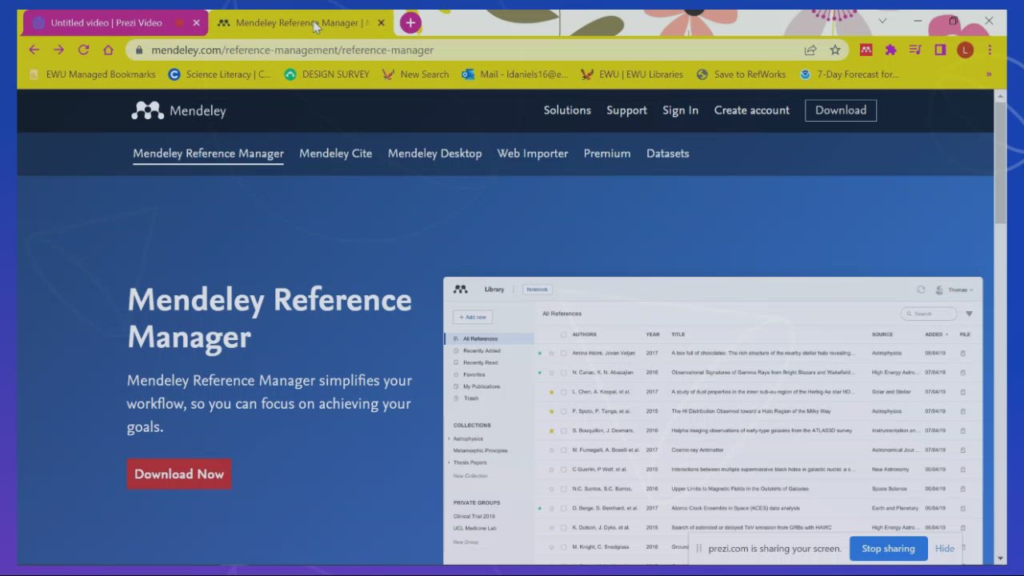
- Go to a trusted source (CNET Download or the official Mendeley website).
- Click the Download button and save the installer file (usually named
Mendeley-Desktop-x.x.x.exe).
Step 2: Run the Installer
- Locate the downloaded file in your Downloads folder.
- Double-click the installer to launch it.
- If Windows SmartScreen appears, click “More info” then “Run anyway” (the software is safe).
Step 3: Choose Installation Type
- The installer offers two options:
- Install for me only (recommended – installs to your user folder)
- Install for all users (requires administrator privileges)
- Select your preference and click Next.
Step 4: Accept License Agreement
- Read the terms (standard end-user agreement).
- Check the box “I accept the license agreement”.
- Click Next.
Step 5: Choose Installation Location (Optional)
- The default location is
%LocalAppData%\Programs\Mendeley Desktop. - To change it, click Browse and select a different folder.
- Click Next.
Step 6: Create Start Menu Shortcut (Optional)
- Choose whether to create a Start Menu folder for Mendeley.
- The default name is “Mendeley Desktop”. You can change it or select “Don’t create a Start Menu folder”.
- Click Next.
Step 7: Additional Tasks
- Create a desktop icon: Check this box if you want a shortcut on your desktop.
- Launch Mendeley Desktop when installation completes: Keep checked.
- Click Next.
Step 8: Complete Installation
- Click Install to begin copying files.
- Wait for the progress bar to complete (usually 1-2 minutes).
- Click Finish.
Step 9: First-Time Setup
- Mendeley will launch automatically.
- Sign in with your existing Mendeley account or click “Create account” to register (free).
- After signing in, Mendeley will offer a brief tutorial. Take it if you are new to the software.
Step 10: Install Word/LibreOffice Plugin
- Open Mendeley Desktop.
- Go to Tools > Install MS Word Plugin (or LibreOffice Plugin).
- Follow the prompts. This step is required to use citations and bibliographies.
Step 11: Set Up Watch Folder (Optional)
- Go to Tools > Options (or Edit > Settings on some versions).
- Select the Watcher tab.
- Click Add and choose a folder on your computer.
- Any PDF saved to this folder will be automatically imported into Mendeley.
You are now ready to start building your research library.
Pros and Cons
Pros
- ✅ Free to use – 2 GB of cloud storage with no time limit.
- ✅ Excellent PDF metadata extraction – Saves hours of manual data entry.
- ✅ Powerful annotation tools – Highlight, sticky notes, and search inside PDFs.
- ✅ Seamless Word/LibreOffice integration – Insert citations and generate bibliographies effortlessly.
- ✅ Multi-platform sync – Windows, Mac, Linux, web, and mobile.
- ✅ Collaboration features – Share papers and annotations with up to 50 colleagues.
- ✅ Research discovery – Paper recommendations based on your library.
- ✅ Web importer browser extensions – Save papers from journals with one click.
- ✅ Thousands of citation styles – Includes all major journal formats, with a custom style editor.
- ✅ Watch folder – Automatic import from any folder on your computer.
- ✅ Readership statistics – See how many other researchers are reading a paper.
Cons
- ❌ Can crash or freeze – Several user reviews report stability issues, especially with large libraries or after updates.
- ❌ Syncing problems – Some users lose annotations or notes after syncing, particularly when working offline.
- ❌ Broken file links – Mendeley sometimes loses the connection to stored PDFs, requiring manual repair.
- ❌ Limited free storage – 2 GB fills quickly if you have many PDFs (especially image-heavy articles).
- ❌ No backup of PDFs with library – Exporting your library does not include attached PDF files.
- ❌ Customer support is slow – Users report patchy email support and closed forum threads.
- ❌ Owned by Elsevier – Some academics object to supporting a large commercial publisher.
- ❌ Occasional metadata errors – Automatic extraction is not perfect; you may need to correct entries manually.
Practical Use Cases and Benefits
1. Writing a PhD Dissertation
A dissertation requires hundreds of references across multiple chapters. Mendeley lets you organize papers by chapter folder, annotate PDFs as you read, and automatically generate a formatted bibliography at the end of each chapter. The Word plugin handles citations in real time, so you never worry about formatting until the very end. Benefit: Saves days of manual reference work and eliminates formatting errors.
2. Collaborative Grant Proposal
You and three colleagues are writing a large grant proposal with a 100+ reference bibliography. Create a private Mendeley group, share all relevant PDFs, and add group annotations to highlight key findings. Each person writes their section in Word, inserting citations from the shared group library. The final merged document keeps all references consistent. Benefit: Everyone works from the same source set; no duplicate or missing citations.
3. Systematic Literature Review
A systematic review involves screening hundreds or thousands of papers. Mendeley’s powerful search (including full-text PDF search) lets you quickly find relevant passages across your entire corpus. Use tags to mark papers as “include”, “exclude”, or “needs review”. Export the list of included papers with metadata for your PRISMA flow diagram. Benefit: Makes large-scale reviews manageable and traceable.
4. Teaching a University Course
As an instructor, you can create a public group for your course. Share readings (where copyright permits), post announcements, and let students see which papers are most popular among their peers. Students can use Mendeley to organize their own research for term papers. Benefit: Centralizes course materials and teaches students good reference management habits.
5. Cross-Platform Research
You use a Windows desktop in the lab, a MacBook at home, and an iPad while commuting. Mendeley syncs your library across all devices. Start reading and highlighting a paper on your iPad during the train ride; pick up exactly where you left off on your lab desktop. Benefit: No more emailing PDFs to yourself or losing track of which version is current.
6. Preparing a Manuscript for Submission
Different journals have different citation styles. Mendeley stores the citation style with the document. Write your paper in APA format, then switch to Vancouver (or any other style) with two clicks. The entire in-text citations and bibliography reformat automatically. Benefit: Submit to multiple journals without manually redoing references.
7. Keeping Up with New Research
Create a watch folder linked to your download folder. Every time you download a PDF from a journal website, Mendeley automatically imports it, extracts metadata, and adds it to your library. The recommendation engine then suggests related papers you might have missed. Benefit: Your library grows and updates itself with minimal effort.
FAQs (Frequently Asked Questions)
1. Is Mendeley Desktop really free?
Yes. The free version includes 2 GB of personal cloud storage, unlimited library size (the limit is on PDF attachments, not on metadata), and all core features (PDF annotation, Word plugin, web importer, up to 50 private group members). Paid plans (Mendeley Plus, Pro, and Institutional) offer more storage (up to 20 GB or unlimited) and additional collaboration features. For most individual researchers and students, the free version is sufficient.
2. How is Mendeley different from Zotero or EndNote?
- Zotero is open-source, highly extensible, and better for those who want full control. It is also free. However, Mendeley’s PDF annotation interface is generally considered more polished.
- EndNote is premium software (costs money) used more often in scientific and medical fields. It has more advanced features for very large libraries (tens of thousands of references) but a steeper learning curve.
- Mendeley sits in the middle: free like Zotero, but with a cleaner interface and stronger social/collaboration features. Many researchers switch from Mendeley to Zotero after experiencing crashes or sync issues (as seen in user reviews).
3. Why does Mendeley crash so often for some users?
Mendeley Desktop is built on older software frameworks (Qt and legacy code). Users with very large libraries (10,000+ papers), those who leave Mendeley running for weeks, or who use complex PDF annotations report more crashes. Mitigations: Keep Mendeley updated, avoid using it as a 24/7 background service, occasionally rebuild your local cache (Tools > Rebuild Local Database), and consider Zotero if crashes persist.
4. Can I use Mendeley offline?
Yes. Mendeley caches your library locally. You can read, annotate, and organize papers without an internet connection. When you reconnect, Mendeley will sync your changes to the cloud. However: Be careful. One user reported losing annotations when an offline library synced with an older cloud version. Manually trigger a sync (Tools > Sync Library) before and after offline work to reduce risk.
5. How do I back up my Mendeley library and PDFs?
Mendeley does not include PDFs in the standard library export (.bib or .ris files). To back up everything:
- Back up the local database folder: On Windows, this is usually
C:\Users\[YourName]\AppData\Local\Mendeley Ltd\Mendeley Desktop. - Copy your PDF storage folder: By default,
C:\Users\[YourName]\Documents\Mendeley Desktop. - Use a third-party backup tool (like Google Drive, Dropbox, or a USB drive) to copy these folders regularly.
- Alternatively, use Zotero with a WebDAV server for automatic, backup-included syncing.
6. Does Mendeley work with Google Docs?
No, not directly. Mendeley’s citation plugin is for Microsoft Word and LibreOffice only. For Google Docs, you have two options:
- Use Zotero (which has a Google Docs add-on).
- Use Mendeley Web Importer to save references, then manually copy formatted citations from Mendeley Desktop into Google Docs.
- Use Paperpile (paid) or MyBib (free) as alternative Google Docs reference managers.
7. How do I change the citation style in Word?
- In Microsoft Word, click the Mendeley tab in the ribbon.
- Click “Style” (or “Refresh” next to the style dropdown).
- Search for the style you need (e.g., “APA 7th”).
- Select it. All in-text citations and the bibliography will update immediately.
- If your style is not listed, click “More Styles…” and install it from the CSL repository.
8. Can I annotate PDFs on my tablet or phone?
Yes. The Mendeley mobile apps (iOS and Android) support PDF viewing, highlighting, and sticky notes. Annotations sync back to Mendeley Desktop. However, the mobile apps are more limited than the desktop version (e.g., no Word plugin, more basic search). For intensive annotation, stick to the desktop application.
9. What happens to my library if I stop using Mendeley?
You can export your entire library as a BibTeX (.bib) or RIS (.ris) file. These formats are readable by almost all other reference managers (Zotero, EndNote, Paperpile, etc.). However, as noted above, PDFs are not included in the export. You must manually copy your PDF folder to the new software. Mendeley does not hold your references hostage, but transferring PDFs requires some manual work.
10. Why does Mendeley sometimes extract the wrong metadata?
Mendeley relies on PDF metadata (embedded by publishers) and DOIs (Digital Object Identifiers). If a PDF is scanned poorly, lacks a DOI, or came from a preprint server, the automatic extraction may fail or produce errors. Fix it manually: Select the paper, click the “Details” tab, and edit the fields (author, title, year, etc.). For batch fixes, use the “Update Details” button to search online databases based on the DOI or title.
Conclusion
Mendeley Desktop is a powerful, free tool that solves a real problem: how to manage the ever-growing pile of research papers, citations, and notes that defines academic life. For students writing their first term paper, it eliminates the terror of manual bibliographies. For seasoned researchers, it offers cloud sync, collaboration, and discovery features that streamline the entire research workflow.
However, Mendeley is not perfect. User reviews consistently point to stability issues—crashes, broken file links, and syncing problems—especially with larger libraries or after extended use. The fact that some researchers have migrated to Zotero citing these frustrations is worth taking seriously.
So, who is Mendeley for?
- Best for: Undergraduate and graduate students, early-career researchers, and research teams working on collaborative projects. The free tier is generous, the Word plugin is excellent, and the PDF annotation tools are genuinely good.
- Consider alternatives if: You have a library of 10,000+ papers, you have experienced repeated crashes, you need guaranteed reliable offline sync, or you object to Elsevier’s ownership.
If you decide to use Mendeley, back up your library regularly and keep an eye on the growing Zotero or EndNote alternatives. For most users, though, Mendeley Desktop will be a transformative tool—one that turns reference management from a chore into a background task, freeing you to focus on what matters: your research.