SEO Meta Description
Learn how to export your Outlook folder structure. Discover built-in methods, third-party tools, and command-line solutions for backing up your email organization.
Introduction
If you’ve ever spent hours building a perfect folder system in Outlook only to dread the thought of recreating it manually, you’re not alone. The complex web of nested folders, rules, and subfolders that keep your email organized is a valuable asset—one that deserves protection and portability.
Exporting your Outlook folder structure allows you to back up your organization system, transfer it to a new account, or share it across multiple mailboxes. Unfortunately, Microsoft doesn’t make this process entirely straightforward. But with the right tools and techniques, you can save and restore your folder hierarchy efficiently.
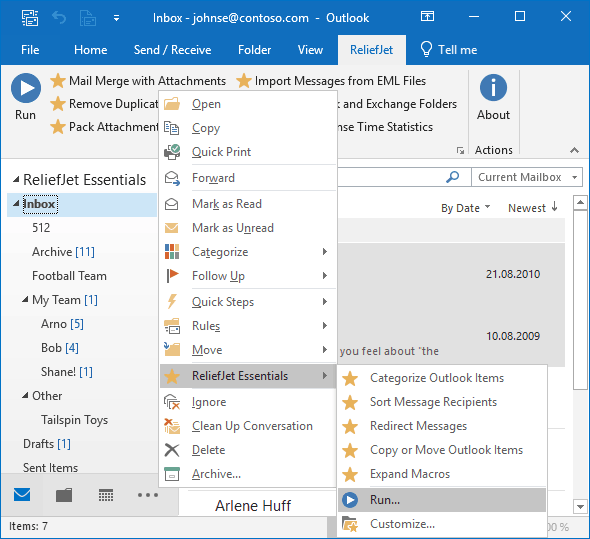
Let’s explore the various methods available for exporting Outlook folder structures, from built-in workarounds to specialized third-party solutions .
Why Export Your Outlook Folder Structure?
Common Use Cases
Account Migration
When switching email providers or moving to a new Outlook account, preserving your folder organization saves hours of manual recreation.
Profile Rebuilding
If you need to create a new Outlook profile or reinstall your system, having your folder structure backed up means you can restore your familiar organization instantly.
Standardization
Organizations often want to deploy a consistent folder structure across multiple team members, ensuring everyone organizes their email the same way .
Backup and Disaster Recovery
Your folder hierarchy represents valuable organizational work. Exporting it provides a backup in case of data loss.
Understanding Outlook’s Built-In Limitations
What the Built-In Export Does
Outlook’s native “Export to a .pst file” feature is powerful but with an important limitation for those seeking to copy just the hierarchy: it always exports folder contents (emails, calendar items, contacts) alongside the structure .
What’s included in a .pst export :
- Complete folder structure, including subfolders
- All mail items and attachments
- Calendar events, contacts, and tasks (if selected)
- Embedded images and formatting
- Read/unread status of emails
What’s not possible: Exporting folders without their contents in one simple step.
The Workaround: Creating an Empty Structure
As Microsoft experts note, Outlook doesn’t include a built-in “duplicate structure” button because folders and emails are stored together in data files. The system assumes folders are tied to their contents .
However, workarounds exist. One method involves the Archive feature :
- Navigate to File → Info → Tools → Clean Up Old Items
- Select Archive this folder and all subfolders
- Choose the root folder you want to copy
- Set Archive items older than to a very old date (e.g., 01/01/1950)
- Name and save the new PST file
This creates a new PST with your folder structure intact but only those old emails remain (none, if set correctly). You can then use this PST as a template.
Method 1: Microsoft’s Built-In Export Method
Step-by-Step Instructions
If you’re using the classic Outlook desktop app (the export feature is not available in the new Outlook or web version), follow these steps :
- Open Outlook (Classic)
- Click File in the upper-left corner
- Select Open & Export from the left-hand menu
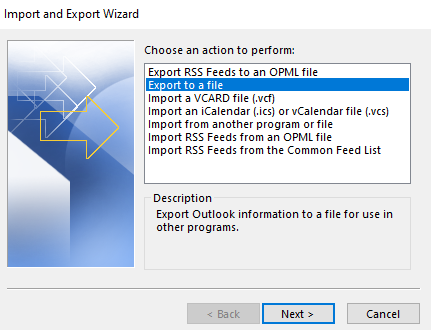
- Choose Import/Export
- Select Export to a file from the list
- Choose Outlook Data File (.pst) and click Next
- Select the folder to export:
- To export a specific folder, click on it (e.g., Inbox)
- To export your entire mailbox, select your email address at the top of the hierarchy
- Check Include subfolders if you want everything nested within your selection
- Click Next and choose where to save your .pst file
- Select Replace duplicates with items exported (for a new file)
- Click Finish and optionally set a password (remember it—if forgotten, your data is gone)
What to Expect
- The export preserves your folder structure, including subfolders, while also exporting the actual mail items
- The process may take time depending on mailbox size
- You’ll have a .pst file that can be imported into Outlook on another device
Method 2: Specialized Export Tools
Dedicated Folder Structure Exporters
For those who want to export only the folder structure without any content, third-party utilities are available.
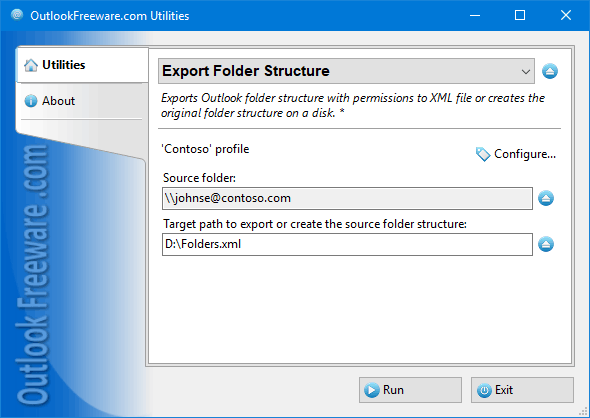
Export Folder Structure Utility from Outlook Freeware
This tool exports Outlook folder structures to XML files, retaining folder types and customized user permissions .
Key Features:
- Exports to XML format
- Preserves folder types (mail, calendar, contacts, tasks, etc.)
- Retains customized user permissions
- Command-line interface for enterprise deployment
- Can be edited with any text editor
The saved XML files serve as a backup of your customized folder hierarchy and can be imported into another folder, new mailbox, or Exchange Public Folder using the companion Import Folder Structure utility .
Method 3: Command-Line and Scripting Solutions
Technical Approaches for Power Users
Python-Based Solution
A GitHub project called “outlook-folder-sync-tool” offers a command-line approach :
Features:
- Export Outlook folder structure to a JSON file
- Import folder structure from a JSON file
- Supports nested folder hierarchies
- Command-line interface
Example Usage:
poetry run python src/outlook_folder_export.py john.doe@example.com InboxNote: This requires Python 3.7+, Poetry for dependency management, and works exclusively on Windows due to Win32 COM interface requirements .
Method 4: VBA Macros
Custom Code for Advanced Users
For those comfortable with programming, VBA scripts can replicate folder hierarchies automatically . While creating VBA code requires technical skill, it offers maximum flexibility for custom needs.
Method 5: Alternative Backup Tools
Comprehensive Outlook Backup Software
For users who want more than just folder structure exports, full-featured backup tools like Advik Outlook Backup offer additional capabilities :
- Exports emails, attachments, and folder structure to 30+ file formats
- Preserves original folder hierarchy and email metadata
- Direct migration to Gmail, Office 365, and Yahoo Mail
- Batch backup of multiple Outlook accounts
- Advanced filtering options for selective backups
Choosing the Right Method for Your Needs
| Method | Best For | Pros | Cons |
|---|---|---|---|
| Built-in .pst Export | Full email migration | Microsoft-supported; works out-of-box | Exports contents with structure |
| Archive Workaround | Creating empty structure templates | No third-party tools needed | Workaround; requires setup |
| Export Folder Structure Tool | Exporting structure only (XML) | Free for personal use; preserves permissions | Non-commercial use only |
| Python Command-Line Tool | Technical users; automation | Supports nested hierarchies; JSON format | Requires Python setup |
| VBA Script | Custom enterprise solutions | Fully customizable | Requires programming skills |
| Professional Backup Tools | Comprehensive backup and migration | Feature-rich; supports batch operations | Cost involved |
Frequently Asked Questions (FAQs)
1. Can I export my Outlook folder structure without exporting the actual emails?
Microsoft’s built-in .pst export always exports folder contents. However, workarounds exist: use the Archive feature with a very old date or use third-party utilities like Export Folder Structure, which exports to XML without content .
2. What version of Outlook supports exporting folder structures?
Exporting to .pst is supported in classic Outlook for Microsoft 365 and standalone versions including Outlook 2024, 2021, 2019, 2016, and older . The new Outlook app and web version do not support the export feature .
3. How do I export my Outlook folder hierarchy for a new employee?
You can either export your folder structure via one of the specialized XML/JSON tools and import it, or create an empty structure template using the archive workaround and provide it as a starting point .
4. Can I export folder permissions along with the structure?
Yes, utilities like the Export Folder Structure tool can export customized user permissions along with the folder hierarchy .
5. Is there a free way to export my Outlook folder structure?
Several free options are available: the built-in .pst export method, the archive workaround, the Export Folder Structure utility for non-commercial use, and open-source Python tools on GitHub .
Conclusion
Exporting your Outlook folder structure is more than a convenience—it’s a strategic way to protect your organizational system and streamline migrations. While Microsoft doesn’t provide a one-click solution for exporting structure alone, multiple methods exist to suit different needs and technical levels.
For most users, the built-in .pst export provides a reliable backup that includes both structure and content. Those needing structure-only exports can turn to specialized utilities or command-line tools. And for enterprises, scripting solutions offer powerful automation possibilities.
The right method depends on your specific needs: full mailbox migration, structure-only backup, permissions preservation, or automated deployment. Whatever your requirement, there’s a solution ready to help you export your Outlook folder structure efficiently.