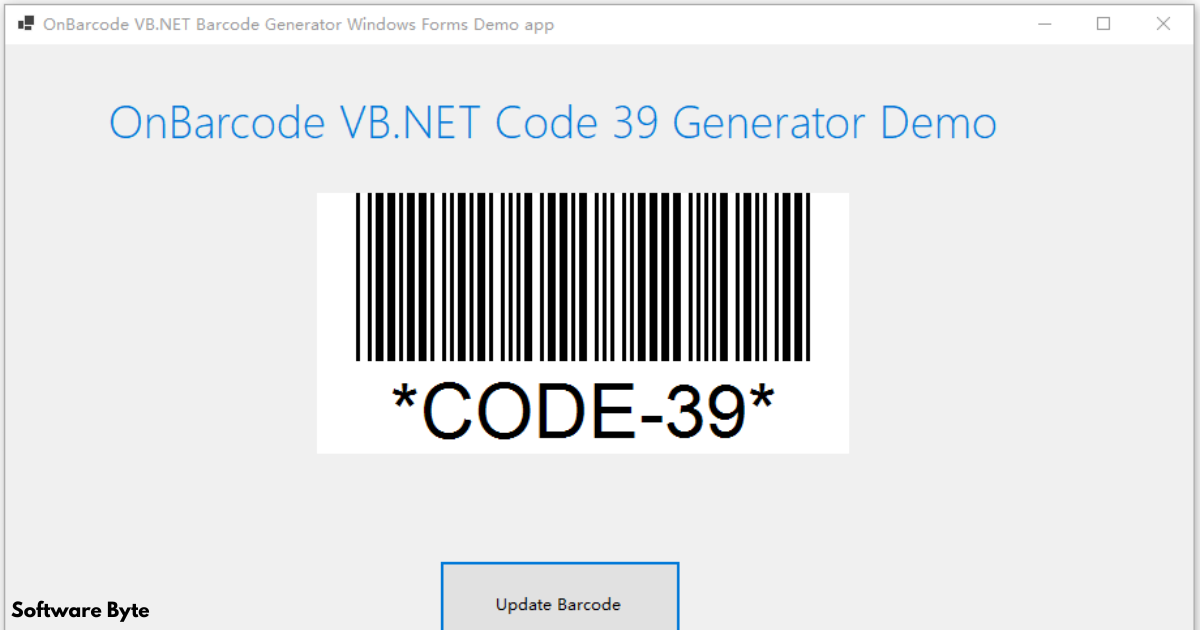
In the world of database management and inventory tracking, barcodes have become an indispensable tool. They offer a fast, accurate, and efficient way to input data, reduce human error, and streamline operations. For organizations that rely on Microsoft Access to manage their data, integrating barcode generation directly into their databases can be a game-changer. This is where the concept of a Code 39 Native Microsoft Access Barcode Generator comes into play. This article explores what this technology is, how it works, and why it is so valuable for businesses and developers alike.
Understanding the Code 39 Barcode Symbology
Before diving into the generator, it is helpful to understand the barcode symbology it creates. Code 39, also known as Code 3 of 9, is one of the oldest and most widely used barcode standards in the world.
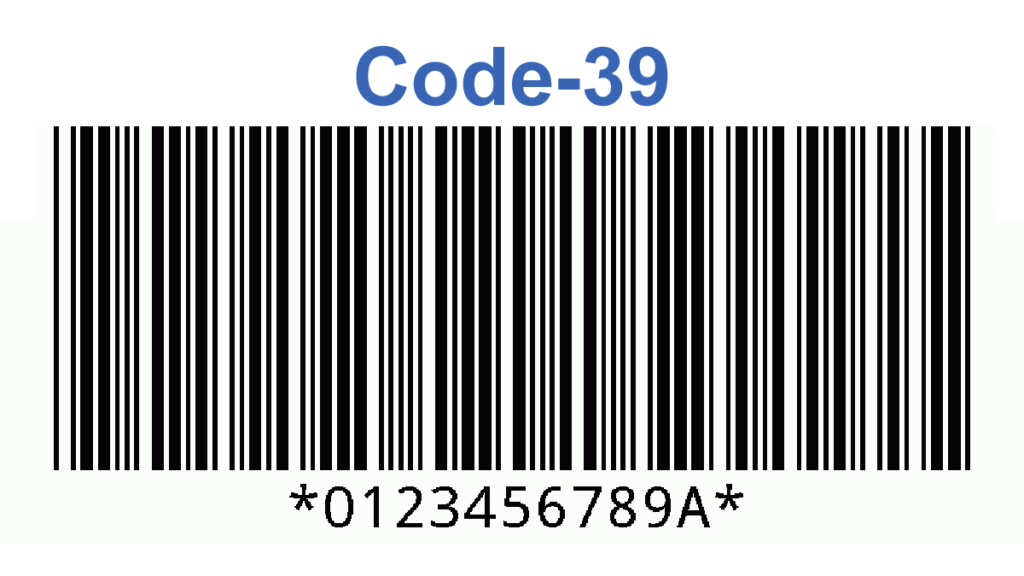
The History of Code 39
Code 39 was developed in 1974 by David Allais and Raymond Stevens, who were then with Interface Mechanisms Inc. (now Intermec Corporation) . It was a significant innovation because it was the first barcode symbology to encode not just numbers, but also uppercase letters and several special characters. This made it much more versatile than the purely numeric barcodes that preceded it.
Its adoption was accelerated by its use in the Logistics Applications of Automated Marking and Reading Symbols (LOGMARS) system for the U.S. military . It has since become a standard in many industries for inventory management, asset tracking, and identification. The standard is defined in ISO/IEC 16388 .
How Code 39 Works
The name “Code 39” is derived from a fundamental characteristic of the symbology: each character is represented by a pattern of nine elements (five bars and four spaces), three of which are always wide .
- Character Set: Code 39 can encode 43 characters, including uppercase letters (A-Z), numbers (0-9), and seven special characters: space, period (.), hyphen (-), plus (+), dollar sign ($), slash (/), and percent (%) .
- Start/Stop Characters: Every Code 39 barcode begins and ends with a special start and stop character, usually an asterisk (*) . This tells the scanner where the barcode begins and ends. These characters are not transmitted as part of the data.
- Check Digit: Code 39 supports an optional check digit based on a Modulo 43 calculation to ensure data integrity .
Full ASCII Code 39
A variation known as Code 39 – Full ASCII extends the symbology to encode the entire 128-character ASCII set . It does this by using special two-character combinations from the standard Code 39 character set. For example, a lowercase “a” is encoded as “+A” . This allows for a much broader range of data to be encoded, but it comes at the cost of reduced character density; the barcode becomes about twice as long to represent these characters .
What is a Native Microsoft Access Barcode Generator?
A Code 39 Native Microsoft Access Barcode Generator is a software solution designed specifically to create Code 39 barcodes within the Microsoft Access environment . What makes it “native” is its method of implementation: it is typically delivered as a VBA (Visual Basic for Applications) module . This means it is a piece of code that is embedded directly into your Access database.
The “Native” Advantage
This native approach offers several significant benefits over other methods, such as using fonts or third-party plug-ins:
- No External Dependencies: The most significant advantage is that the generator has no external dependencies. It does not require you to install special barcode fonts, DLLs, or other plug-ins on the computer where the database will run . This is critical for distributing Access databases to multiple users; the barcodes will work on any machine without any extra setup.
- Portability and Self-Containment: Once the VBA module is imported into your database, it becomes a permanent part of that database . When you distribute the
.accdbor.accdefile, the barcode generation capability goes with it. This simplifies deployment significantly. - Integration and Control: The module integrates directly with Access forms and reports. This provides developers with granular control over the barcode output using VBA code . They can adjust parameters like the barcode’s width (X dimension), height, and color.
Key Features of a Code 39 Native Access Generator
A robust generator will offer a range of features to give developers the flexibility they need.
Dynamic Barcode Generation
The generator can create barcodes dynamically based on data in your tables, forms, or reports . For example, if a table contains a list of product IDs, the generator can produce a unique Code 39 barcode for each product on a report.
High Customizability
Developers can often adjust several parameters to fine-tune the barcode output . Common parameters include:
- Mils (X-Dimension): The width of the narrowest bar in the barcode, which determines its overall density and readability.
- N_Dimension: The width ratio between the wide and narrow bars in the barcode. Standard ratios are 2:1 and 3:1 .
- IncludeCheckDigit: An option to add the Modulo 43 check digit to the barcode for error detection .
- Orientation: The ability to print barcodes at different angles (e.g., 0, 90, 270 degrees) .
- DPI (Dots Per Inch): The resolution of the generated barcode image .
Support for Multiple Barcode Types
While the focus here is on Code 39, many “native” generators are part of a larger suite that supports other common barcode symbologies . This might include Code 128, Code 93, Interleaved 2 of 5, QR Codes, Data Matrix, and PDF417. This makes the tool a comprehensive solution for various barcode needs.
Source Code Availability
A critical feature for developers is the inclusion of the complete source code for the VBA module . This allows developers to understand how the generator works, modify it if needed, and maintain it themselves. It also eliminates the risk of dependency on a third-party component that may not be supported in the future.
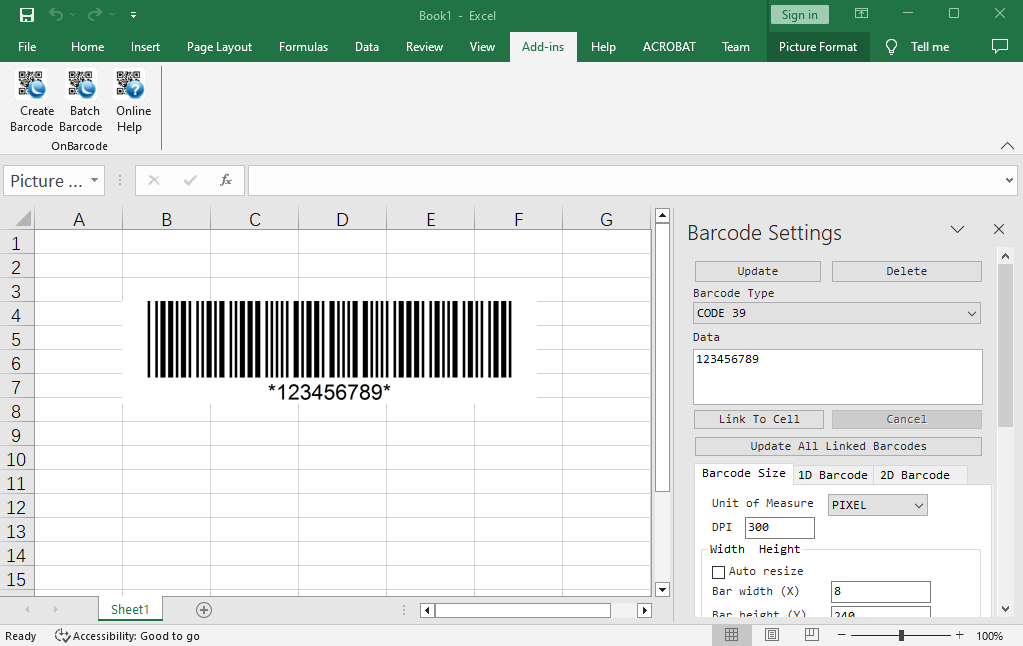
Practical Applications in Access Databases
The ability to generate Code 39 barcodes natively within Access opens the door to countless practical applications.
Inventory Management
This is perhaps the most common use case. A business can use Access to create a database of inventory items. Each item can be assigned a unique ID. Using the barcode generator, the database can print labels with the item ID encoded as a Code 39 barcode. Staff can then scan these barcodes to track inventory as it moves through the warehouse, into the store, or out to customers.
Asset Tracking
Organizations can use Access databases to track valuable assets like computers, furniture, or vehicles. By placing a Code 39 barcode label on each asset and storing its ID and details in the Access database, employees can quickly scan assets to check them in or out, update their location, or perform audits.
Library Systems
Libraries can manage their book collections with Access. A barcode on each book, encoding its unique ID, combined with a barcode on a library card, allows for fast and efficient check-out and check-in processes.
Work Order and Document Tracking
In a manufacturing or service environment, work orders can be tracked through their lifecycle. A Code 39 barcode on the work order can be scanned at each step to record progress, update status, and log time, ensuring complete traceability.
How to Integrate a Native Generator into Access
The process of integrating a native generator is typically straightforward for a developer familiar with Access .
Step 1: Import the VBA Module
The first step is to import the .bas file (the VBA module) into your Access project. In the VBA editor, you would use the “Import File” option to add the module to your database .
Step 2: Add a Control to Your Form or Report
On the Access form or report where you want the barcode to appear, you would add an unbound image control. This control will host the dynamically generated barcode image.
Step 3: Write the VBA Code
The core of the integration is the VBA code. This code calls the function provided by the imported module. For Code 39, the function might look something like IDAutomation_NatG_C39() . You would set the PictureData property of the image control to the result of this function, passing it the data you want to encode.
For example, in the event that runs when you view a report (like the On Format event), you would add code like this (as described in the manual):
' This is a conceptual example based on the user manual
result = IDAutomation_NatG_C39(Me!YourTextFieldName, Me)
This code would generate a Code 39 barcode based on the text in YourTextFieldName on the current record.
Frequently Asked Questions (FAQs)
1. What exactly does a Code 39 Native Microsoft Access Barcode Generator do?
It is a software tool, typically an embeddable VBA module, that allows developers to generate dynamic Code 39 barcode images directly within Microsoft Access forms and reports. Its key advantage is that it operates without needing to install external fonts, DLLs, or plugins, making the database fully self-contained and portable .
2. Why is the “native” aspect of this generator so important?
It is the most critical feature. Being “native” means the barcode generation code is embedded within the Access database itself. This eliminates all external dependencies. You can distribute your Access database to any user, and the barcodes will work seamlessly without any additional software installation .
3. What is Code 39, and what can it encode?
Code 39 is a widely used barcode standard. It is a discrete, alphanumeric symbology that can encode uppercase letters (A-Z), numbers (0-9), and a few special characters like periods, hyphens, and spaces . It is defined by the ISO/IEC 16388 standard and is frequently used in logistics, inventory, and military applications .
4. What is the difference between Code 39 and Code 39 Full ASCII?
Standard Code 39 can only encode uppercase letters, numbers, and seven special characters. Code 39 – Full ASCII is an extension that allows for the encoding of the entire 128-character ASCII set, including lowercase letters and control characters. It achieves this by using two-character combinations to represent each non-standard character, which roughly doubles the length of the barcode .
5. How do I use the barcode generator to create a barcode on a report?
You first import the VBA module into your Access database. Next, you add an image control to your report where you want the barcode to appear. Finally, you write VBA code, typically in the On Format event of the report section, to call the generator’s function (e.g., IDAutomation_NatG_C39) and assign the resulting image data to the control’s PictureData property . This process is also well-documented in the user manuals for such products .
Conclusion
The Code 39 Native Microsoft Access Barcode Generator represents a powerful and practical solution for integrating barcode technology directly into the heart of your database applications. By offering a self-contained, dependency-free way to create barcodes, it empowers developers to build robust, portable, and efficient systems for inventory, asset tracking, and countless other tasks. The use of Code 39, a proven and versatile industry standard, ensures that the generated barcodes are reliable and widely compatible. For any organization looking to enhance the efficiency and accuracy of its data management through Microsoft Access, a native barcode generator is an essential tool that simplifies implementation and ensures long-term stability.