We’ve all been there. You’ve spent hours, maybe even days, perfecting a vital Excel spreadsheet. It contains critical financial data, a complex project plan, or a client list that’s the lifeblood of your business. You secure it with a password for protection. Then, life gets busy, and the password slips your mind. Suddenly, that wall of protection becomes a wall of frustration, locking you out of your own essential data.
This is a common and deeply frustrating problem faced by countless professionals and home users alike. The sinking feeling of realizing you can’t access a crucial file is universally understood. But there is hope. This is where password recovery tools like Pasprog Excel Password Forgotten come into play, offering a lifeline when memory fails.
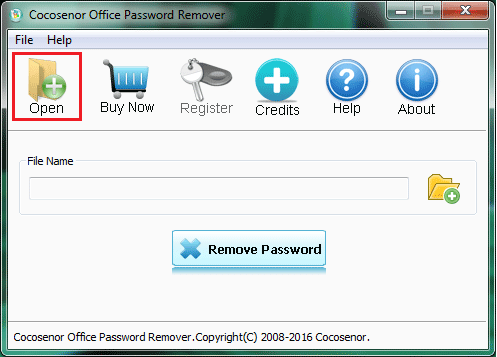
This comprehensive guide will walk you through everything you need to know about recovering lost Excel passwords. We’ll explore how tools like Pasprog work, the different recovery methods available, how to choose the right tool, and the crucial legal and ethical considerations you must keep in mind. Whether you’re a seasoned IT professional or a home user who just wants to get back into a personal budget spreadsheet, this article is your one-stop resource.
Understanding the Excel Password Problem
Before diving into the solutions, it’s essential to understand the landscape of Excel security. Why can it be so hard to recover a forgotten password? The answer lies in how Microsoft Excel implements its security features, which vary significantly depending on the file format.
Two Main Types of Excel Protection
Excel offers two primary types of protection, and the method for recovering or removing them is completely different .
- File-Open Password (Encryption): This is the strongest form of protection. When you set a password to open a file, Excel encrypts the entire document’s content. In modern versions (Excel 2007 and later), this uses robust AES (Advanced Encryption Standard) encryption with a 128- or 256-bit key. Without the correct password, the data is essentially a scrambled mess with no backdoor or shortcut. To get in, you must find the exact password through a brute-force or similar attack. This is the harder problem to solve .
- Worksheet/Workbook Protection (Editing Restrictions): This type of protection restricts what users can do within a file—like preventing them from editing cells, inserting rows, or viewing hidden sheets. This does not encrypt the data. It’s more like a lock on a filing cabinet; the files themselves are intact, but certain actions are blocked. This protection is often much easier to bypass or remove without knowing the password, as the restrictions are stored within the file’s structure, not as a fundamental encryption lock .
The Evolution of Excel Encryption
Understanding the technical evolution is key to managing expectations about recovery times.
- Older Files (Excel 97-2003, .xls format): These files use a much weaker encryption algorithm based on a simple XOR operation. This older method is significantly faster to crack, and tools like
xlcrackspecifically target these legacy formats by implementing the known algorithms to recover passwords . - Modern Files (Excel 2007 and later, .xlsx, .xlsm, .xlam format): These formats use modern, strong AES encryption. This is a “welded seam” . Password recovery for these files is a computationally intensive process that can take from minutes to millions of years, depending on the password’s complexity. This is a key factor that separates a simple file-unlocking tool from a professional password recovery suite .
Why Recover a Password?
The situations are numerous and often urgent. People turn to recovery tools like Pasprog for legitimate reasons every day.
- Personal Data Loss: A classic scenario is simply forgetting the password to a personal finance spreadsheet, a digital journal, or a collection of important contacts.
- Employee Departure: When a key employee leaves a company, they may “forget” to hand over passwords for critical spreadsheets or deliberately lock them . This can halt operations until access is regained.
- Data Archival: Organizations often have old backups or archives of encrypted Excel files, and the associated passwords have been lost over time. Unlocking these files is essential for legal discovery, audits, or historical analysis .
- System Migration: When migrating data from old systems, password-protected files can become a major roadblock if the credentials are not documented.
In all these cases, a password recovery tool isn’t just convenient; it’s often the only viable solution to recover essential business or personal data.
Introducing the Solution: Pasprog Excel Password Forgotten
Pasprog Excel Password Forgotten is a utility specifically designed to address the problem of lost or forgotten passwords for Excel spreadsheets . The name itself clearly indicates its purpose: it’s “for” those who have forgotten their Excel passwords.
Key Details at a Glance
Here are some quick facts about the software based on its listing, which can help you understand its scope and fit for your needs:
- Platform Support: It’s a dedicated Windows application, compatible with a wide range of Windows operating systems, including Windows 7, 8, 10, and various Windows Server editions .
- Latest Version and Updates: The version listed is 2.7. While the software has seen updates over time, it’s a good idea to check the official publisher’s website for the most recent version and support status .
- System Requirements: It requires a modest system, as it’s designed to run on older and newer Windows versions alike. The primary requirement is a standard Windows PC.
- Popularity: While specific download numbers might be low, its presence on reputable download platforms like CNET (as “Pasprog Excel Password Forgotten”) suggests it has a recognized place in the software ecosystem .
What Can Pasprog Do?
The core functionality of Pasprog is to help you restore lost passwords for Excel worksheets . Here’s a breakdown of its capabilities based on available descriptions :
- Password Recovery: Its primary goal is to recover the password that prevents you from opening or modifying a spreadsheet.
- User-Defined Dictionary: A standout feature is the ability to connect user-created dictionaries. If you have a list of potential passwords (e.g., old passwords, common words, names), you can create a text file and use it as a dictionary attack. This can be significantly faster than brute force .
- Password Specification List: You can also directly specify a list of prospective passwords for the program to try, giving you direct control over the initial attempts .
- Pause and Resume Functionality: This is a crucial feature, especially for complex passwords. The utility allows you to interrupt the recovery process if you need to close the program. When you restart it, you can continue the password unlock operation from exactly where it was interrupted. This means you don’t have to waste hours re-running an attack from scratch .
- Ease of Use: The program features a simple and intuitive interface, making it accessible even for users who are not technical specialists. This user-friendliness is a significant selling point .
Pros and Cons from a User’s Perspective
Based on common user feedback and the tool’s features, we can deduce its strengths and weaknesses:
Pros:
- Simple and Intuitive: As highlighted, it’s designed for non-specialists, making it easy for anyone to use.
- Affordable Solution: For many users, it represents a low-cost entry point into password recovery, especially when compared to more expensive enterprise-grade tools.
- Pause/Resume Feature: This practical feature is a lifesaver for lengthy attacks, providing flexibility that many users appreciate.
- Good for Basic Use: It’s effective for standard recovery tasks where the user has some clue about the password or the password is not extremely complex.
Cons:
- Trial Version Limitations: Typically, trial versions of such software will not actually recover a password; they only demonstrate the process. The full recovery requires a purchase . This is a standard practice, but a limitation nonetheless.
- Limited Advanced Features: Compared to professional tools that support GPU acceleration and advanced attacks, Pasprog might be slower for complex passwords.
- Potential Cost vs. Free Alternatives: Users may weigh the cost against the availability of free or open-source tools that can remove sheet protection, but those tools won’t help with an encrypted file-open password.
How Excel Password Recovery Works: The Methods
Pasprog and similar tools use several core strategies to recover a password. Understanding these methods will help you choose the right approach and set realistic expectations.
1. Dictionary Attack
A dictionary attack is one of the fastest and most effective methods if your password is a common word or phrase. Instead of trying every possible combination of characters, the program uses a pre-made list (a “dictionary”) of frequently used passwords . This list can be built-in or user-defined, like the feature offered by Pasprog.
When to use: This is the perfect first step. If you often use simple passwords like “password,” “admin,” “letmein,” or “123456,” a dictionary attack will likely crack it in seconds. You should also use a custom dictionary containing any potential passwords you can recall.
How to optimize: For example, if you have a collection of old passwords you’ve used for other accounts, create a text file with them, one per line, and use it as your custom dictionary. This is a highly targeted and fast approach.
2. Mask Attack
A mask attack is more intelligent than brute force. If you know a bit about the password’s structure but not the whole thing, you can provide a “mask” as a template. For instance, you might know that your password was two letters followed by four digits (e.g., “ab1234”). You would set the mask to ?l?l?d?d?d?d.
When to use: Use this when you have “partial information” . If you remember the password’s length, know it contained a specific word, or are sure it used a particular character set (e.g., only lowercase letters and numbers), a mask attack drastically reduces the search space . For example, if you know your password is 8 characters long and ends with “2024,” you can set the mask to include that suffix .
3. Brute-Force Attack
A brute-force attack is the most comprehensive method—it tries every single possible combination of characters . This method guarantees that the password will be found eventually, as it leaves no stone unturned.
When to use: Use this as a last resort when you have absolutely no clue about the password’s structure.
The challenge with brute-force: The process is exponentially slow. As shown in the table from Passcovery, the time required can quickly become astronomical . For a modern Excel file, an 8-character password with upper and lower-case letters and digits would take an RTX 4060 GPU an estimated 512 years to crack . Without a top-tier graphics card (GPU), a brute-force attack on a modern, complex Excel file is often infeasible. This is why using a mask or dictionary is so critical.
4. Combination Attack
A combination attack is similar to a mask attack but may focus on “randomly combining the characters you choose” . If you know the exact characters used but not their order, you can specify them. For example, if you know your password contains “T”, “o”, “m”, and the numbers 1-9, you can set the program to try all combinations of these characters. This is more efficient than a full brute-force attack because it restricts the character set .
Advanced Password Recovery Methods
For modern, strongly encrypted files (like .xlsx with an Open password), brute-force and its variants (mask, dictionary) are the only options because of the AES encryption . However, for other types of protection, there are often bypass methods.
- Instant Removal for Sheet/Workbook Protection: As mentioned earlier, sheet and workbook protection do not encrypt data. They are essentially “instructions” within the file that tell Excel to restrict certain actions. These protections can be removed in seconds by simply deleting the
<sheetProtection>tag from the file’s internal XML structure . This is why many software programs, including free scripts, can unlock editing restrictions without the password. - VBA Password Removal: Removing a password from a VBA (Visual Basic for Applications) project inside an Excel file is another specialized area. Tools like the Excel Unlocker mentioned on GitHub use HEX editing on the VBA project binary file to bypass the protection . This is more complex than removing sheet protection but is still often “instant” and does not require brute force .
- GPU Acceleration: To make brute-force attacks on modern encrypted files feasible, professional tools utilize the incredible parallel processing power of modern Graphics Processing Units (GPUs). A top-tier RTX 5090 GPU can test over one million passwords per second, compared to a standard CPU . This is the difference between a tool taking days versus a lifetime to find a password. While Pasprog is described as a simple utility, many professional recovery suites highlight GPU acceleration as a key feature.
Choosing the Right Tool: Pasprog vs. Alternatives
Based on the information available, Pasprog Excel Password Forgotten is positioned as a straightforward, entry-level utility. It’s designed for a user who needs to recover a password and wants a simple, intuitive tool. Its ability to pause/resume and use custom dictionaries makes it a practical choice for basic recovery tasks.
However, depending on the complexity of your problem, you might need a more powerful solution.
Scenario 1: Need to Remove Sheet Protection (Editing Restriction)
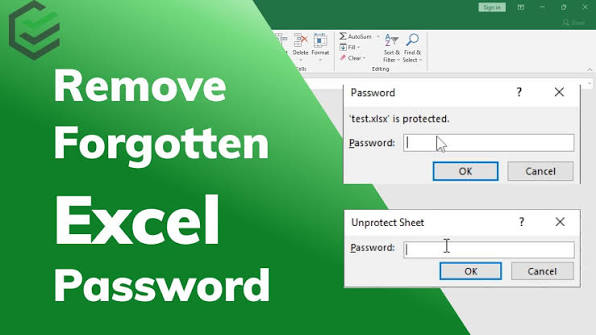
If your problem is that a worksheet or workbook is protected and you can’t edit cells, you do not need a brute-force tool. This is because the protection is not encryption.
- Best Option: Use a free, open-source script specifically designed to remove this type of protection.
- How: Tools like
ExcelUnlockerorExcel Sheet Protection Removerwork by manipulating the file’s internal XML structure. You can even do it manually in a few minutes: rename the.xlsxfile to.zip, open the archive, find the appropriate XML files in thexl/worksheetsfolder, and delete the<sheetProtection>tag . This is a 100% effective and free method. - When to use: Choose this for 95% of “I can’t edit this file” problems. It is the quickest and most appropriate solution.
Scenario 2: Need to Recover a Simple, Forgotten Open Password
You have an .xlsx file that you created, and you’ve forgotten the password. You have some idea of what it might be (e.g., a birthdate, a pet’s name, a common word).
- Best Option: A simple, affordable tool like Pasprog Excel Password Forgotten is a good first choice. Use its custom dictionary feature with a list of potential passwords you can recall.
- Why: The tool is designed for this exact purpose, and its simple interface makes it accessible.
- Limitation: If the password is not in your custom or a general dictionary, you will have to rely on its mask and brute-force capabilities, which may be limited and slower than professional tools.
Scenario 3: Need to Recover a Complex or Unknown Open Password
You have no idea what the password is, and it’s likely a complex combination of characters (e.g., Abc!98Xz). Perhaps the file was created by a former colleague who left the company, and you have no clues.
- Best Option: A professional-grade password recovery suite.
- Tools: Software like Accent OFFICE Password Recovery or Passper Pro and Advanced Office Password Recovery (AOPR) are built for this challenge. These are characterized by their support for GPU acceleration and highly complex mask attacks.
- Why: These tools are significantly faster and more sophisticated. They can leverage your computer’s graphics card to test hundreds of thousands or millions of passwords per second, making attacks on complex passwords feasible. They also offer more advanced mask options to shrink the search space intelligently. You are paying for the software’s ability to use your hardware at its maximum potential.
Summary Table
| Problem | Password Type | Recommended Tool | Rationale |
|---|---|---|---|
| Can’t edit cells, format, or change sheet structure | Sheet/Workbook Protection | Free Script (e.g., ExcelUnlocker, XML edit) | Quick, easy, and often instant because it’s not a strong encryption lock. |
| Forgot simple password for personal file | Open Password (AES) | Pasprog Excel Password Forgotten | Simple, affordable tool. Great for custom dictionaries and basic attacks. |
| Forgot complex password, no clues, company file | Open Password (AES) | Professional Suite (AccentOPR, Passper Pro, AOPR) | Essential for the speed and power of GPU acceleration. Necessary for complex passwords. |
Legal and Ethical Considerations
Before using any password recovery tool, it is critical to understand and respect the legal and ethical boundaries.
Ownership and Authorization
The golden rule: You can only use password recovery tools on files that you own or have explicit, written authorization to access .
Legal Scenarios:
- You have lost the password to your own personal or work file.
- An employee left the company without handing over the password for a corporate file .
- A former employee deliberately locked a file, causing a disruption to your business.
- Your organization is conducting an internal audit or investigation and needs access to encrypted documents .
- You need to retrieve data from old archives and backups.
Illegal Scenarios:
- Attempting to access a file owned by a competitor.
- Trying to view a colleague’s private documents without permission.
- Any action that violates your organization’s data security or access policies.
Different Types of Protection, Same Ethical Rule
The “difficulty” of a protection method (brute-force vs. instant removal) does not change the ethical or legal requirement to have the right to access the file. Even if a tool can remove protection instantly, you must still be authorized to do so.
Data Security
When using any tool, especially a third-party one, always ensure your file’s security. Prefer tools that work entirely on your local machine (like Pasprog or AccentOPR), rather than uploading potentially sensitive corporate data to an online cloud service .
Frequently Asked Questions (FAQs)
Q1: Is Pasprog Excel Password Forgotten still compatible with the latest Excel files?
Based on the information available, the listed version (2.7) supports a wide range of Windows operating systems . While it doesn’t explicitly list newer systems, it’s likely compatible with modern Windows. For the most up-to-date information on compatibility, especially with the newest versions of Excel, it is best to check the developer’s official website.
Q2: Can I recover a password from an Excel 2019 or Office 365 file?
Yes, you can attempt to recover a password from modern Excel files (.xlsx, .xlsm) using a utility like Pasprog. However, because these files are encrypted with strong AES, the process is computationally expensive. The tool’s ability to succeed will depend heavily on the password’s complexity and your computer’s processing power. For complex modern passwords, a professional tool with GPU acceleration may be necessary.
Q3: What is the difference between recovering a password and removing sheet protection?
This is a critical distinction. Recovering a password usually refers to “password to open” a file. This file is encrypted, so you must find the correct key. Removing sheet protection is about eliminating restrictions on editing a file. The file itself is not encrypted, so this protection can be bypassed instantly by editing the file’s internal code.
Q4: How long does it typically take to recover a password?
The time varies wildly, from seconds to potentially never. It depends on three main factors: the password’s length, its complexity (what characters are used), and the speed of your hardware (especially your GPU). A simple 6-character lowercase password might take hours on a standard computer, while an 8-character complex password could take hundreds of years . Using a mask or dictionary to narrow the search is the key to getting results in a reasonable time.
Q5: Is it safe to download tools like Pasprog from the internet?
Yes, if you are careful. Always download software from reputable, official websites or well-known platforms like CNET. For the software mentioned, it is advisable to look for any available virus scans (CNET often indicates a “Clean” status) . Be cautious of downloads from untrusted or obscure websites, as they could be bundled with malware.
Conclusion
Getting locked out of your own or your company’s Excel files is a stressful and frustrating experience, but it’s a problem with a proven solution. Tools like Pasprog Excel Password Forgotten are designed to provide a practical, accessible way for users to regain access to their data.
The key takeaway is to understand the nature of the protection you’re facing. If you’re locked out of editing a file (sheet protection), the solution is simple, instant, and often free. If you’re locked out of opening a file (file-open encryption), you need a password recovery tool.
For many, Pasprog offers a simple, intuitive starting point for password recovery, especially if you have a clue about the password’s structure. But for truly complex passwords, be aware of the limitations and consider more powerful, professional-grade software that leverages GPU acceleration.
Above all, remember that great power comes with great responsibility. Always use these tools ethically and legally, on files you own or have full authorization to access. With the right tool and a clear understanding of the process, that lost password can be found, and the critical data it protects can be brought back into the light.