Introduction
In today’s digital-first world, the ability to capture and share what happens on your computer screen has become an essential skill for professionals across virtually every industry. Whether you’re creating software tutorials for your YouTube channel, developing e-learning courses for corporate training, recording a presentation for remote colleagues, or documenting a software bug for your development team, a reliable screen recorder is no longer a luxury—it’s a necessity.
Enter FlashBack Pro 5 Recorder, a professional-grade screen recording and video editing solution that has been helping users create high-quality screen captures for years. Developed by Blueberry Software, FlashBack Pro has established itself as a powerful alternative to more complex and expensive video production tools, offering a compelling blend of ease of use and professional features that appeals to everyone from individual content creators to large corporations.
The software’s approach to screen recording focuses on simplicity without sacrificing the advanced features that professionals need. With its intuitive interface, users can quickly start recording their screen activity, add audio narration, and then edit the captured content using a comprehensive suite of editing tools. The final product can be exported in multiple formats, including popular video formats, animated GIFs, and even as standalone executable files that require no special player to view.
This article provides an in-depth exploration of FlashBack Pro 5 Recorder, examining its key features, system requirements, real-world applications, and the experiences of actual users. Whether you’re considering this software for your own projects or simply want to understand what makes a professional screen recorder tick, this comprehensive guide will give you all the information you need.
What is FlashBack Pro 5 Recorder?
A Comprehensive Screen Recording Studio
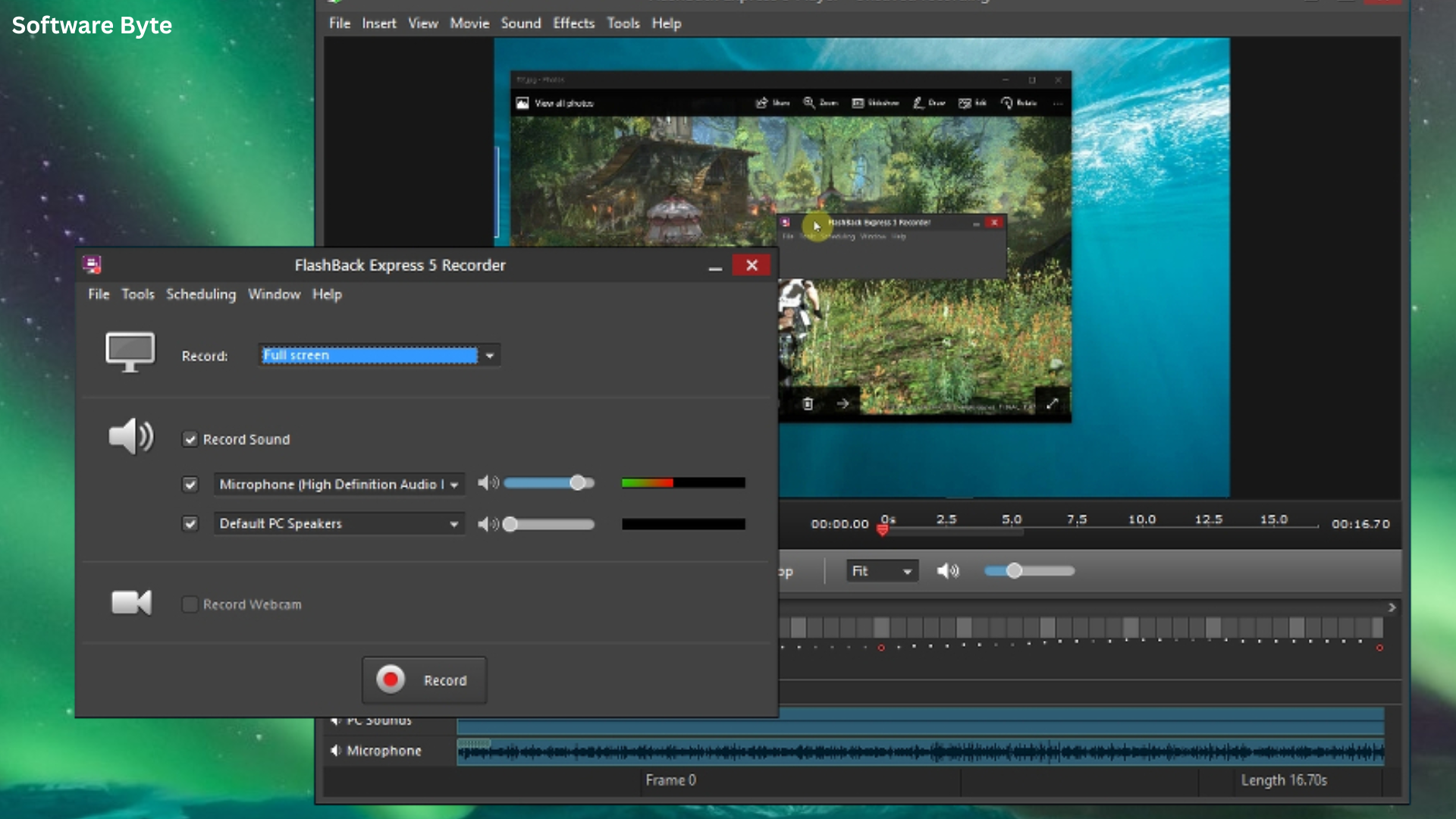
FlashBack Pro 5 Recorder is more than just a simple screen capture tool—it’s a complete screen recording studio designed for creating professional-quality videos directly from your desktop. The software allows users to record their entire screen, a specific application window, or a selected region, capturing everything that happens on screen along with audio from a microphone or system sounds.
What truly sets FlashBack Pro apart from basic screen recorders is its built-in editing suite. Unlike simpler tools that require you to record perfectly in one take, FlashBack Pro gives you the power to edit your recordings after the fact. You can trim unwanted sections, add text annotations, highlight important areas with effects, and even combine multiple recordings into a seamless final product.
The software’s name “FlashBack” originally referenced its ability to export to Adobe Flash format, which was once the dominant standard for web video. However, as technology has evolved, FlashBack Pro has expanded its export capabilities to include modern formats that work across all platforms without requiring additional plugins.
Who Uses FlashBack Pro?
The versatility of FlashBack Pro makes it useful for a wide range of professionals and use cases:
- Educators and Trainers: Teachers and corporate trainers use FlashBack Pro to create engaging video lessons, software tutorials, and training materials that students can watch at their own pace.
- Software Developers and QA Engineers: Development teams use screen recording to document bugs, demonstrate software functionality, and create user guides.
- Content Creators and YouTubers: Video creators use the software to produce everything from gaming content to technical tutorials.
- Marketing and Sales Professionals: Teams create product demonstrations, walkthroughs, and promotional videos that showcase their offerings.
- IT Support Staff: Support technicians record solutions to common problems and create self-help resources for users.
- Business Presenters: Professionals create video presentations that can be shared with remote teams or clients.
The Evolution from Flash to Modern Video
The transition from Adobe Flash to modern video formats is an important part of FlashBack Pro’s story. When the software was first developed, exporting to Flash (SWF) format was essential for embedding video on websites. Flash offered excellent compression and universal browser support, making it the go-to format for web video.
However, the decline of Flash—accelerated by Apple’s decision to exclude it from iOS devices and Google’s removal from Chrome—forced screen recording software to adapt. FlashBack Pro has evolved accordingly, now offering export options in standard video formats like MP4, WMV, AVI, and GIF, as well as to PowerPoint presentations. This evolution ensures that content created with FlashBack Pro remains viewable across all modern devices and platforms.
Key Features and Capabilities
Flexible Recording Options
FlashBack Pro offers multiple ways to capture your screen, giving you complete control over what gets recorded:
- Full Screen Recording: Captures everything that happens on your entire monitor. Ideal for demonstrations where you might be using multiple applications or need to show your complete workflow.
- Region Recording: Allows you to select a specific portion of your screen to record. This is perfect for highlighting a particular area of interest or when you want to keep your final video focused on a specific element.
- Window Recording: Captures a specific application window, even if it’s partially obscured by other windows. This is useful for software tutorials where you want to focus solely on the application you’re demonstrating.
- Webcam Recording: Many users need to include themselves in their videos for a more personal touch. FlashBack Pro supports webcam recording, allowing you to display your face in a corner overlay while simultaneously showing your screen.
Audio Capture Capabilities
High-quality audio is just as important as high-quality video in screen recordings. FlashBack Pro provides comprehensive audio capture options:
- Microphone Recording: You can narrate your screen captures using a connected microphone, adding commentary and explanations to your videos.
- System Audio Recording: The software can capture sounds from your computer, such as application alerts, media playback, or the sound effects of a game or software demonstration.
- Multiple Audio Tracks: For more advanced productions, FlashBack Pro supports multiple audio tracks, allowing you to record narration and system audio separately for better control during editing.
Professional Editing Suite
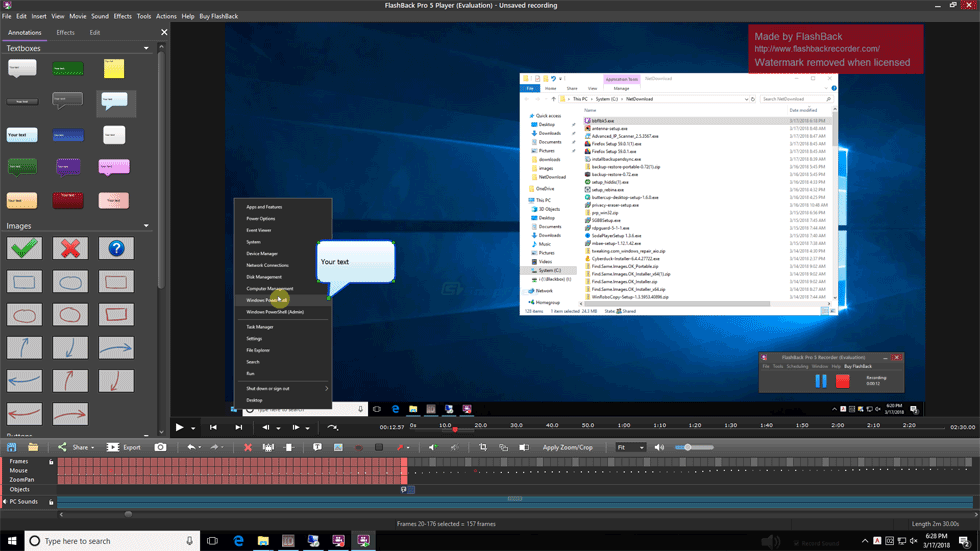
The editing features in FlashBack Pro are where the software truly shines. Once you’ve finished recording, you can refine your video using a comprehensive set of editing tools:
- Trimming and Cutting: Remove unwanted sections from the beginning, middle, or end of your recording. You can also split long recordings into separate segments.
- Zoom and Magnification: The magnifier effect allows you to zoom in on specific areas of the screen during playback. This is useful for highlighting small details that might be difficult to see on a standard view.
- Blur Tool: You can blur out sensitive or irrelevant information, such as personal data, passwords, or other confidential details. This feature is invaluable for creating public-facing videos that might contain proprietary or sensitive content.
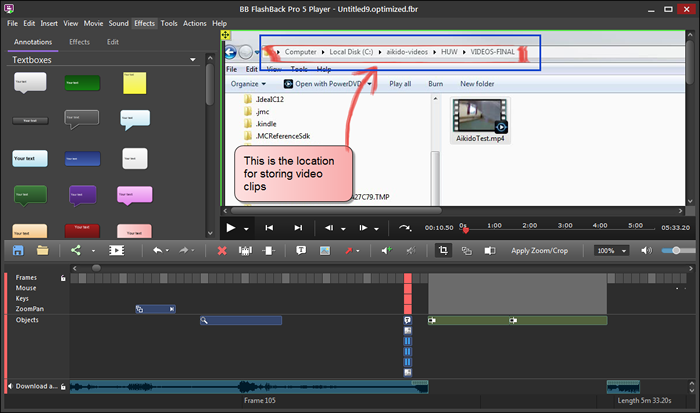
- Text Annotations: Add text boxes, arrows, and shapes to highlight important information. These annotations can appear at specific times or throughout the video.
- Callout Boxes: Create professional-looking callouts that draw attention to specific parts of the screen.
- Fade Transitions: Smoothly transition between scenes or segments with fade-in and fade-out effects for a polished, professional look.
Record-Time Notes and Markers
A unique feature of FlashBack Pro is the ability to add notes or markers during the recording process. As you’re recording, you can press a key combination to place a marker at a specific point in your video. This provides a quick and easy way to note important sections, places where you made a mistake, or moments that need special editing attention, saving time during the post-production phase.
Export Options
FlashBack Pro offers a wide range of export formats, ensuring your videos are viewable on any platform:
- Video Formats: MP4, AVI, WMV, and more
- Animated GIF: Perfect for short, shareable clips that don’t require video players
- Flash (SWF): For compatibility with older systems
- PowerPoint (PPT): Export directly as a PowerPoint presentation
- Standalone Executable (EXE): Creates a self-contained executable file that runs on any Windows computer without requiring additional media players
Password Protection
For sensitive content, FlashBack Pro includes password protection features. You can encrypt your exported videos with a password, ensuring that only authorized individuals can view the content. This is particularly valuable for businesses sharing proprietary information, confidential training materials, or internal communications.
The User Experience and Interface
Ease of Use for Beginners
One of the most frequently praised aspects of FlashBack Pro is its user-friendly interface. The software is designed to be approachable for first-time users while offering the depth that professionals require. The main window is clean and logically organized, with the most common recording and editing functions accessible from the main toolbar.
New users can typically start recording within minutes of installing the software. The recording interface presents clear options for selecting what to record (full screen, region, or window), which audio sources to use, and whether to include webcam footage. This straightforward approach reduces the learning curve that often comes with more complex video production tools.
Advanced Workflows for Power Users
For more experienced users, FlashBack Pro offers deeper functionality through keyboard shortcuts, customizable settings, and advanced editing features. The software supports multi-track editing, allowing for separate video, audio, and annotation tracks that can be independently manipulated.
The timeline-based editing interface works similarly to professional video editors, providing a familiar workflow for users who have experience with tools like Adobe Premiere or Final Cut Pro. However, FlashBack Pro manages to keep this complexity accessible, with helpful tooltips and guides available throughout the interface.
System Integration
FlashBack Pro integrates well with the Windows operating system, including support for Aero effects in Windows 7 and Vista. The software can also change your screen resolution during recording, allowing you to produce high-definition content even if your monitor doesn’t natively support it.
FlashBack Pro for Education and Training
Creating Engaging Instructional Content
Educators and trainers have found FlashBack Pro to be an invaluable tool for creating instructional content. The ability to combine screen recordings with narration and annotations allows for the creation of comprehensive, self-paced learning materials that students can access on their own schedule.
Teachers can record their computer screen while explaining a concept, demonstrating software, or walking through a complex process. The resulting video can be shared with students who may need to review the material multiple times to fully understand it. This is particularly valuable in technical subjects where visual demonstration is essential.
Flipped Classroom Applications
In the “flipped classroom” model, students watch instructional videos at home and use class time for hands-on activities and discussion. FlashBack Pro makes it easy for educators to create the videos needed for this approach. Teachers can record their lessons, including screen content and audio explanations, then export the videos in formats that students can watch on any device.
Corporate Training and Onboarding
Large organizations with distributed workforces often struggle with consistent training delivery. FlashBack Pro allows trainers to create standardized training materials that can be distributed across an entire organization. New employees can watch these videos to learn company procedures, software systems, and other essential information.
The password protection feature is particularly useful in corporate settings, where training materials may include proprietary information. Trainers can protect their videos with passwords, ensuring that only authorized employees can access them.
Student and Teacher Testimonials
The educational community’s embrace of FlashBack Pro is reflected in user reviews. One educator teaching graphic arts at a high school reported: “Using BB Flashback has greatly improved my students’ ability in learning Photoshop. The program is very small and easy to learn and the ability to export the video file to a standalone exe file is great, because there’s no player needed.”
Another user, who teaches courses using the software, simply described it as “Very inexpensive and easy to use.” A university student noted that they used the software in their MBA classes, highlighting its accessibility for users at all educational levels.
Business Applications
Creating Software Demonstrations
For software companies and IT departments, FlashBack Pro provides an efficient way to create software demonstrations and walkthroughs. Developers can record new features, demonstrate complex workflows, or create training videos that help users get the most from their software.
Unlike a live demonstration, a recorded video can be used repeatedly, shared with multiple audiences, and maintained as a permanent reference. The editing capabilities allow for a polished final product, with mistakes and dead air removed, annotations added, and important sections highlighted.
Marketing and Sales Enablement
Sales and marketing teams use FlashBack Pro to create product demonstrations that can be shared with prospects or posted on company websites. These videos can showcase product features, demonstrate use cases, and highlight key benefits in a format that’s engaging and informative.
The ability to export to multiple formats is valuable for marketing purposes. Teams can create high-resolution MP4 videos for website embedding, animated GIFs for social media sharing, and standalone executable files for distribution to prospects who may not have video player software installed.
Remote Collaboration and Communication
As remote work has become more prevalent, the ability to communicate effectively through video has become essential. FlashBack Pro enables professionals to create video messages that go beyond simple screen sharing. Team members can record complex explanations, document processes, and communicate technical information in a way that’s clear and complete.
The software’s low file size output is particularly valuable for professionals who need to share videos via email or through platforms with file size limitations. Users report that FlashBack Pro creates “very small file sizes” compared to other screen recording tools, making it easier to distribute content.
IT Support and Documentation
IT support teams use FlashBack Pro to document solutions to common problems, creating a knowledge base that can be accessed by users. When a user encounters a problem, they can be directed to a video that walks them through the solution, reducing the burden on support staff.
For more complex issues, IT technicians can request that users record their problem using FlashBack Pro and submit the video along with their support ticket. This provides technicians with a clear understanding of the issue, reducing the time spent on diagnosis and resolution.
Pros and Cons of FlashBack Pro
Advantages
User-Friendly Interface: The software is designed to be accessible to users of all skill levels. The clean interface and logical workflow mean that even first-time users can start creating professional-quality videos quickly.
Comprehensive Feature Set: FlashBack Pro combines screen recording and video editing in a single package. The ability to record, edit, and export without switching between multiple applications saves time and simplifies the workflow.
Flexible Export Options: With support for multiple video formats, animated GIF, Flash, PowerPoint, and standalone executable files, FlashBack Pro ensures your videos can be viewed by anyone, regardless of the software they have installed.
Small File Sizes: Despite producing high-quality video, FlashBack Pro creates files that are relatively small, making them easier to store, share, and distribute.
Professional Editing Tools: The inclusion of zoom, blur, annotations, and other professional editing features means you can produce polished videos without investing in separate video editing software.
Password Protection: For sensitive content, the ability to password-protect videos provides an additional layer of security.
Potential Drawbacks
Windows-Only: FlashBack Pro is designed specifically for Windows operating systems. Users of macOS or Linux will need to look elsewhere for their screen recording needs, though virtual machines or dual-boot setups could be used for Windows compatibility.
Learning Curve for Advanced Features: While the basic recording features are easy to use, the more advanced editing capabilities may require some learning. Some users found the interface “a little confusing for first time users.”
Performance Issues on Some Systems: Some users have reported audio recording problems, particularly on older Windows versions like Vista. A few users have also noted more serious system issues after uninstalling the software.
Cost: For individual users who only need occasional screen recording, the price point may be a consideration. However, professional users and organizations often find the cost justified by the feature set and quality of the output.
User Reviews and Feedback
Positive Experiences
Many users have expressed enthusiasm for FlashBack Pro, highlighting its value as a professional screen recording tool. One user wrote: “BB Flashback pro is the best screen casting application I have ever used. It’s low system impact combined with ease of use and multiple formats to export in, will ensure that your screen casts are of the highest quality.”
Another reviewer, who used the software for a company, noted: “Everyone loves it.” A user involved in online education called it “Great… user friendly… use it for all my courses.”
The software’s low system impact and small file sizes are particularly appreciated. Users consistently report that FlashBack Pro runs smoothly even on less powerful systems and creates output files that are manageable for distribution.
Constructive Criticism
While the majority of feedback is positive, some users have encountered issues:
Audio Problems: Several users reported audio recording difficulties, particularly with grainy or static-laden sound. One user noted: “produces gravely sounding, static sounding audio.” Another user mentioned the inability to record sound under Windows Vista. These issues appear to be system-specific, with the developer working with affected users to resolve them.
Installation and Uninstallation Issues: A handful of users reported significant problems after uninstalling the software. One user claimed that the software installed itself as an additional display adapter and did not remove this component during uninstallation, leading to system boot issues. Another user reported similar problems, noting that uninstallation “played havoc with my boot files and registry files.”
These complaints appear to be isolated and may relate to older versions or specific system configurations. However, they serve as a reminder that users should exercise caution when installing and uninstalling any software, following recommended procedures and checking for files that may have been left behind.
Value for Money
The cost of FlashBack Pro is a topic of discussion among users. Some consider it expensive, while others view it as reasonably priced for professional-grade software. One user noted: “At only £124 which is quite cheap for professional grade software.” Another user commented on the price: “The price of this program is equal to the price of Windows XP Professional.”
The perceived value likely depends on how extensively the user needs the software. For professionals who create screen recordings regularly as part of their work, the cost is generally viewed as justified. For occasional users, the price may be harder to justify.
FlashBack Pro Alternatives
Free Screen Recorders
For users who need only occasional screen recording, free alternatives exist:
- OBS Studio: A powerful open-source solution that offers excellent recording capabilities but has a steeper learning curve.
- Windows Game Bar: Built into Windows 10 and 11, this tool offers basic screen recording functionality.
- ShareX: An open-source screenshot and screen capture tool that includes recording features.
Professional Alternatives
For users with more demanding needs, several competing products offer similar capabilities:
- Camtasia: A leading screen recording and video editing suite with a robust feature set and strong community support.
- Snagit: A popular tool for screen capture and simple video creation, known for its ease of use and integrated annotation tools.
- ScreenFlow: Available only for macOS, this professional tool offers similar capabilities to FlashBack Pro.
How FlashBack Pro Compares
FlashBack Pro distinguishes itself from free tools by offering professional features like editing capabilities, flexible export options, and password protection. Compared to competitors like Camtasia, FlashBack Pro is often more affordable while still providing comprehensive functionality.
The software’s ease of use and low system requirements are significant advantages, particularly for users who need to record on less powerful hardware. The ability to export to standalone executable files is also a unique feature that distinguishes FlashBack Pro from many of its competitors.
Getting Started with FlashBack Pro
Installation and Setup
Installing FlashBack Pro is straightforward. The software is available from the developer’s website and from various software download platforms. The installation process is typical for Windows applications, with prompts to accept the license agreement and select installation options.
Users should pay attention during installation to avoid installing any bundled software that may be included with downloads from third-party sites. While FlashBack Pro itself is free of adware, some download platforms may bundle additional offers.
First Recording
Creating your first recording with FlashBack Pro is simple:
- Launch the software and select your recording options (full screen, region, or window).
- Choose your audio sources (microphone, system audio, or both).
- Optionally, enable webcam recording.
- Click the record button or press your selected hotkey.
- Perform the actions you want to capture.
- Click the stop button when finished.
Your recording will appear in the editor, ready for any necessary editing or export.
Basic Editing
After recording, you can use the editor to refine your video:
- Use the timeline to navigate through your recording.
- Trim unwanted sections using the cutting tool.
- Add annotations, text, arrows, or callouts.
- Apply zoom or blur effects where needed.
- Add fade transitions between scenes.
- Preview your edited video to ensure everything looks right.
Exporting
When you’re happy with your video, you can export it in your preferred format:
- Click the export button.
- Choose your desired output format from the available options.
- Configure any format-specific settings (quality, frame rate, etc.).
- Choose a destination and filename.
- Click the export button to create your video file.
The exported video will be ready to share, upload, or distribute as needed.
FAQs About FlashBack Pro 5 Recorder
1. Is FlashBack Pro 5 Recorder compatible with Windows 11?
Answer: Yes, FlashBack Pro 5 Recorder is compatible with Windows 11. The software has been updated to support the latest Windows operating systems while maintaining compatibility with older versions, including Windows 7, Windows 8, Windows 10, and Windows Vista. The 64-bit version of the software takes advantage of modern hardware capabilities while still functioning on older systems.
2. Can I record my webcam and screen simultaneously with FlashBack Pro?
Answer: Yes, FlashBack Pro allows you to record your webcam and screen at the same time. The webcam footage can be displayed as a picture-in-picture overlay on your screen recording, creating a more personal video experience. This is particularly useful for tutorials where you want to add a personal touch or demonstrate reactions.
3. What export formats does FlashBack Pro support?
Answer: FlashBack Pro offers a wide variety of export formats: video formats (MP4, AVI, WMV), animated GIF for short, shareable clips, Flash (SWF) for legacy compatibility, PowerPoint (PPT) for direct integration with presentations, and standalone executable (EXE) files that run without any media player.
4. Can I edit my recordings after capturing them?
Answer: Absolutely. FlashBack Pro includes a full-featured editing suite that allows you to refine your recordings after capture. You can trim unwanted sections, add annotations and text, apply zoom and blur effects, include fade transitions, and combine multiple recordings. The editing process is timeline-based and intuitive, making it accessible for users of all skill levels.
5. Does FlashBack Pro support password protection for videos?
Answer: Yes, FlashBack Pro includes password protection features that allow you to encrypt your exported videos. When you share a password-protected video, recipients must enter the correct password to view the content. This is especially valuable for businesses sharing confidential training materials, proprietary information, or internal communications that should not be accessed by unauthorized individuals.
Conclusion
FlashBack Pro 5 Recorder stands as a powerful testament to how screen recording software has evolved from simple capture tools to comprehensive video production studios. It successfully bridges the gap between basic, free screen recorders and complex, expensive video editing suites, offering a compelling value proposition for professionals who need to create high-quality screen recordings without excessive complexity.
The software’s combination of user-friendly design and professional features has made it a trusted tool for educators, trainers, developers, marketers, and support professionals. Its flexible recording options, comprehensive editing capabilities, and diverse export formats ensure that whatever type of screen recording you need to create, FlashBack Pro has the tools to help you produce it.
While the software is not without its limitations—particularly its Windows-only platform support and the occasional user-reported issues with audio or installation—the overwhelmingly positive user feedback suggests that for most users, these concerns are minor compared to the software’s many strengths.
For anyone who regularly needs to create professional screen recordings, whether for training, demonstration, documentation, or content creation, FlashBack Pro 5 Recorder offers a powerful, accessible, and cost-effective solution. Its enduring popularity among a wide range of professional users is a testament to its quality and value. The software continues to evolve to meet the changing needs of its users, ensuring that its place in the screen recording market remains secure.