In the world of email management, Microsoft Outlook is a dominant force. It stores user data, including emails, contacts, calendars, and tasks, in files with specific extensions. Two of the most common are OST (Offline Storage Table) and PST (Personal Storage Table). While both are used for data storage, they serve very different purposes. An OST file is a local copy of mailbox data that allows users to work offline, synchronizing with the Exchange Server when a connection is reestablished. In contrast, a PST file is a personal data file used for storing emails and other items locally, often for backup or archive purposes. Situations frequently arise where a user needs to convert an OST file into a PST file format. This is where specialized tools like DataInfoTools OST to PST Converter come into play, providing a reliable and efficient solution for email migration. This comprehensive guide will explore the need for such converters, the key features of DataInfoTools, and how to navigate the conversion process successfully.
Understanding the Need for OST to PST Conversion
Converting OST files to PST format is a common and often critical task for many Outlook users. Several scenarios necessitate this conversion.
When an Exchange Server is Unavailable
OST files are tightly linked to the Exchange Server account they were created from. If the server goes down, if an account is deleted, or if there’s a server-side issue, the OST file becomes inaccessible. The user cannot open or access their emails. Converting the OST file to a PST file allows the user to retrieve their data and access it locally without needing a connection to the Exchange Server.
Mailbox Deletion or User Account Closure
When an employee leaves a company, their Exchange mailbox is often deleted. Their OST file remains on their computer but is orphaned. Converting the data from this orphaned OST file to a PST file is essential for archiving the user’s emails, contacts, and calendar entries for future reference or legal compliance.
Migrating to a New Email Platform
In many corporate environments, organizations might switch from an on-premises Exchange Server to a cloud-based solution like Office 365 (Microsoft 365) or to a completely different email service. Converting OST files to PST allows for a smooth migration, ensuring that historical data is preserved and can be imported into the new email system.
Data Recovery and Backup
OST files, while useful for offline access, can sometimes become corrupted. In such cases, converting the data to a healthy PST file can be a lifesaver. Additionally, creating PST files from OST data is an excellent backup strategy, providing a portable copy of critical email data that is independent of the server environment.
What is DataInfoTools OST to PST Converter?
DataInfoTools OST to PST Converter is a specialized software utility designed to address the challenges of converting OST files. It is a third-party application that provides a user-friendly interface to perform the conversion, regardless of the reason. The tool is available for Windows and is compatible with a wide range of Windows versions, from Windows 98 to Windows 10, making it versatile for different systems.
How the Converter Works
The converter operates by accessing the inaccessible or orphaned OST file, reading its data structure, and extracting all the mail items (emails, contacts, calendar entries, tasks, notes, etc.). It then translates and saves this data into a new PST file that can be opened in any version of Microsoft Outlook. This process is designed to preserve the original folder hierarchy and data integrity as much as possible.
Key Capabilities
- Conversion of Orphaned OST Files: The tool can convert OST files that are no longer connected to a valid Exchange Server account.
- Data Integrity: A primary function is to ensure that the conversion process is “safe” and that the data is not lost or corrupted during the process. This includes preserving the original structure, metadata, and attributes of the mail items.
- Batch Conversion: The software supports the conversion of multiple OST files in a single session, saving time for administrators who need to process data for multiple users.
- Selective Conversion: Advanced features often allow users to select specific folders or mail items for conversion, rather than converting an entire file. This is helpful when only certain emails or contacts are needed.
- Output Management: The tool typically offers options to set the output location and manage the size of the resulting PST file, including splitting it into smaller parts if necessary.
Evaluating the Features of DataInfoTools Converter
When choosing an OST to PST converter, it is important to look for specific features to ensure a successful and efficient conversion. User feedback highlights some of these key aspects.
Ease of Use
A frequently praised aspect of DataInfoTools is its user-friendly interface. It is designed to be intuitive, making the conversion process accessible even for non-technical users. The steps are usually straightforward, often involving selecting the OST file, choosing the destination folder, and hitting the convert button.
Advanced Filtering Options
For users who need more than just a simple conversion, the tool offers advanced features. This includes the ability to segregate emails by criteria such as date, sender, recipient, subject, or email type. This feature is particularly useful for large OST files, allowing users to extract only the relevant data and avoid cluttering their new PST file with unnecessary items.
Preservation of Data Integrity
The user review provided highlights that the software is “wonderful” and works well, specifically mentioning it has “inbuilt with most advanced features that can segregate my emails by some criteria.” This suggests a strong focus on maintaining the integrity and usability of the data during the conversion.
Wide Operating System Compatibility
The tool is compatible with a very extensive list of Windows operating systems, covering almost every version from Windows 98 and NT to Windows 10 and Windows Server. This broad compatibility makes it a valuable tool for diverse IT environments, including those using legacy systems.
Step-by-Step Guide to Using an OST to PST Converter
While the exact steps may vary slightly between different software versions, the general process for using an OST to PST converter like DataInfoTools follows a similar pattern.
Step 1: Installation and Setup
The first step is to download and install the DataInfoTools OST to PST Converter software on your Windows computer. Ensure your system meets the minimal requirements, which for this tool are relatively low, making it accessible for most PCs.
Step 2: Launch the Application and Import the OST File
Open the software. You will typically be presented with a clear option to “Add File” or “Select OST.” You will then navigate your computer’s file system to locate the OST file you need to convert. OST files are usually found in the following directory: C:\Users\[Username]\AppData\Local\Microsoft\Outlook.
Step 3: Scan and Preview Data
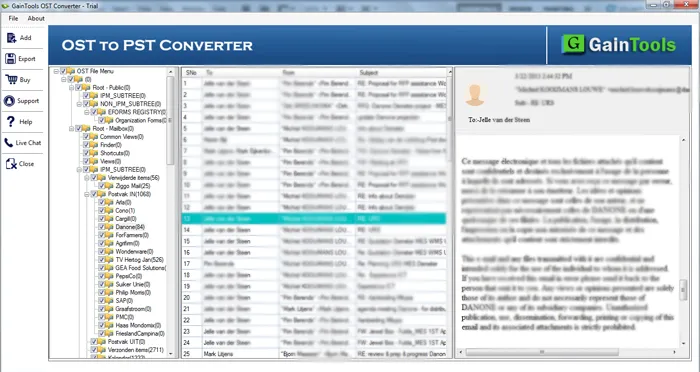
Once the OST file is selected, the software will begin scanning it. After scanning, the tool will display a preview of the data it has found. You can browse through the folder structure to see the emails, contacts, and other items contained within the OST file.
Step 4: Select Destination and Output Options
At this stage, you’ll be asked to choose where you want to save the new PST file. You can select a folder on your hard drive or an external storage device. Many converters also provide advanced output options, such as:
- Splitting PST File: If your OST file is very large, you can choose to split the output into smaller PST files (e.g., based on date or size) to make it easier to manage.
- Filtering Data: Apply filters to convert only specific data based on criteria like date range or sender.
- Selective Conversion: Choose to convert only specific folders (e.g., only Inbox) rather than the entire OST.
Step 5: Initiate the Conversion Process
Click the “Convert” or “Export” button to start the conversion. The tool will process the data and create the PST file(s) in your chosen location. The time this takes depends on the size of the OST file.
Step 6: Verification
Once the conversion is complete, you can open the newly created PST file in Microsoft Outlook. File > Open & Export > Open Outlook Data File. Once it’s imported, verify that all your emails, contacts, and calendar items are present and intact.
Tips for a Smooth Conversion Process
To ensure the conversion goes as smoothly as possible, consider these best practices.
Run Outlook as Administrator
When using OST to PST converters, and when you are about to import a PST file, it is often recommended to run Outlook as an administrator. This can help prevent permission-related errors that might occur during the import process. To do this, right-click the Outlook shortcut and select “Run as Administrator.”
Ensure Your System Is Stable
Make sure your computer is running smoothly and has enough free hard disk space for the new PST file. The PST file will typically be about the same size as the original OST file. Close any other applications that are not necessary to free up system resources.
Always Backup Your Data
Before starting any conversion, it is always a good practice to make a backup copy of your original OST file. This ensures you have a fallback in case anything goes wrong during the conversion process.
Conclusion
DataInfoTools OST to PST Converter provides a practical and efficient solution for a common but critical task in email management: converting inaccessible OST files into usable PST files. Whether it is for data recovery after a server failure, archiving an employee’s mailbox, or migrating to a new email system, the tool offers a straightforward path to preserving vital email data. With features like a user-friendly interface, selective conversion, and advanced filtering, it caters to both novice users and IT professionals. While the software itself is a tool, understanding the underlying principles of OST and PST files and following a careful process is key to a successful migration. For anyone facing the challenge of converting an OST file, investing in a reliable converter is an essential step toward ensuring the safety and accessibility of your digital communications.