In today’s digital age, video content is everywhere. From high-definition (HD) movies to personal clips captured on smartphones, we are surrounded by an ever-growing library of video files. However, this abundance presents a common problem: compatibility. A video that plays perfectly on your computer might not work on your tablet, and a file that streams smoothly on your smart TV could be completely unplayable on your friend’s older phone. Navigating the world of video codecs, resolutions, and containers can be confusing.
Aiseesoft HD Video Converter is a powerful software solution designed to solve this very problem. It is a versatile and user-friendly video conversion tool that allows you to transform your video files into virtually any format you need. Whether you want to convert a high-definition movie for your iPad, compress a large video file for easier sharing, or even convert a 2D video into a 3D format, Aiseesoft provides the tools to do it efficiently.
In this guide, we will dive deep into the capabilities of Aiseesoft HD Video Converter. We will explore its key features, from its extensive format support to its detailed parameter adjustments, and help you understand how this software can simplify your digital life.
Software Overview
Aiseesoft HD Video Converter is a robust Windows application designed for converting video files between a wide array of formats. Developed by Aiseesoft Studio, this software caters to both beginners who want a simple conversion process and advanced users who need granular control over their video and audio output.
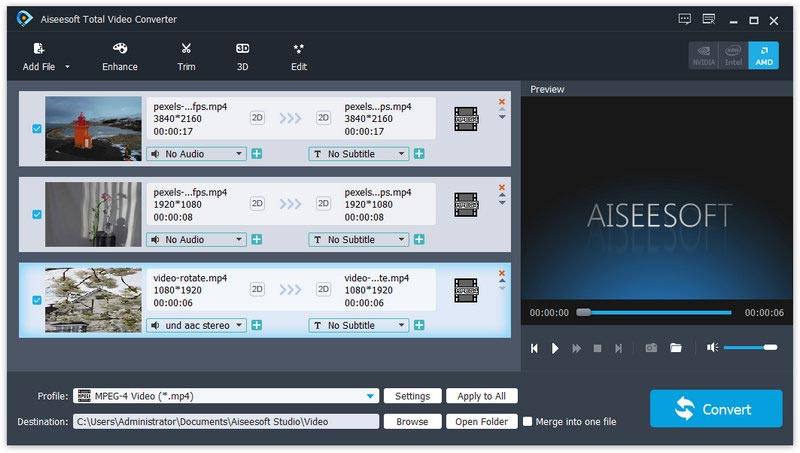
The software supports a vast range of input and output formats. This includes popular HD formats like AVCHD, MKV, and TS, as well as standard formats like MP4, AVI, and MOV. Beyond simple conversion, it allows users to fine-tune almost every aspect of their output file, including video encoder, resolution, frame rate, bitrate, and audio settings.
Aiseesoft also offers specific device profiles, making it easy to optimize a video for a particular gadget. Whether you have an Apple device (iPhone, iPad, Apple TV), a Samsung Galaxy, a Huawei phone, or a gaming console, the software likely has a pre-configured profile to match.
Main Features with Detailed Descriptions
1. Extensive HD and SD Video Format Support
Aiseesoft HD Video Converter is designed to handle a wide spectrum of file types. It supports both high-definition (HD) and standard-definition (SD) formats, making it a one-stop shop for most conversion needs.
Supported HD Formats: The software is built to handle formats like AVCHD (advanced video codec high definition), MKV (Matroska, a popular open-source container), and TS (Transport Stream). This makes it an excellent choice for working with footage from high-end camcorders or Blu-ray rips.
Supported SD Formats: It also supports all the common standard-definition formats, including MP4, AVI, MOV, and WMV. This ensures compatibility with older devices and allows users to convert their HD content into more manageable file sizes.
2. Device-Specific Profiles for Easy Optimization
One of the most user-friendly features is the extensive library of output profiles. Instead of manually figuring out the correct settings for a specific device, users can simply select the manufacturer and model from a list.
The software supports a wide range of devices, including:
- Apple Products: iPhone 6/6 Plus/5S/5C, iPad mini 3/2, iPad Air 2, iPod, Apple TV
- Android Devices: Samsung, Xiaomi, Huawei, Motorola, LG, HTC, Sony Ericsson, BlackBerry
This feature takes the guesswork out of conversion, ensuring that the output file will be perfectly compatible with your target device.
3. Comprehensive Parameter Customization
While the pre-set profiles are convenient, the software offers full manual control for users who need it. You are not locked into default settings.
Video Settings:
- Video Encoder: Choose from codecs like H.264, MPEG-4, etc.
- Frame Rate: Adjust the number of frames per second (e.g., 24, 30, 60 fps).
- Video Bitrate: Control the amount of data used per second. A higher bitrate generally means better quality but a larger file size.
- Resolution: Set the exact width and height of the output video.
Audio Settings:
- Audio Encoder: Select the audio codec (e.g., AAC, MP3).
- Sample Rate: Set the quality of the audio (e.g., 44.1kHz, 48kHz).
- Audio Channels: Choose between mono, stereo, or surround sound.
- Audio Bitrate: Control the audio quality and file size.
4. Advanced Video Adjustment Tools
Aiseesoft goes beyond simple conversion by offering a suite of tools to enhance or correct the visual quality of your video. You can fine-tune the video by adjusting:
- Brightness: Make a dark video clearer.
- Contrast: Improve the difference between light and dark areas.
- Saturation: Make colors more vibrant or more muted.
- Hue: Shift the overall color tone.
- Volume: Increase or decrease the audio level.
These adjustment tools are invaluable for fixing minor issues with video quality without needing a separate editing application.
5. 2D to 3D Conversion
Aiseesoft HD Video Converter includes the ability to convert standard 2D videos into 3D format. It supports multiple 3D modes, allowing you to create videos that are compatible with various 3D viewing systems (e.g., anaglyph, side-by-side). This is a fun and creative feature for those with 3D-capable equipment.
System Requirements
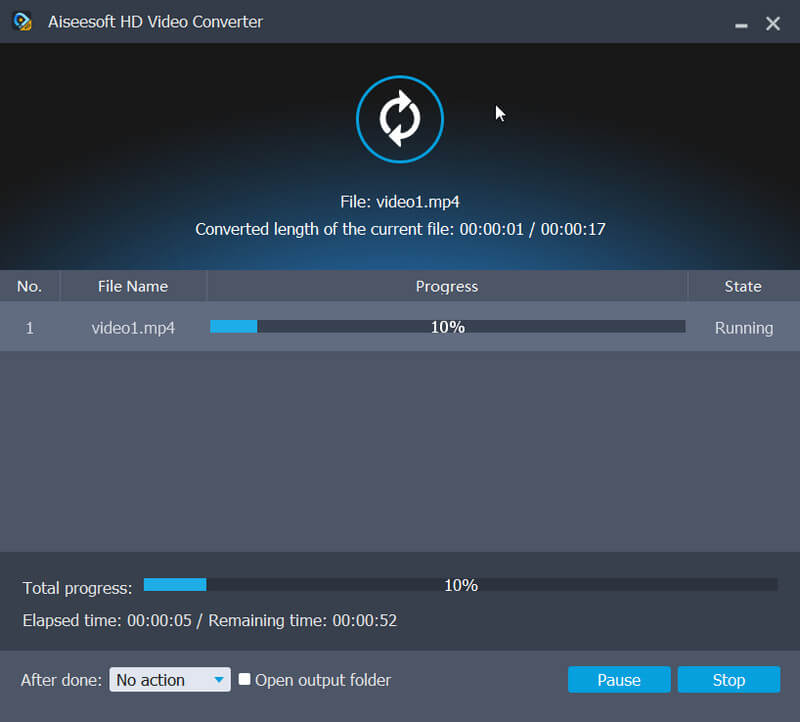
Aiseesoft HD Video Converter is designed to run on various Windows systems.
| Requirement Category | Minimum Specification |
|---|---|
| Operating System | Windows 2000, XP, 2003, NT, Vista, 7, 8, 10 |
| Processor | Standard processor (any) |
| Memory (RAM) | 512 MB or more recommended |
| Storage Space | 200 MB for installation; extra space for converted files |
| Additional Requirements | None |
How to Install Aiseesoft HD Video Converter
Installing Aiseesoft HD Video Converter is a straightforward process.
Step 1: Download the Installer
Go to the trusted download page (such as the CNET link provided). Click the “Download Now” button and save the file to your computer.
Step 2: Scan the File
Before opening, it is good practice to scan the downloaded .exe file with your antivirus software to ensure it is safe.
Step 3: Run the Installer
Double-click the downloaded file to run the installer. If Windows asks for permission to run the program, click “Yes” or “Allow.”
Step 4: Accept the License Agreement
Read the license agreement and click “I Agree” to proceed.
Step 5: Choose Installation Folder
You can keep the default installation folder or choose a custom location. Click “Next” or “Install.”
Step 6: Wait for the Installation
The installation process will copy the necessary files to your computer.
Step 7: Launch the Software
Once the installation is complete, you will have the option to launch the software. Check “Launch Aiseesoft HD Video Converter” and click “Finish.”
Step 8: Start Converting
The program will open, and you can begin adding videos for conversion.
Pros and Cons Table
To provide a balanced view, here are the strengths and weaknesses of Aiseesoft HD Video Converter.
| Pros (Advantages) | Cons (Disadvantages) |
|---|---|
| Supports a wide variety of HD and SD formats: AVCHD, MKV, MP4, AVI, etc. | Trial version: This is not a free tool; it is a trial version. |
| Extensive device profiles: One-click optimization for Apple, Samsung, Huawei, etc. | No mention of batch processing: May not be ideal for converting many files at once. |
| Granular control over video and audio parameters: Set bitrate, frame rate, resolution, etc. | Limited advanced editing: Does not include features like DVD ripping or screen recording. |
| Includes video adjustment tools: Adjust brightness, contrast, saturation, hue, and volume. | No explicit subtitle support mentioned. |
| Supports 2D to 3D conversion. | |
| Easy-to-use interface. |
Practical Use Cases and Benefits
Use Case 1: Converting a Movie for a Tablet
Scenario: You have a large MKV file of a movie, but you want to watch it on your iPad during a long flight.
Benefit: You open Aiseesoft, load the MKV file, and select the “iPad” profile. The software automatically adjusts the settings to the optimal format for your device. You can even adjust the resolution to balance quality and file size.
Use Case 2: Compressing a Video for Email
Scenario: You have a high-resolution video that is too large to send as an email attachment. You need to reduce its file size.
Benefit: By converting the video to a lower bitrate or a less demanding format (like MP4), you can drastically reduce the file size without a significant loss in quality, making it easy to share.
Use Case 3: Preparing a Presentation with Correct Settings
Scenario: You have created a video presentation on your computer, but when you play it on the venue’s projector, the colors look washed out.
Benefit: You can use Aiseesoft’s adjustment tools to increase the brightness and contrast of the video before the presentation, ensuring it looks clear and professional.
Use Case 4: Optimizing for a Specific Android Device
Scenario: You have a collection of videos you want to transfer to your new Huawei phone.
Benefit: Instead of guessing which format the phone supports, you use the dedicated “Huawei” device profile in Aiseesoft. The software will automatically convert the video to the correct format, ensuring perfect playback.
Frequently Asked Questions (FAQ)
1. Is Aiseesoft HD Video Converter completely free?
No, Aiseesoft HD Video Converter is a trial version. This means you can download it to test its features, but you will eventually need to purchase a license to continue using the software.
2. What file formats does the software support for output?
The software supports a wide range of output formats, including MP4, AVI, MOV, WMV, MKV, and HD formats like AVCHD and TS.
3. Can I convert a 2D video to 3D with this software?
Yes, Aiseesoft HD Video Converter includes the ability to convert 2D videos into multiple 3D modes.
4. Does the software support specific devices like the iPhone or Samsung Galaxy?
Yes, the software includes an extensive list of device profiles, making it easy to optimize videos for specific models, including iPhones, iPads, Samsung Galaxy phones, and many more.
5. Can I adjust the video quality beyond just choosing a profile?
Yes, Aiseesoft allows you to manually define settings such as video encoder, frame rate, video bitrate, resolution, audio encoder, sample rate, channels, and audio bitrate.
Conclusion
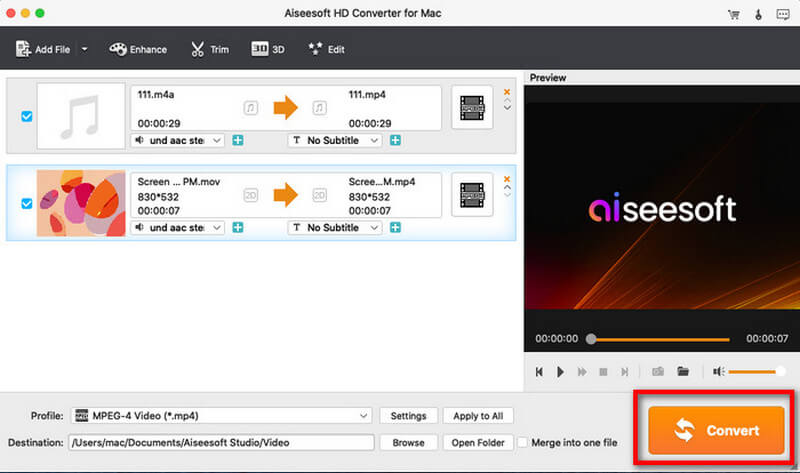
Aiseesoft HD Video Converter is a powerful and versatile tool for anyone who regularly works with video files. It successfully bridges the gap between an easy-to-use converter for beginners and a customizable tool for more advanced users. The extensive format support and comprehensive device profiles make the conversion process nearly effortless, while the detailed parameter controls and video adjustment tools provide the flexibility needed for professional-level work.
While it is a trial version, it offers a full-featured opportunity to evaluate its capabilities. If you find yourself frequently struggling to make your videos play on different devices or needing to adjust video properties, Aiseesoft HD Video Converter is a strong candidate to add to your software toolkit.
Download Aiseesoft HD Video Converter today and simplify your video conversion workflow.