Have you ever plugged in a pair of headphones or a microphone into your computer and had it just work—no fuss, no extra setup? You can thank Realtek High Definition Audio for that seamless experience. This driver package is the silent workhorse behind the audio jacks on hundreds of millions of Windows PCs, laptops, and motherboards.
Unlike a standalone application, Realtek High Definition Audio operates deep within your system. It acts as a translator between your software (like music players, video conferencing apps, or games) and your physical audio hardware. When you play a song, this driver converts digital data into analog signals your speakers can understand. When you speak into a microphone, it does the reverse.
In this guide, I will explain exactly what Realtek High Definition Audio does, walk you through its main features (including jack sensing, multi-streaming, and noise suppression), provide clear installation steps, and help you troubleshoot common issues. Whether you are building a new PC or fixing sound problems on an existing one, this article will give you the knowledge you need.
Software Overview
Realtek High Definition Audio is a system-level driver package for Windows. It enables communication between your operating system and the Realtek audio codec chip soldered onto your computer’s motherboard or sound card.
At its core, the driver performs several critical tasks:
- Signal conversion: Translates digital audio from apps into analog signals for speakers/headphones, and converts analog microphone input into digital data.
- Hardware management: Detects which jacks have devices plugged in and assigns the correct functions (headphone, mic, line-in, etc.).
- Audio processing: Applies enhancements like equalization, noise suppression, and echo cancellation before the sound reaches your ears.
- Multi-stream routing: Allows different audio streams to play through separate outputs simultaneously (e.g., game audio through speakers, voice chat through a headset).
The driver is pre-installed on most OEM PCs (Dell, HP, Lenovo, ASUS, etc.) and is also available as a standalone download for custom-built desktops. The current version as of this writing is 6.0.1.5473, which includes expanded chipset support and minor fixes to jack detection.
Detailed Explanations
1. Signal Conversion Engine
The most fundamental job of any audio driver is conversion. Realtek’s Signal Conversion Engine takes the digital audio stream from your media player, game, or browser and formats it into a language your audio hardware understands. This process includes:
- Sample rate matching: Ensuring the output matches your DAC’s capabilities (e.g., 44.1 kHz for CD quality, 48 kHz for DVD/video).
- Bit depth handling: Supporting 16-bit, 24-bit, or even 32-bit audio where hardware permits.
- Channel mapping: Routing left, right, center, subwoofer, and surround channels to the correct physical outputs.
On the input side, the engine converts analog microphone signals into digital data that apps like Zoom, Discord, or Audacity can record.
2. Jack Sensing Module
One of the most convenient features is automatic jack detection. The Jack Sensing Module continuously monitors your computer’s audio ports for impedance changes—the electrical signature that occurs when you plug in a device.
When you insert a connector, the module:
- Detects the type of device (headphones, mic, line-in, or something else).
- Assigns the correct function role automatically.
- Updates Windows to show the new device as available.
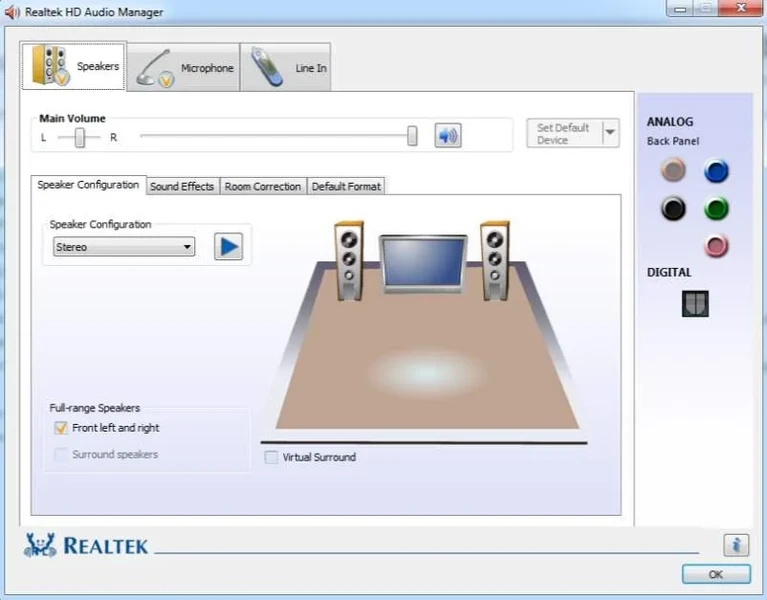
If the automatic assignment is incorrect, you can manually override it through the Realtek Audio Console or the legacy HD Audio Manager. For example, you could reassign a line-in jack to act as a microphone input.
3. Realtek Audio Console (Control Interface)
The Realtek Audio Console is the user-facing control panel that comes with modern driver versions. It provides access to:
- Device advanced settings: Change default formats (sample rate, bit depth), exclusive mode options, and signal enhancements.
- Jack information: See which ports are active and what devices are connected.
- Default format selection: Choose the audio quality (e.g., 24-bit, 192000 Hz for studio work).
- Connector retasking: Manually override jack functions when automatic detection fails.
Older versions used the classic “Realtek HD Audio Manager” with a tan-colored interface. The newer Console is cleaner and integrates better with Windows 10 and 11.
4. Enhancement Processing Suite
Realtek includes a suite of audio enhancements that process sound at the driver level before it is sent to your speakers or headphones. Key enhancements include:
- Noise suppression: Reduces constant background noise (like fan hum or air conditioning) from microphone input.
- Acoustic echo cancellation (AEC): Prevents your speakers from being picked up by your microphone during voice calls.
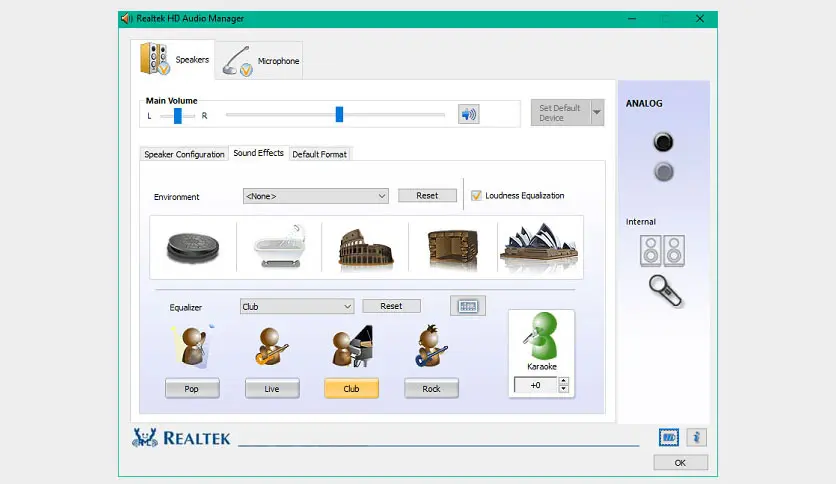
- Equalization (EQ): Adjusts frequency bands (bass, treble, midrange) with predefined profiles (Rock, Pop, Classical, etc.) or custom settings.
- Loudness equalization: Reduces volume differences between loud and quiet sounds—useful for late-night listening.
- Room correction (select chipsets): Compensates for small speaker placement issues.
These features are applied in real time, require minimal CPU power, and work across all applications without additional software.
5. Multi-Stream Routing
Multi-stream routing allows different audio sources to play through different outputs simultaneously. For example:
- Stream 1: Game audio routed to your main speakers.
- Stream 2: Voice chat (Discord) routed to your USB headset.
- Stream 3: Background music routed to HDMI output.
Each stream maintains its own volume level, enhancement settings, and signal path. This is especially useful for streamers, content creators, or anyone who needs to separate audio sources.
6. Playback and Capture Path Management
Behind the scenes, Realtek manages two independent data paths:
- Playback path: Application output → driver processing (EQ, loudness, etc.) → channel mapping → physical output jack.
- Capture path: Microphone/line-in → analog-to-digital conversion → noise suppression/AEC → application input.
Buffer handling ensures that playback and capture stay synchronized, preventing echo or delay in voice calls.
7. Wide Operating System Compatibility
The driver supports an astonishing range of Windows versions, from Windows 95 through Windows 11, including server editions. This longevity makes Realtek HD Audio a reliable choice for legacy systems and new builds alike.
System Requirements
| Component | Requirement |
|---|---|
| Operating System | Windows 95, 98, ME, NT 4, 2000, XP, Vista, 7, 8, 10, 11; Windows Server (2003, 2008, etc.) |
| Architecture | 32-bit (x86) and 64-bit (x64) – includes Itanium 64-bit support |
| Hardware | Motherboard or sound card with Realtek HD Audio codec (ALC series: ALC887, ALC892, ALC1150, ALC1220, etc.) |
| RAM | 128 MB minimum (512 MB+ recommended) |
| Hard Disk Space | 150 MB free space for driver files and utilities |
| Additional Software | DirectX 9.0c or later (for enhanced audio effects) |
| Internet | Required only for driver updates or downloading Realtek Audio Console from Microsoft Store |
Note: The driver will not function on systems without Realtek audio hardware. If you have a dedicated sound card from Creative, ASUS, or another brand, use their respective drivers.
Installation Steps (Numbered Format)
Follow these steps to install or update Realtek High Definition Audio on your Windows PC. Before starting, close all applications that might use audio (browsers, media players, games).
Method 1: Using the Official Installer (Recommended)
- Download the driver from a trusted source (CNET Download, your motherboard manufacturer’s website, or Realtek’s official site). Look for a file named something like
Realtek_HDA_6.0.1.5473.zipor.exe. - Extract the ZIP file (if compressed) to a folder on your desktop.
- Navigate to the folder and double-click
Setup.exeto launch the installer. - If User Account Control (UAC) pops up, click Yes to allow changes.
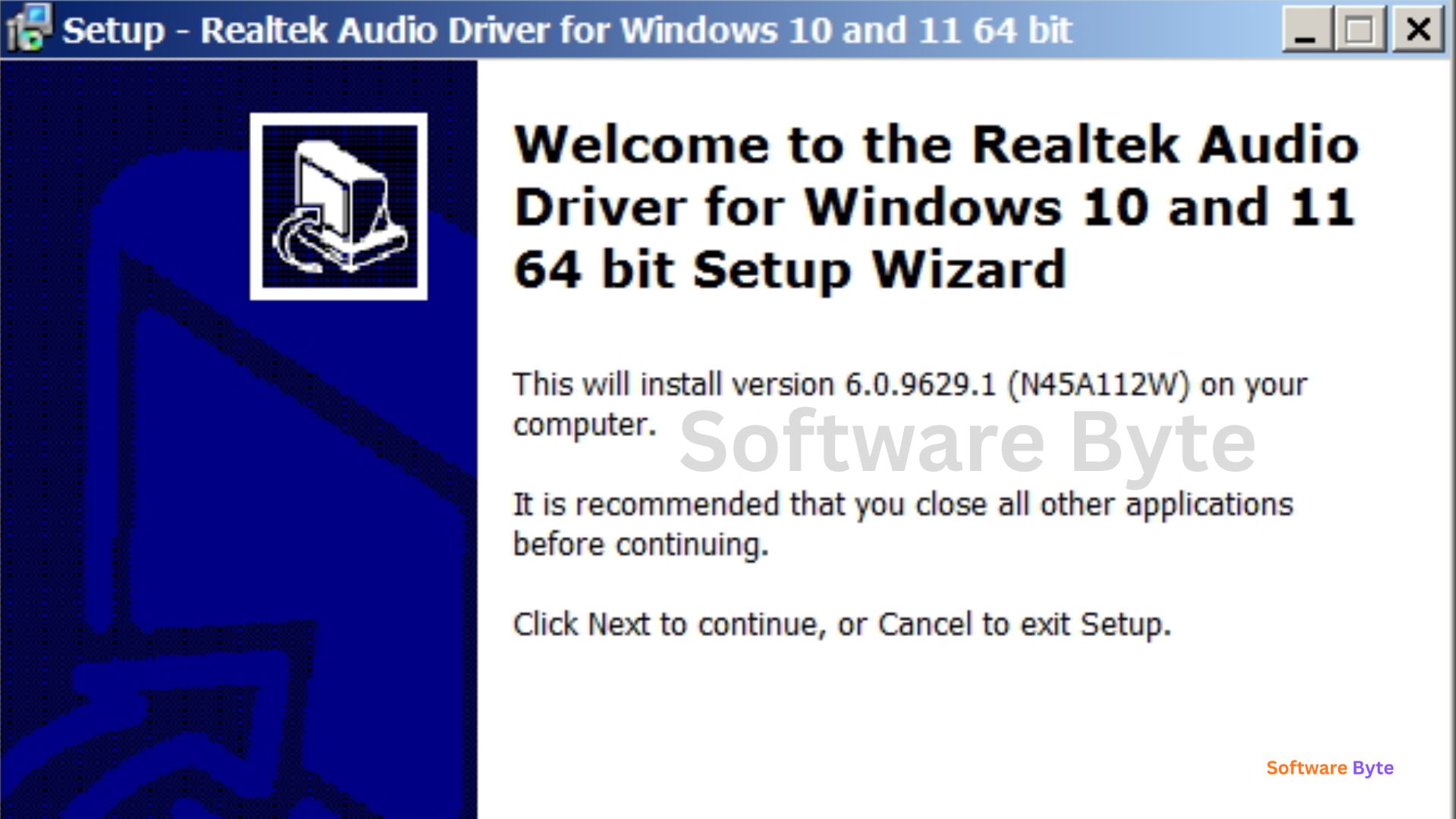
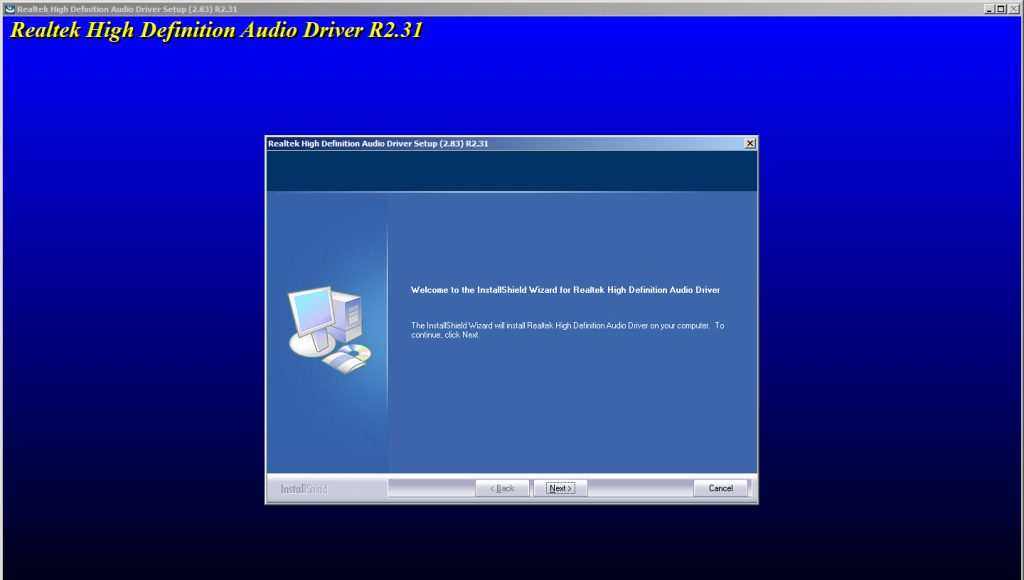
- The installer will prepare files and then show a welcome screen. Click Next.
- Choose the components to install (keep defaults unless you know you do not need certain features). Click Next.
- Select the destination folder (default:
C:\Program Files\Realtek\Audio). Click Next. - Click Install to begin copying files. This usually takes 1-2 minutes.
- If prompted, choose “Install digital signature” (this ensures Windows trusts the driver).
- Once the progress bar completes, click Finish.
- Restart your computer when prompted. Without a restart, the driver may not function correctly.
Method 2: Via Device Manager (For Updates or Reinstalls)
- Right-click the Start button and select Device Manager.
- Expand Sound, video and game controllers.
- Find Realtek High Definition Audio (may appear as “Realtek Audio”).
- Right-click it and select Update driver.
- Choose Browse my computer for drivers.
- Click Let me pick from a list of available drivers on my computer.
- Select the latest Realtek driver version, then click Next.
- Follow the on-screen prompts, then restart your PC.
Method 3: Windows Update (Automatic)
- Open Settings > Update & Security > Windows Update (Windows 10/11).
- Click Check for updates.
- If an updated Realtek driver is available, it will appear under “Optional updates” or “Driver updates”.
- Select it, then click Download and install.
- Restart your computer after installation.
Pros and Cons
Pros
- ✅ Widely compatible – Supports Windows versions from 95 to 11, 32/64-bit, and dozens of chipsets.
- ✅ Automatic jack detection – No manual configuration needed for most users.
- ✅ Low latency – Suitable for real-time applications like voice calls and music production.
- ✅ Built-in enhancements – EQ, noise suppression, and echo cancellation without third-party software.
- ✅ Multi-stream routing – Play different audio through different outputs simultaneously.
- ✅ Free and pre-installed – No cost; already present on most PCs.
- ✅ Stable and mature – Decades of development means rare crashes or bugs.
- ✅ Customizable – Advanced users can tweak jack assignments, sample rates, and buffering.
- ✅ Supports surround sound – Up to 7.1 channels on compatible motherboards.
- ✅ Lightweight – Uses minimal CPU and RAM.
Cons
- ❌ Manufacturer-dependent features – Some motherboard makers disable certain jacks or features in hardware.
- ❌ Realtek Audio Console issues – Occasionally fails to install or open; older HD Audio Manager may be missing.
- ❌ No universal control panel – Interface varies between OEMs and driver versions.
- ❌ Can conflict with GPU audio – HDMI/DisplayPort audio from graphics cards sometimes overrides Realtek.
- ❌ Driver signing requirements – Very old Windows versions (XP, 2000) need special steps for unsigned drivers.
- ❌ Not for dedicated sound cards – High-end audio interfaces require their own ASIO or proprietary drivers.
Practical Use Cases and Benefits
1. Building a Custom Desktop PC
When you assemble a new PC, Windows may install a generic “High Definition Audio Device” driver. Replacing it with the official Realtek driver unlocks proper jack sensing, multi-streaming, and the full enhancement suite. Benefit: Better sound quality, working microphone ports, and access to EQ.
2. Fixing Front Panel Audio Not Working
A common problem: your case’s front headphone jack works, but the microphone does not. This is often a driver configuration issue. Using Realtek’s Audio Console, you can manually retask the front panel jacks or disable “auto detection” to force them to function correctly. Benefit: Fully usable front ports without buying new hardware.
3. Reducing Background Noise for Voice Calls
Working from home? The built-in noise suppression and acoustic echo cancellation can dramatically improve your microphone quality in Zoom, Teams, or Discord. No need for expensive third-party software. Benefit: Clearer calls, less fatigue for listeners.
4. Separating Game and Chat Audio (Streaming)
Streamers and content creators can use multi-stream routing to send game audio to speakers (for the room) while keeping voice chat in a headset—or route alerts to a separate output. Benefit: Professional-level audio mixing without extra hardware.
5. Reviving an Old PC
Have an old Windows XP or Vista machine for retro gaming? Realtek’s driver still supports those systems. Install the last compatible version to get proper audio acceleration. Benefit: Authentic retro experience with working EAX or DirectSound3D (where supported).
6. Enhancing Music Listening
The built-in 10-band equalizer lets you boost bass for electronic music, tame harsh highs for poorly mastered tracks, or create a custom profile for your specific headphones. Benefit: Personalized sound without installing separate media player plugins.
FAQs (Frequently Asked Questions)
1. What is the difference between Realtek High Definition Audio and Realtek Audio Control?
Realtek High Definition Audio is the core driver—the software that makes the hardware work. Realtek Audio Console (or the legacy HD Audio Manager) is the user interface that allows you to change settings. You need the driver installed first; the Console is optional but recommended for tweaking.
2. Why is my Realtek Audio Console not opening or missing?
This is a common issue with modern Windows versions. Possible fixes:
- Reinstall from Microsoft Store: Search for “Realtek Audio Control” and install it.
- Update your driver: The latest driver (6.0.1.5473 or newer) includes better Console integration.
- Check manufacturer support: Some OEMs (like Dell or HP) provide their own audio control software (e.g., Dell Audio, HP Audio Switch) instead of Realtek’s Console.
- Use legacy manager: On older driver versions, look for “Realtek HD Audio Manager” in the system tray.
3. How do I enable front panel microphone or headphone jacks?
- Open Realtek Audio Console.
- Go to Device advanced settings (or “Connector Settings”).
- Look for “Disable front panel jack detection” – check this box.
- Alternatively, manually reassign the front panel jacks under the Connector Retasking section.
- If those options are missing, your motherboard may not support reconfiguration (manufacturer limitation).
4. Can I have both Realtek and NVIDIA/AMD HDMI audio working?
Yes. Your GPU’s audio driver (for HDMI or DisplayPort) works independently. In Windows Sound settings, you can choose which device is the default. To avoid conflicts:
- Set Realtek as default for speakers/headphones.
- Set NVIDIA/AMD High Definition Audio as default only when using a TV or monitor with speakers.
- Disable the one you never use in Device Manager to avoid confusion.
5. Why does my audio crackle, pop, or have static?
Several possible causes:
- Buffer underruns: Increase the buffer size in Realtek Audio Console > Advanced > Default Format > try 48000 Hz or 44100 Hz instead of 192000 Hz.
- Driver conflict: Update to the latest driver or roll back to a previous stable version.
- Hardware issue: Try different speakers/headphones; test front vs. rear ports.
- Power management: Disable USB selective suspend and allow Windows to manage the audio device’s power (Device Manager > Properties > Power Management).
6. How do I completely uninstall Realtek High Definition Audio?
- Open Device Manager > Sound, video and game controllers.
- Right-click Realtek High Definition Audio and select Uninstall device.
- Check the box “Delete the driver software for this device” if available.
- Click Uninstall.
- After uninstallation, reboot your PC. Windows will install a basic “High Definition Audio Device” driver automatically.
- To remove leftover files, delete
C:\Program Files\Realtek\AudioandC:\ProgramData\Realtek.
7. Does Realtek HD Audio support 5.1 or 7.1 surround sound?
Yes, if your motherboard has three or more audio jacks (typically colored lime green, light blue, and pink). Additional jacks (orange, black, gray) are used for 5.1/7.1. In the Realtek Audio Console, go to Speaker Configuration and select 5.1 Surround or 7.1 Surround. You will then need to connect speakers to the correct colored jacks.
8. Is Realtek High Definition Audio better than a dedicated sound card?
For most users, Realtek onboard audio is more than sufficient. Modern Realtek codecs (ALC1220, ALC4080) offer high signal-to-noise ratios (SNR) and support for high-impedance headphones. A dedicated sound card only makes sense if you:
- Need very low latency for professional audio work (ASIO drivers).
- Use high-impedance studio headphones (250+ ohms).
- Require multiple balanced XLR/TRS inputs for recording.
- Experience electrical interference from your GPU (coil whine heard through speakers).
9. Why does the driver support such old Windows versions (95, NT 4)?
Realtek has manufactured audio chips for decades, and many industrial or embedded systems still run legacy Windows. The driver package includes INF files and binaries for older NT-based systems to serve these niche markets. For home users on Windows 10/11, you only need the modern components.
10. My Realtek driver says “Windows cannot verify the digital signature” – what do I do?
This occurs on 64-bit Windows versions before Windows 10 (e.g., Vista, 7, 8) when an unsigned or incorrectly signed driver is attempted. Solutions:
- Boot into “Disable Driver Signature Enforcement” mode (F8 during startup) and install the driver temporarily.
- Use a newer driver version (6.0.1.5473 or later) which is properly signed.
- Install Windows updates – Microsoft occasionally adds Realtek signatures through update packages.
- If you are using an extremely old driver for legacy hardware, consider staying on Windows 32-bit, which has laxer signing requirements.

Conclusion
Realtek High Definition Audio may not be glamorous, but it is one of the most important drivers on your Windows PC. It quietly manages every sound that comes out of your speakers and every word that goes into your microphone. For the vast majority of users—whether you are gaming, video conferencing, listening to music, or editing video—the Realtek driver delivers reliable, low-latency, and feature-rich audio at no extra cost.
Modern versions include genuinely useful enhancements like noise suppression, acoustic echo cancellation, and a 10-band equalizer. The ability to retask audio jacks and route multiple streams independently puts control back in your hands.
That said, Realtek is not perfect. OEM customization can hide features, the Realtek Audio Console occasionally misbehaves, and driver conflicts with GPU audio are frustrating. But these issues are usually solvable with the steps outlined in this guide.
If your sound is working properly, you probably never think about Realtek High Definition Audio. That is the highest compliment for a driver: it fades into the background and just works. Keep it updated, tweak it to your preferences, and enjoy clear, dependable sound for years to come.