Meta Description: Explore DS Clock 64-bit for Windows—a free, lightweight utility with NTP sync, customizable displays, hourly chimes, and low system overhead for gamers and professionals.
Introduction
Time management is a crucial aspect of our digital lives. Whether you are coordinating a gaming raid, joining a virtual meeting, or simply trying to stay on schedule during a busy workday, knowing the exact time is essential. The standard Windows system tray clock is functional, but it is often limited in its features, display options, and accuracy.
Enter DS Clock (64-bit) . This free, lightweight utility (version 2.6.3) is designed to be the ultimate timekeeping companion for Windows users. It synchronizes your PC’s clock with highly accurate internet time servers, offers a fully customizable on-screen display, and provides helpful features like alarms and hourly chimes—all while using minimal system resources.
In this comprehensive article, we will explore the features, benefits, and potential use cases of DS Clock. We will examine how this simple tool can help you stay organized, reduce timing errors, and enhance your overall computing experience.
What is DS Clock?
DS Clock is a free, 64-bit application for Windows operating systems. At its core, it replaces the default Windows system tray clock with a more powerful and customizable alternative. However, it is much more than just a pretty clock. It is a dedicated time synchronization and management tool.
The utility connects to Network Time Protocol (NTP) servers to ensure that your computer’s time is always accurate to the millisecond. This precision is vital for time-sensitive tasks like online trading, system administration, and coordinating events with others in different time zones. Beyond synchronization, DS Clock allows you to display the time in a variety of formats, add alarms, and even personalize the look and feel of the clock on your desktop.
Key Features of DS Clock 64-Bit
1. Advanced Time Synchronization
The primary function of DS Clock is to maintain your system’s accuracy. Unlike the built-in Windows time service, which can be unreliable or infrequent, DS Clock connects to highly precise NTP time servers on the internet. This ensures that your clock is always correct, down to the second, which is crucial for coordinating activities across different locations and systems. You can even configure the synchronization frequency to suit your needs.
2. Highly Configurable Display
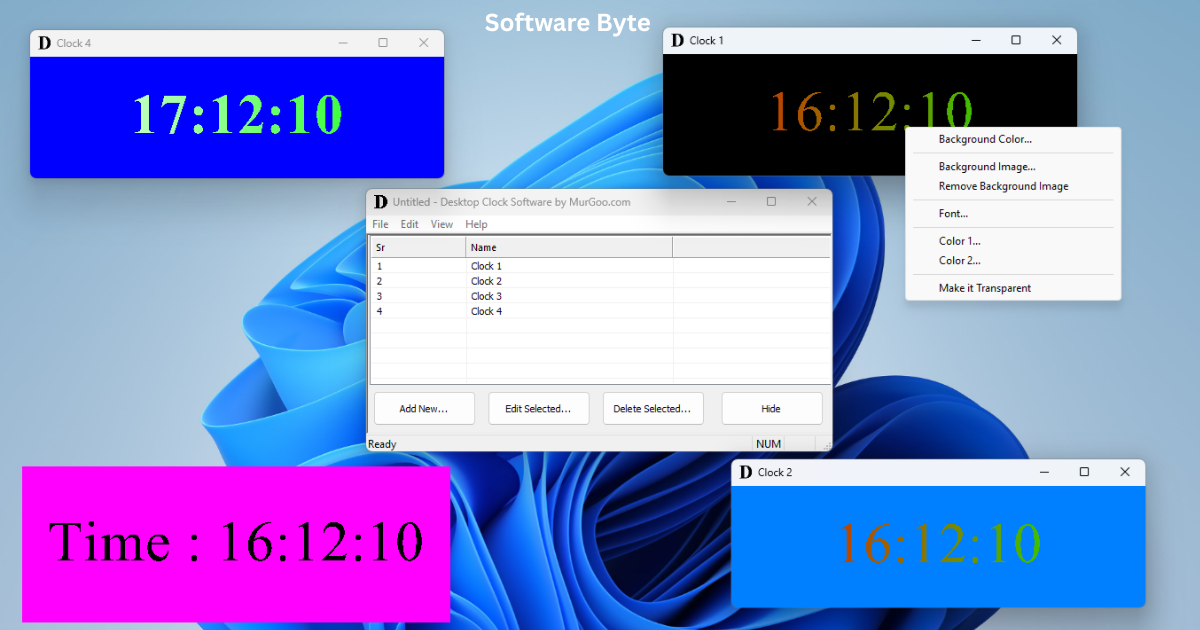
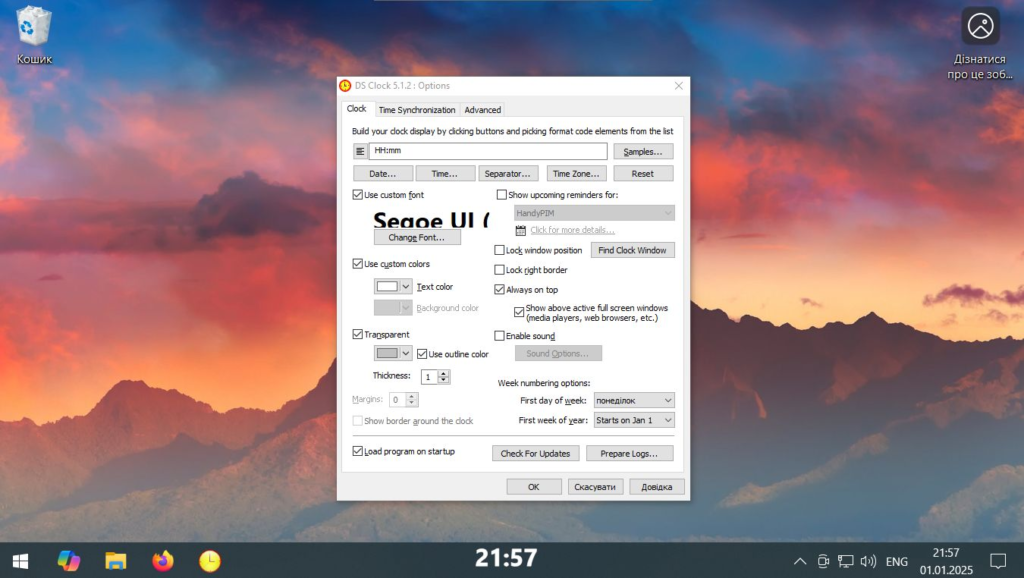
The default Windows clock is limited. DS Clock offers unparalleled customization. You can choose to display the time in a vast array of formats (e.g., 12-hour, 24-hour, with seconds, without seconds). You can also customize the date format and include the day of the week. The font, size, color, and background transparency of the on-screen display are all adjustable. This allows you to make the clock blend in perfectly with your desktop theme or stand out for high visibility.
3. Multiple Time Zones
For users who work with teams or clients across the globe, DS Clock offers multi-time zone support. You can add additional clocks to your display for different cities or regions. This eliminates the need to perform mental math to figure out what time it is for a colleague in another country.
4. Alarms and Hourly Chimes
DS Clock includes a flexible alert system that can be used as an effective productivity tool.
- Hourly Chimes: The software can play a customizable sound at the top of each hour. This is useful for maintaining awareness of time passing during deep work sessions.
- Alarms: You can set single-shot or repeating alarms. This is perfect for reminding yourself of meeting start times, scheduled breaks, or any other recurring task.
5. Custom Chime Sounds
The chime and alarm features are highly customizable. While DS Clock comes with built-in sounds, you can also use your own .WAV files. This is a fun feature that allows users to set distinctive sounds—like a Westminster grandfather clock chime—for a more personal touch.
6. Minimal System Overhead
For users who value performance, particularly gamers and streamers, DS Clock is an ideal choice. The program is designed to be lightweight and efficient. It runs with minimal overhead and an unobtrusive system tray mode, ensuring it doesn’t interfere with high-performance applications, gaming, or video editing.
Benefits of Using DS Clock
1. Stay on Schedule
With its highly visible, customizable clock and alarm features, DS Clock helps you manage your time more effectively. It’s a reliable way to keep track of meetings, deadlines, and breaks, reducing timing mistakes in your daily routine.
2. Improved Coordination
For players coordinating raids, scrims, or scheduled drops, DS Clock reduces timing mistakes and keeps routines steady. The accurate synchronization ensures that everyone is operating on the same time, which is essential for team-based activities.
3. Enhanced Workflow
The power to tune display behavior—through transparency, color, and size control—means you can match the readout to any workflow or overlay. It avoids the bloat of full scheduling suites and focuses on providing dependable time cues without distracting you from your primary tasks.
4. Audio Cues for Pacing
The hourly chimes and custom sounds are more than just a novelty. They provide an auditory cue for the passing of time, which can be incredibly helpful for pacing. Whether you are in a meeting, editing, or cooking, these cues help you structure your time and prevent you from losing track.
Power User Features
1. Calendarscope Integration
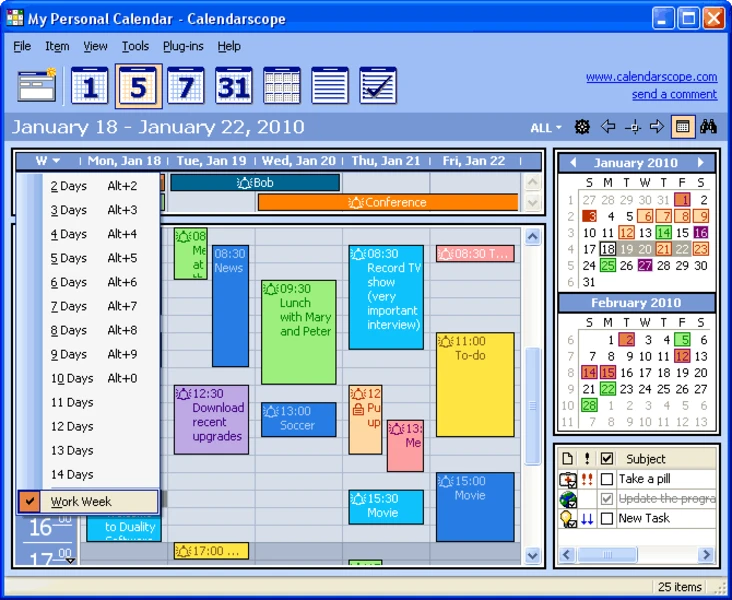
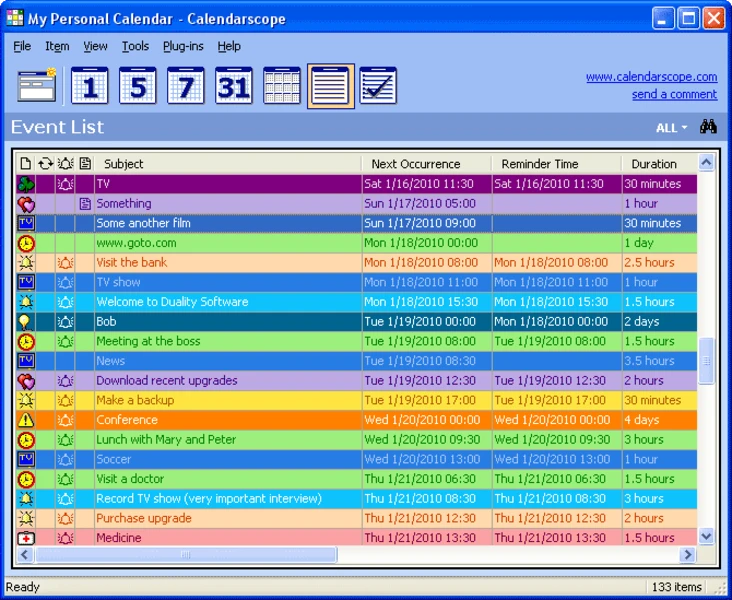
For users needing deeper planning, DS Clock integrates with Calendarscope (a more complex scheduling tool). This integration can surface reminders alongside the clock, but the utility intentionally stays focused on timing rather than complex scheduling. This focus is a strength for accuracy and stability.
2. System Tray Mode
To reduce clutter, DS Clock can be minimized to a compact mode in the system tray. This keeps the time one glance away without taking up unnecessary screen real estate. Once preferences are saved, the behavior remains consistent across sessions, supporting tournament prep, practice blocks, or simple daily routines without micromanagement.
Pros and Cons
Pros
- Accurate Synchronization: Keeps your system time accurate to the millisecond.
- Flexible Alerting: Supports hourly chimes and single-shot/repeating alarms.
- Customizable Display: Offers fine-grained control over fonts, colors, and transparency.
- Minimal Overhead: Runs with low system usage and stays unobtrusive.
- Multiple Time Zones: View times for different cities simultaneously.
Cons
- No Cross-Device Syncing: Does not support cloud sync or shared calendars.
- Feature Set is Focused: It is a dedicated timing tool and lacks the complex scheduling features of a full calendar suite.
Who Can Benefit from DS Clock?
- Gamers: For coordinating event timers, raid times, and queue pops.
- Streamers: To keep track of their broadcast schedule without a bulky overlay.
- Professionals: Anyone working with colleagues in different time zones.
- Students: To manage study sessions and keep track of time during exams.
- Everyday Users: Anyone who wants a more functional, accurate, and aesthetic clock than the default Windows option.
Frequently Asked Questions (FAQs)
1. What is the primary use of DS Clock?
Answer: DS Clock is a free, lightweight utility for Windows that replaces the standard system clock. Its primary uses are to provide highly accurate time synchronization via NTP servers, allow for a fully customizable on-screen display, and offer time management features like alarms and hourly chimes.
2. Is DS Clock a free application?
Answer: Yes, DS Clock is a completely free utility. There are no hidden charges or premium versions. Users can download and install it for free from trusted software repositories.
3. Does DS Clock work on all Windows versions?
Answer: DS Clock (64-bit) is designed for modern Windows systems. It is fully compatible with Windows 10 and Windows 7. It also supports Windows Server editions, Windows Vista, and Windows XP, making it a versatile tool for a wide range of users.
4. How do I set up the hourly chime feature?
Answer: To set up an hourly chime, open the DS Clock settings, navigate to the “Alarms” or “Chimes” section, and enable the desired function. You can also choose to use custom .WAV audio files for a personalized notification sound.
5. Can I use DS Clock to view time in different time zones?
Answer: Yes. DS Clock supports multiple time zones. Within the application’s settings, you can add additional clocks for different cities or regions, allowing you to keep track of time across the globe.
Conclusion
DS Clock (64-bit) exemplifies the principle that the best tools are often the ones that do one thing exceptionally well. This free utility transcends the limitations of the Windows default clock by providing precision, customization, and reliability. Its ability to synchronize with internet time servers ensures your system’s clock is always accurate, while its highly configurable display and alert features offer exceptional user flexibility.
For power users, gamers, and professionals alike, the software’s minimal system overhead makes it an unobtrusive yet invaluable addition to the desktop. While it lacks cross-device syncing and complex scheduling features, its focused scope is its greatest strength—it is a stable, predictable, and dependable timekeeper.
If you need a tool that helps you stay punctual, organized, and connected across time zones without bogging down your system, DS Clock is an excellent choice. It is a small tool with outsized value, earning a strong recommendation for anyone who values accurate and reliable time cues.