In an era of rising energy costs and increasing environmental awareness, managing your computer’s power consumption is more important than ever. Leaving a computer running 24/7 is not only a drain on your wallet but also contributes to unnecessary wear and tear on hardware. The solution is simple: turn your computer off when it’s not in use. However, remembering to do so, especially after a long day or when you’re away, can be a challenge. This is where Auto Shutdown Free comes into play. This comprehensive guide explores this powerful utility, its features, and how it can help you save energy, money, and extend the life of your computer.
The High Cost of Idle Computing
Before diving into the solution, it’s crucial to understand the problem that Auto Shutdown Free is designed to solve. The practice of leaving computers on, even when not in use, is surprisingly common and comes with significant costs.
Financial Impact: The Price of Power
The financial cost of running a computer continuously can be staggering, especially over a year. Consider the following:
- High-Performance Systems: A 600-watt gaming computer, common among enthusiasts, can consume a significant amount of electricity. Left running 24 hours a day, 365 days a year, it could cost around $1000 USD annually in electricity bills.
- Standard Workstations: Even a more modest 300-watt workstation can still cost hundreds of dollars per year to run. This is money that is effectively being thrown away when the computer is not in use.
The math is simple: powering down your system when you step away, sleep, or go on vacation can lead to substantial savings over time.
Hardware Maintenance and Lifespan
Beyond the immediate cost of electricity, continuously running a computer contributes to hardware degradation. The more your computer runs, the sooner its components are likely to fail.
- Heat Buildup: Constant operation generates heat, which is the enemy of electronic components. Over time, heat can cause capacitors to fail, fans to wear out, and solder joints to crack.
- Moving Parts: Hard drives and cooling fans have moving parts with a finite lifespan. The more they spin, the faster they wear out. By scheduling shutdowns, you can significantly extend the life of these components.
- Maintenance Costs: Increased wear and tear leads to more frequent repairs or replacements, adding to the total cost of ownership.
Environmental Impact
Reducing energy consumption is not just about saving money; it’s also about being environmentally responsible. By turning off your computer when it’s not in use, you are reducing your carbon footprint and contributing to a more sustainable future.
The Limitations of Built-in Features
You might be thinking: “Can’t Windows do this automatically?” The answer is yes, to a limited extent. Windows does have built-in power settings that allow you to put the computer to sleep or hibernate after a period of inactivity.
However, these built-in features have limitations:
- Lack of Granular Control: Windows power settings are generally based on “idle time.” You can’t easily set a computer to shut down at a specific time every day (e.g., 10:00 PM) if it is still in use.
- Sleep vs. Shutdown: Putting a computer to sleep is not the same as shutting it down. Sleep mode consumes power, and a computer in sleep mode is still susceptible to power surges and network issues.
- Limited Task Automation: Windows cannot easily be configured to close applications or run cleanup tasks before a scheduled shutdown.
What is Auto Shutdown Free?
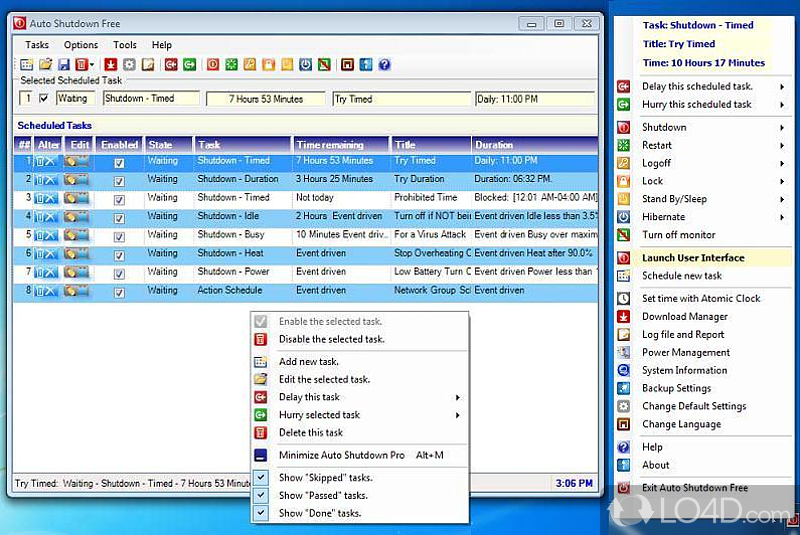
Auto Shutdown Free is a free, standalone Windows utility designed to fill the gap left by Windows’ basic power management features. It provides a user-friendly interface to schedule automatic shutdowns, restarts, log-offs, and hibernations based on specific times or intervals. The software is designed to be both powerful and accessible, catering to users of all technical levels.
A Solution for Everyone
The software is designed for:
- Home Users: Wanting to save money and ensure their computer is turned off after everyone has gone to bed.
- Students: Who often download files overnight and want their computer to shut down automatically when the download is complete.
- Professionals: Who have strict schedules and want their workstations to be ready at specific times, or who want to enforce a shutdown policy for office computers.
- Environmental Advocates: Anyone who wants to reduce their energy consumption and carbon footprint.
The Developer’s Perspective
The developer of Auto Shutdown Free emphasizes the tangible benefits of their software. They highlight the significant yearly electricity cost savings, the reduction in hardware maintenance costs, and the extension of the computer’s lifespan by preventing unnecessary runtime. The core mission is to help users stop “throwing money away” on idle computing.
Key Features and Capabilities
Auto Shutdown Free is packed with features that go far beyond a simple timer, giving users complete control over their computer’s power state.
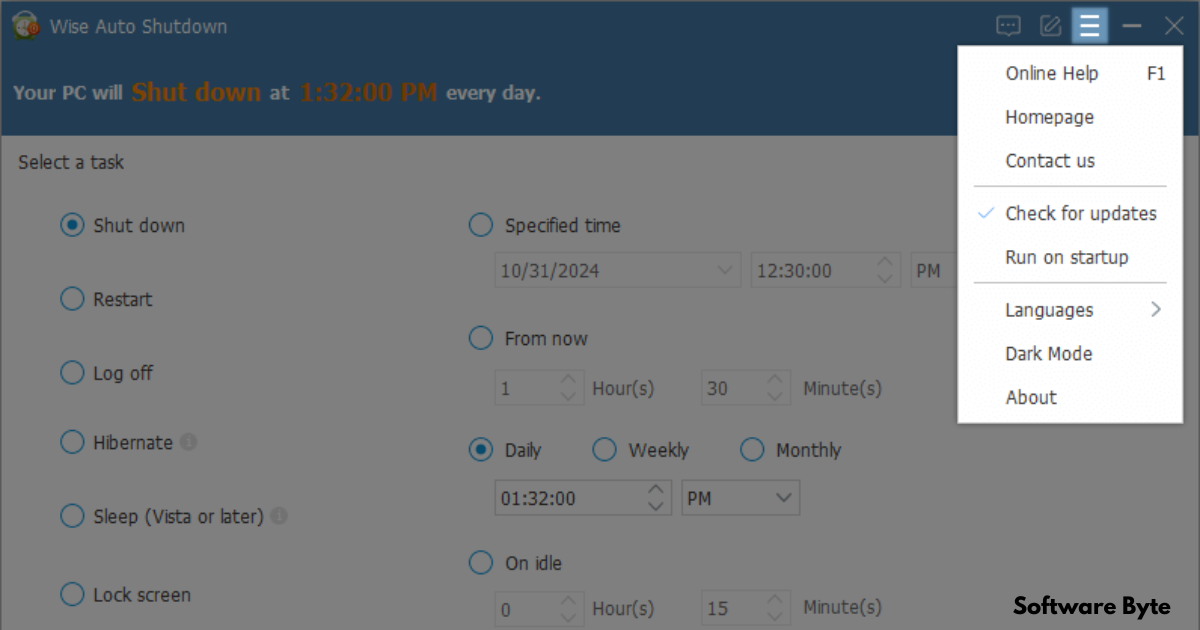
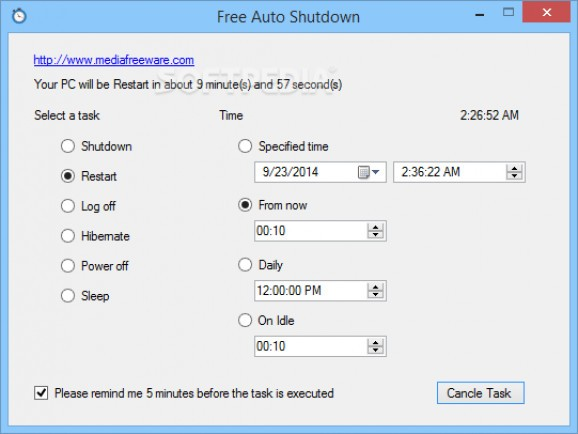
1. Multiple Action Options
The software is not limited to just shutting down. It provides a full range of power management actions:
- Shut Down: Completely turns the computer off.
- Restart: Reboots the computer.
- Log Off: Logs out the current user.
- Hibernate: Saves the current state and completely powers down the computer.
- Sleep: Puts the computer into a low-power sleep state.
- Power On/Off: Schedules a system start (Wake-on-LAN) or shutdown.
- Lock: Locks the workstation.
- Turn Off Monitor: Turns off the display to save additional power.
2. Flexible Scheduling Options
Auto Shutdown Free provides multiple ways to trigger actions:
- Scheduled Time: Set a specific time of day for the action to occur (e.g., shutdown every night at 11:00 PM).
- Countdown Timer: Set a timer for a specific number of minutes or hours from the current time.
- Multi-Scheduled Tasks: The ability to set up multiple, different tasks throughout the day to meet diverse needs. For example, you could schedule a log-off at noon, a hibernate at 6:00 PM, and a shutdown at 11:00 PM.
3. Cleanup and Privacy Features
One of the standout features of Auto Shutdown Free is its ability to perform automated system cleanup tasks before shutting down:
- Clean Cookies: Deletes browsing cookies, enhancing privacy.
- Clear History: Clears browser history.
- Remove Temporary Files: Deletes temporary files to free up disk space.
- Empty Recycle Bin: Empties the recycle bin automatically.
4. Global Language Support
The software is designed for a global audience. It supports 66 different languages, ensuring that users around the world can use it in their native language.
5. Comprehensive Logging
To provide transparency and accountability, the tool includes a logging feature. It logs each event, providing clear reports on when actions were performed. This is a useful feature for administrators or users who want to track power usage.
6. User-Friendly Interface
The application is designed with a straightforward, intuitive interface. It is accessible for users of all skill levels and can run in the background without being intrusive. The software is available for Windows 10, 8, 7, Vista, and XP, supporting both 32-bit and 64-bit systems.
Addressing User Concerns
Like any free software, Auto Shutdown Free has faced scrutiny and user feedback that is worth addressing.
The Controversy: Data Collection
One user review (by “Freeware-Watchdog”) expressed concern that the software required registration to receive an “access code” and that this process collected user data. The developer (“Pastor_Burt”) vehemently denied this, stating that the program does not require any registration, name, email address, or access code. He called the criticism “nonsense” and invited users to try the program themselves. In this case, the developer’s direct response is a strong counterargument, and for users concerned about privacy, it’s always best to test the software and be vigilant about what it requests.
The Claim: Windows Has This Already
Another review claimed that Windows already has all of the free version’s features. While Windows does have basic power options, it lacks the fine-grained scheduling, diverse action set (including different actions at different times), and automated cleanup tasks that Auto Shutdown Free provides. The reviewer also noted that the positive review was by the program author, which is often the case with open-source or freeware projects.
Practical Applications and Use Cases
The versatility of Auto Shutdown Free makes it useful for a variety of everyday scenarios.
Use Case 1: Nightly Shutdown
A user works on their computer during the evening and often falls asleep while watching a movie. Auto Shutdown Free can be set to automatically shut down the computer at a specific time, such as 2:00 AM, ensuring the system is not left running all night.
Use Case 2: Downloading Large Files
A student needs to download a large game or file overnight. They can set a countdown timer to shut down the computer 30 minutes after the estimated download completion time, saving energy without needing to stay awake.
Use Case 3: Office or Workstation Management
An office manager can use the software to schedule a shutdown for all workstations at 7:00 PM every weekday. This ensures that computers are not left running over the weekend, saving significant energy costs and reducing the load on the HVAC system.
Use Case 4: Parental Control
A parent can schedule a forced log-off for their child’s computer at 9:00 PM on a school night, helping to enforce healthy screen time habits.
Use Case 5: Maintenance and Cleanup
A user can schedule a shutdown that also cleans their browser history and temporary files, ensuring their system is clean and private every night.
Frequently Asked Questions (FAQs)
1. What does Auto Shutdown Free do?
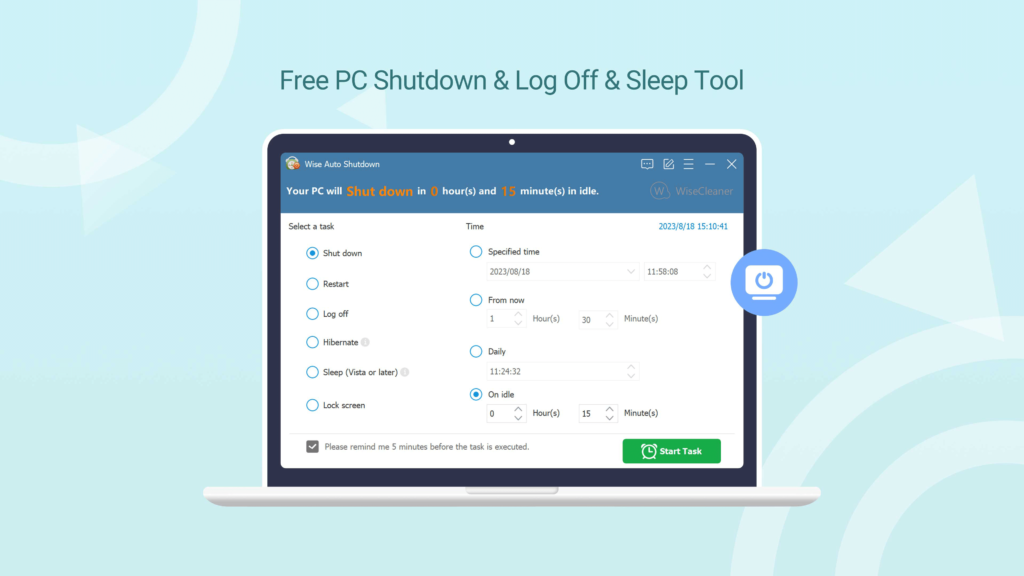
Auto Shutdown Free is a utility that allows you to schedule automatic shutdowns, restarts, log-offs, and hibernations for your Windows computer. You can set it to trigger at a specific time or after a countdown. It can also clean temporary files, history, and cookies before executing its action.
2. Is Auto Shutdown Free really free?
Yes, the software is offered as a freeware application. The developer has explicitly stated that it is free, with no registration or payment required, although they encourage donations. It is a free, practical tool for power management.
3. Does Auto Shutdown Free collect my data?
According to the developer, the software does not collect personal data. They have directly refuted claims that it requires registration or an access code. As with any free software, it is always wise to download it from a reputable source and be mindful of what permissions it requests during installation.
4. What’s the difference between a countdown and a scheduled shutdown?
A countdown starts a timer from the current moment (e.g., shut down in 2 hours). A scheduled shutdown is set for a specific time of day (e.g., shut down at 11:00 PM). Auto Shutdown Free supports both methods.
5. What versions of Windows does Auto Shutdown Free support?
The software is designed to support a wide range of Windows operating systems, including Windows 10, 8, 7, Vista, and XP. It works on both 32-bit (x86) and 64-bit (x64) versions of these operating systems.
Conclusion
Auto Shutdown Free is a simple yet powerful utility that provides a solution to a widespread problem: the unnecessary and costly practice of leaving computers on when not in use. By offering flexible scheduling, multiple action options, and valuable cleanup features, it empowers users to take control of their power usage. The software directly addresses the three pillars of hardware cost: electricity bills, maintenance, and lifespan. While there have been minor controversies regarding its data collection, the developer has strongly denied these claims, and the overall functionality of the tool speaks for itself. For anyone looking to reduce their energy footprint, save money, and extend the life of their computer, Auto Shutdown Free is a practical and highly recommended tool. It is a testament to how a small, focused application can have a significant impact on everyday computing habits.