Learn about Android SDK Platform-Tools ADB, the essential command-line tool for Android development and debugging. Discover its features, uses, and how to install it.
Introduction: The Developer’s Bridge to Android
For Android developers, power users, and anyone who wants to go beyond the surface of their device, the Android Debug Bridge (ADB) is an indispensable tool. It serves as a direct command-line interface between your computer and an Android device, giving you low-level access to the operating system. This article explores what ADB is, what it can do, and how it fits into the Android ecosystem.
What is Android SDK Platform-Tools ADB?
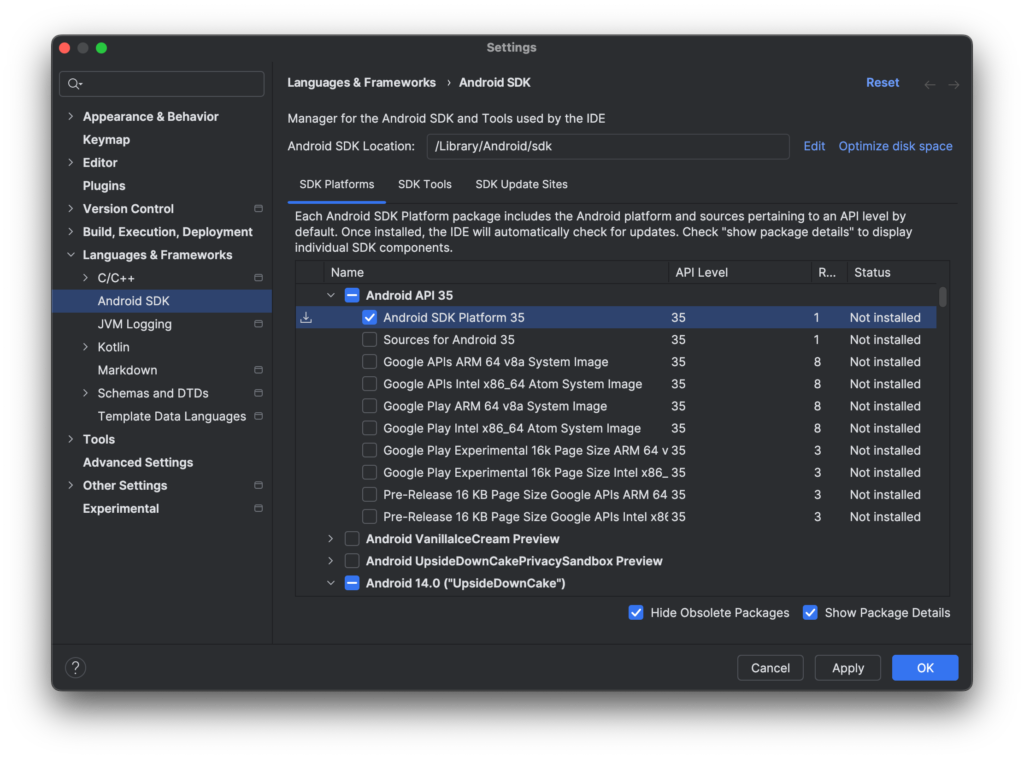
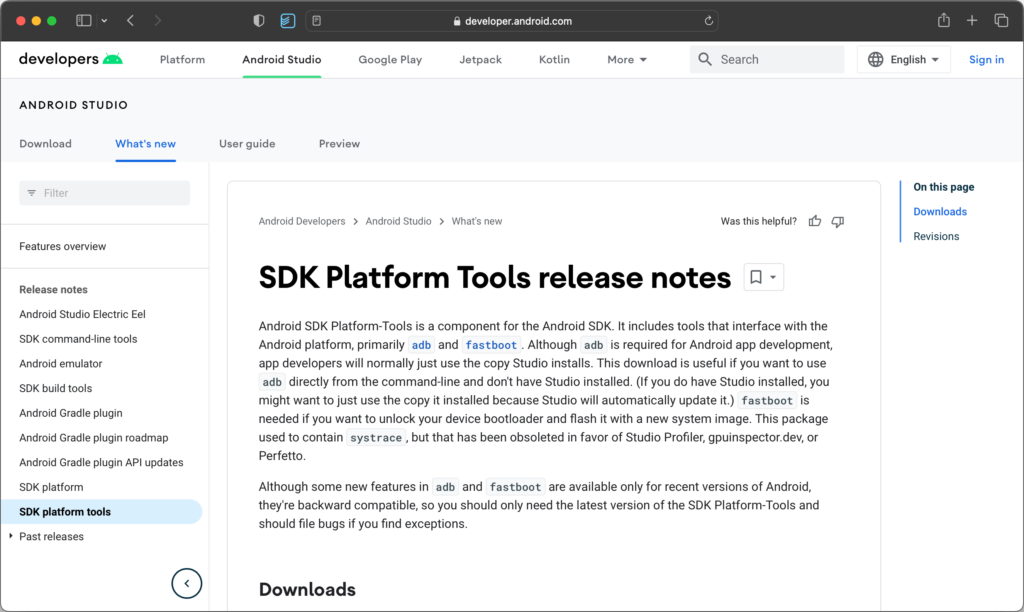
The Android SDK Platform-Tools package is a suite of command-line utilities provided by Google. It is an essential component of the Android Software Development Kit (SDK). The most important tool in this package is Android Debug Bridge (ADB). ADB is a versatile command-line tool that lets you communicate with an Android device. It allows you to perform a wide range of actions, from installing and debugging apps to accessing a Unix shell and running commands on the device itself.
ADB is designed to be a client-server program that includes three components:
- A Client: The computer you are using to send commands.
- A Daemon (adbd): A background service that runs on the Android device.
- A Server: A background process that manages communication between the client and the daemon.
Key Features and Uses of ADB
Device Connection and Management
ADB provides multiple ways to connect to an Android device:
- USB Connection: The most common method, requiring a physical USB cable.
- Wireless Connection (ADB over TCP/IP): You can connect to your device over a network, eliminating the need for a cable.
App Installation and Management
ADB makes it easy to manage applications on your device:
- Install APKs: Install apps (APK files) directly from your computer without using the Google Play Store.
- Uninstall Apps: Remove apps using command-line instructions.
- Manage App Data: Clear app data or cache.
Debugging and Logging
ADB is a powerful tool for developers:
- View Logs: Access system logs (Logcat) to see debugging information and error messages.
- Debug Apps: Attach a debugger to a running application.
- Simulate Events: Send simulated events like keystrokes or touch events to test app interactions.
Advanced System Access
For power users and developers, ADB offers deep access to the Android system:
- Access a Unix Shell: Run a shell on the device to execute commands directly on the Android system.
- File Transfer: Copy files to and from the device.
- Flashing and Recovery: For advanced users, it can be used to flash custom recoveries, bootloaders, and stock ROMs (firmware) for restoring or modifying the device.
No Root Required
A major advantage is that ADB works on non-rooted devices. While some advanced features require root access, many powerful functions (like installing apps, viewing logs, and accessing the shell) work perfectly on standard devices.
Installing Android SDK Platform-Tools
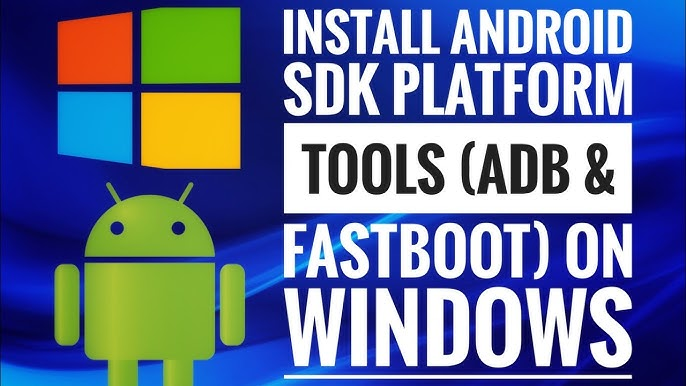
- Download: Download the Platform-Tools package from the official Android developer website.
- Extract: Extract the ZIP file to a convenient location on your computer (e.g.,
C:\platform-tools). - Add to PATH (Optional): For ease of use, you can add the folder to your system’s PATH environment variable so you can run ADB commands from any command prompt.
- Enable USB Debugging: On your Android device, go to Developer Options and enable USB Debugging.
- Connect: Connect your device via USB and run
adb devicesto verify the connection.
Frequently Asked Questions (FAQs)
1. Is ADB free to use?
Yes, the Android SDK Platform-Tools, including ADB, is completely free and is an official product from Google.
2. Do I need to root my Android device to use ADB?
No, most ADB features work on non-rooted devices. Some advanced system-level functions require root access, but the core functionality does not.
3. What is the difference between ADB and Fastboot?
Both are command-line tools in the Platform-Tools package. ADB is used when the device is booted into the operating system. Fastboot is a separate protocol used when the device is in bootloader mode for flashing system images.
4. Can I install apps via ADB without using the Play Store?
Yes, you can install APK files directly using the adb install command.
5. Is ADB only for developers?
While it is primarily a developer tool, many power users and enthusiasts also use ADB for device management and customization.
Conclusion: A Must-Have for Android Enthusiasts
The Android SDK Platform-Tools and its core utility, ADB, are powerful and essential tools for anyone who wants to interact with an Android device at a deeper level. Whether you are a developer debugging an app, a power user installing apps, or an enthusiast customizing your device, ADB provides the access and control you need. As a free, official tool from Google, it is a safe and reliable gateway to the full potential of your Android device.