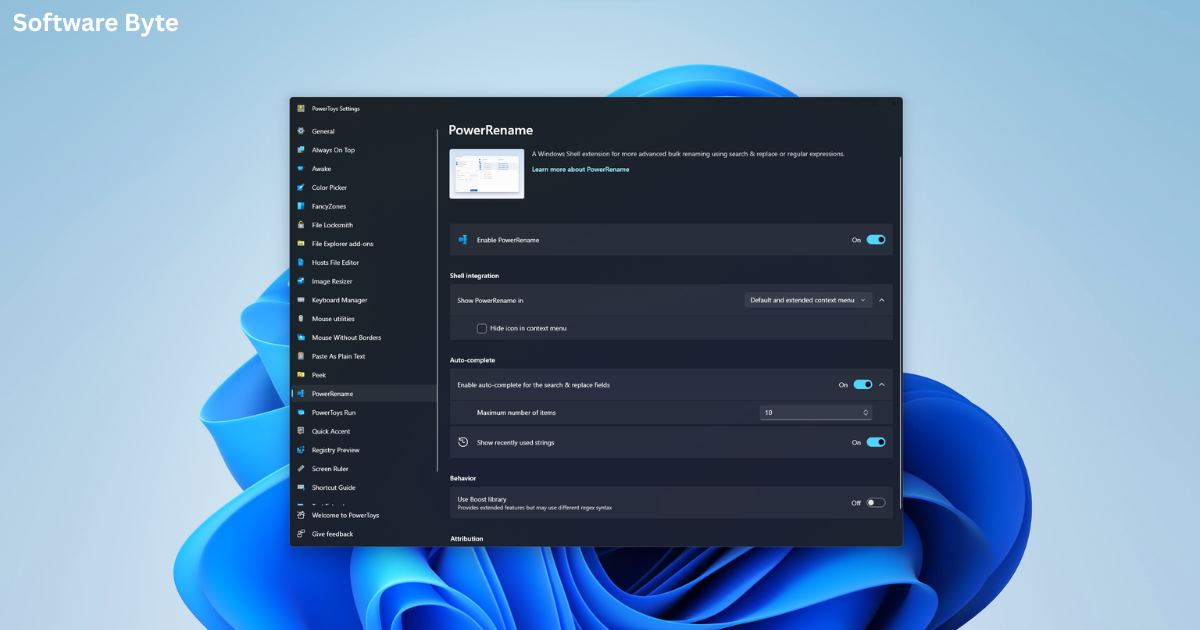
Meta Description: Discover Power Rename for Windows—a free tool that lets you rename multiple files at once. Learn about search-and-replace, case changes, EXIF stamping, and more.
Introduction
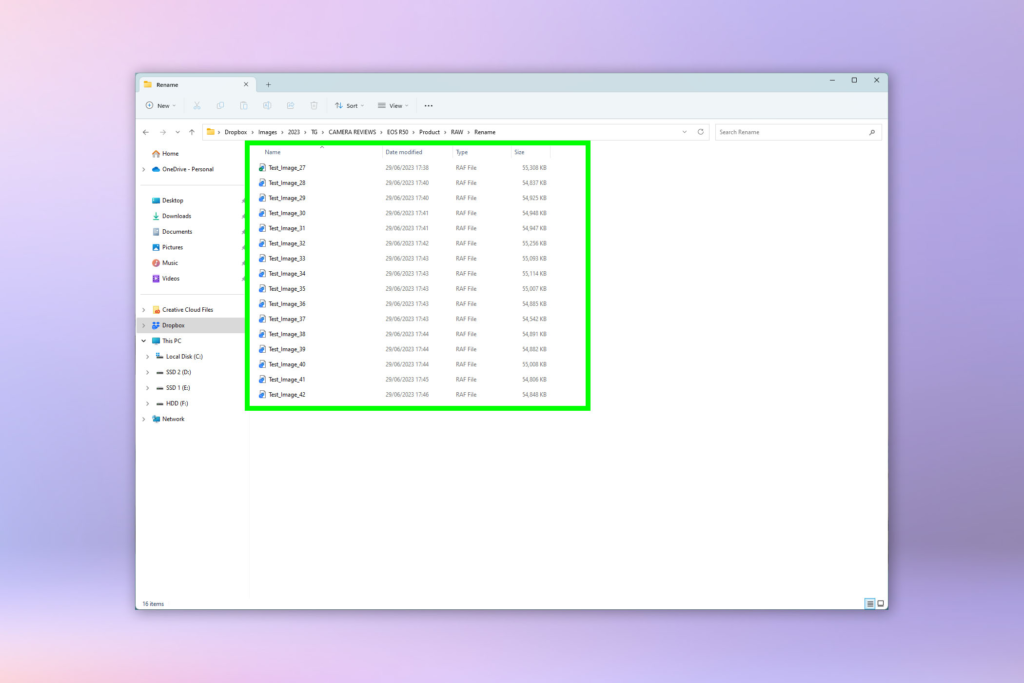
We have all been there. You download a batch of photos from your camera, and they are all named “DSC_0001,” “DSC_0002,” and so on. Or perhaps you have a folder full of music files with inconsistent naming conventions. Renaming each file individually is a tedious, time-consuming task that can drain your productivity.
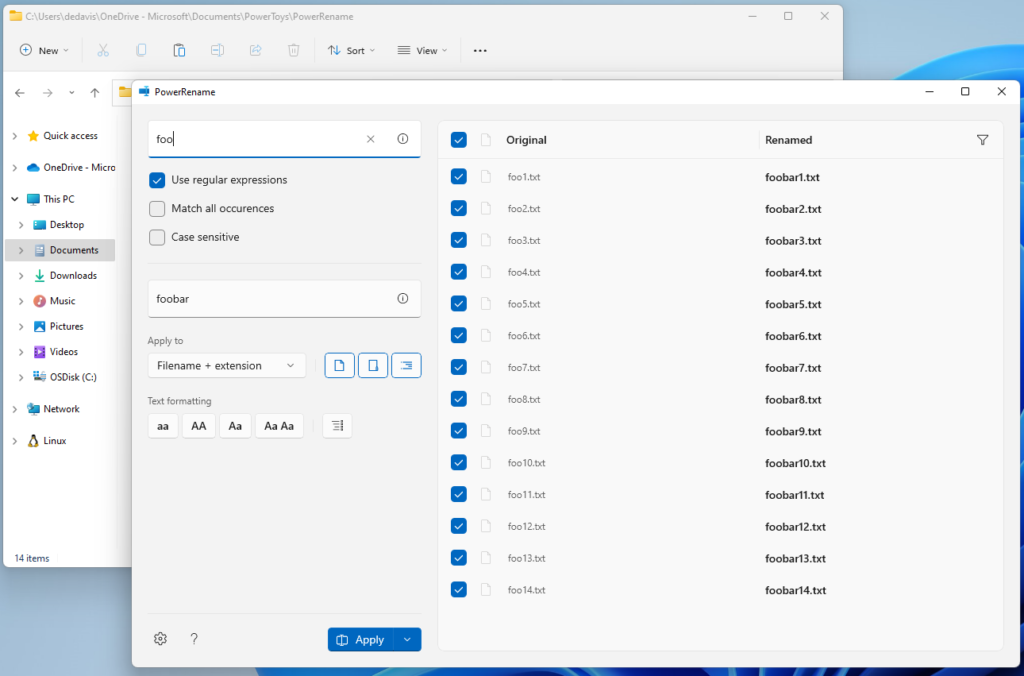
Enter Power Rename for Windows (version 2.0.279). This free utility is designed to solve exactly this problem, allowing you to rename large batches of files in a single operation. With features ranging from simple search-and-replace to complex rule-based renaming using EXIF data, it is a powerful addition to any Windows user’s toolkit.
In this comprehensive guide, we will explore all the features of Power Rename, discuss its benefits for various users, and provide a step-by-step walkthrough on how to use this software effectively. Whether you are a photographer, a content creator, or just someone who likes to keep their files organized, Power Rename can save you hours of manual labor.
What is Power Rename?
Power Rename is a free file-renaming utility for Windows operating systems. It is designed to help users change the names of multiple files and folders simultaneously. Instead of right-clicking each file and selecting “Rename,” you can select a whole folder’s worth of files, apply a series of rules, and rename them all with a single click.
The utility is particularly valuable because it offers a high degree of flexibility. You can perform simple tasks—like adding a date prefix to all files in a folder—or more advanced operations—like extracting metadata from photo files and inserting it into the filename.
Key Features of Power Rename
Power Rename packs a surprising amount of functionality into a simple, user-friendly interface. Let’s explore its core features.
1. Mass File Renaming
The primary function of Power Rename is, as the name suggests, its ability to rename any number of files in one swift action. You can select all the files in a directory and apply your chosen rules to every single one, dramatically accelerating file organization.
2. Flexible Text Insertion
You are not limited to simply replacing the entire filename. Power Rename allows you to insert text at specific positions within the filename. This is a crucial feature for creating a consistent naming scheme. You can:
- Insert text at the beginning of every filename.
- Insert text at the end of every filename, just before the extension.
- Insert text in the middle of a filename, at any character position you specify.
This flexibility allows for endless naming patterns. For example, you could rename a set of vacation photos from “IMG_001.jpg” to “Hawaii_2025_001.jpg” by inserting “Hawaii_2025_” at the beginning.
3. Search and Replace
Perhaps the most frequently used feature is the search-and-replace function. This allows you to find a specific text string within filenames and replace it with another string. This is useful for:
- Correcting spelling errors in a batch of files.
- Changing a product code or project name across hundreds of documents.
- Removing unwanted characters (like underscores or numbers) from filenames.
4. Change Filename Case
Consistency in file naming is essential for organization. Power Rename offers several case-changing options. You can convert all your filenames to:
- Uppercase: e.g., “report” becomes “REPORT”
- Lowercase: e.g., “REPORT” becomes “report”
- Mixed case or Proper Case: which capitalizes the first letter of each word.
This feature is a godsend for creating aesthetically pleasing and standardized directory structures.
5. Stamp with EXIF Data
This feature is a standout for photography enthusiasts. Power Rename can read the metadata (EXIF data) embedded in digital photos. This includes information like the date and time the photo was taken, the camera model, and settings like ISO and aperture.
You can use this data to rename your photos automatically. For example, you can rename all the photos in your “Vacation” folder from “DSC_001.jpg” to “2025-06-20_Canon_EOS_001.jpg.” This makes it infinitely easier to sort and search for images by date or camera.
6. Wide Compatibility
Power Rename is built for a broad range of Windows versions. It is fully compatible with Windows 10 and supports legacy systems like Windows XP, Windows Vista, and Windows 2000. This makes it a reliable tool for users on older hardware as well.
Benefits of Using Power Rename
1. Boost Productivity
The most immediate benefit is the sheer amount of time saved. A task that could take an hour to do manually can be accomplished in seconds with Power Rename.
2. Enhance Organization
A consistent naming convention makes files easier to find, sort, and archive. Power Rename gives you the tools to implement a system that works for you.
3. Reduce Errors
Manually renaming files is prone to typos and inconsistencies. Power Rename applies the rules uniformly, ensuring that your final batch of filenames is error-free.
4. Leverage Metadata
The ability to use EXIF data from digital photos is a powerful feature that many simple renaming tools lack. It allows you to build a logically organized photo library based on automatically extracted information.
Step-by-Step Guide: How to Use Power Rename
Step 1: Installation
First, you need to download and install the software. Power Rename is available for free from reputable software libraries. Once downloaded, run the installer and follow the simple on-screen instructions.
Step 2: Launch and Select Files
- Open Power Rename.
- A file explorer window will open. Navigate to the folder containing the files you wish to rename.
- Select the files you want to modify. You can use
Ctrl+Ato select all files in the folder orCtrl+Clickto select specific ones.
Step 3: Build Your Renaming Rules
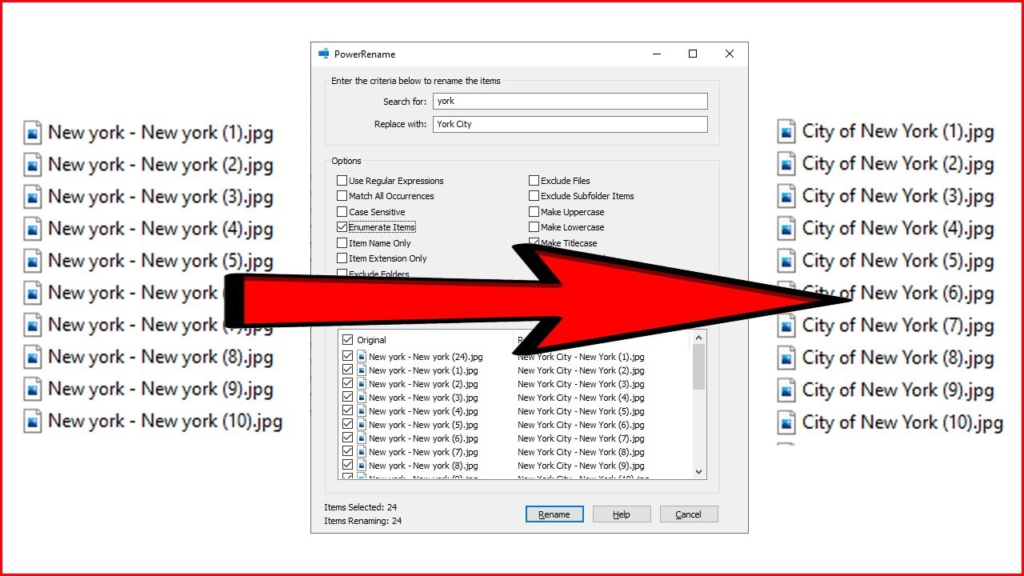
Once your files are selected, the main interface will appear. This is where you build your renaming “recipe.”
- Text to Search & Replace: In this field, you can type the text you want to find and the text you want to replace it with.
- Add Prefix/Suffix: You can add text to the beginning (prefix) or end (suffix) of the current filename.
- Change Case: Select the desired case format for your new filenames.
- Use EXIF Data (for photos): If you are working with images, there is an option to configure how to use the EXIF data to generate new filenames.
Step 4: Preview Changes
Before clicking “Apply,” it is crucial to preview the changes. Power Rename shows a before-and-after list of all the filenames. This is a safety feature that allows you to double-check your rules and catch any errors before they are made permanent.
Step 5: Apply the Changes
Once you are satisfied with the preview, click the “Apply” or “Rename” button. The selected files will be renamed instantly according to your specified rules. You can then close the application.
Who Can Benefit from Power Rename?
Power Rename is a versatile tool that caters to a wide range of users:
- Photographers and Videographers: Use EXIF data to automatically organize thousands of photos and video files.
- Content Creators and Digital Marketers: Manage and organize batches of images, graphics, and documents for different projects.
- Web Developers and Programmers: Rename multiple files, scripts, or assets in a structured way.
- Music Collectors: Clean up and standardize the naming of music files for a more organized library.
- General Users: Anyone who deals with large numbers of files can save time and frustration.
Frequently Asked Questions (FAQs)
1. Is Power Rename safe to use?
Answer: Yes, Power Rename is a safe and legitimate software tool. It has been reviewed and verified by reputable software distribution platforms. It only affects the filenames you select and does not modify the content of the files themselves. Always download it from a trusted source.
2. Can I use Power Rename to rename files in subfolders?
Answer: Yes, the software typically allows you to rename files in subfolders. When selecting your files, you can navigate through the directory structure and select files from any folder. Some versions may also allow you to scan and rename files recursively.
3. Does Power Rename work with file extensions?
Answer: Yes, you can rename file extensions with Power Rename, but you must be careful. Changing the extension of a file will make it unopenable unless it is the correct format. The software provides a preview so you can see the effect of your changes on the extension.
4. Can I undo a rename if I make a mistake?
Answer: Power Rename does not typically have a built-in “undo” button for permanent actions. It is strongly recommended to always use the “Preview” function to verify the changes before applying them. If you do make a mistake, you may need to manually rename them back or use the “Search and Replace” feature again to reverse the changes.
5. What operating systems support Power Rename?
Answer: Power Rename is designed for Windows. It is fully compatible with Windows 10 and also supports older operating systems, including Windows XP, Windows Vista, Windows ME, and Windows 2000, making it a versatile tool for a wide range of Windows users.
Conclusion
The Power Rename utility for Windows is a deceptively simple yet incredibly powerful tool. It takes a tedious, error-prone task—renaming many files—and turns it into a quick, efficient, and precise operation. Its strength lies in its flexibility and the depth of its features, which go far beyond simple search-and-replace.
Whether you are a professional photographer leveraging EXIF data to organize a photo library or a student trying to make sense of a cluttered download folder, Power Rename offers a solution. The ability to change case, add text anywhere in the filename, and use real-time previews ensures you have complete control over your files.
In short, if you are a Windows user who values their time and sanity, Power Rename is a must-have application. It is free, safe, and one of those rare pieces of software that make you wonder how you ever managed without it.