Computers have a silent enemy that most users ignore until it’s too late: hard drive failure. One morning, you turn on your PC, and instead of seeing your desktop, you see a black screen with the words “Disk Boot Failure.” All your photos, documents, and projects are suddenly out of reach. This is exactly why tools like Hard Disk Sentinel exist.
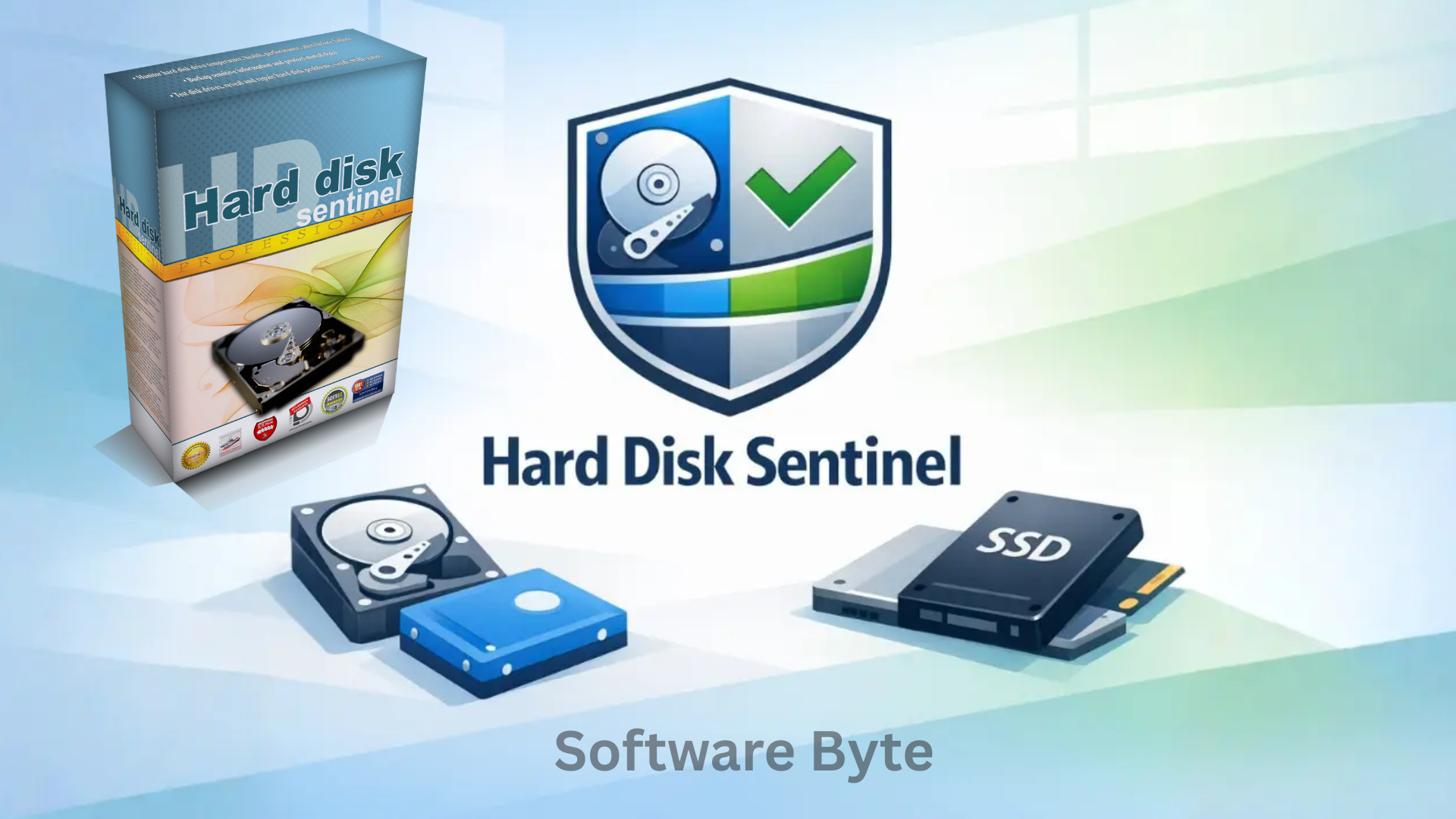
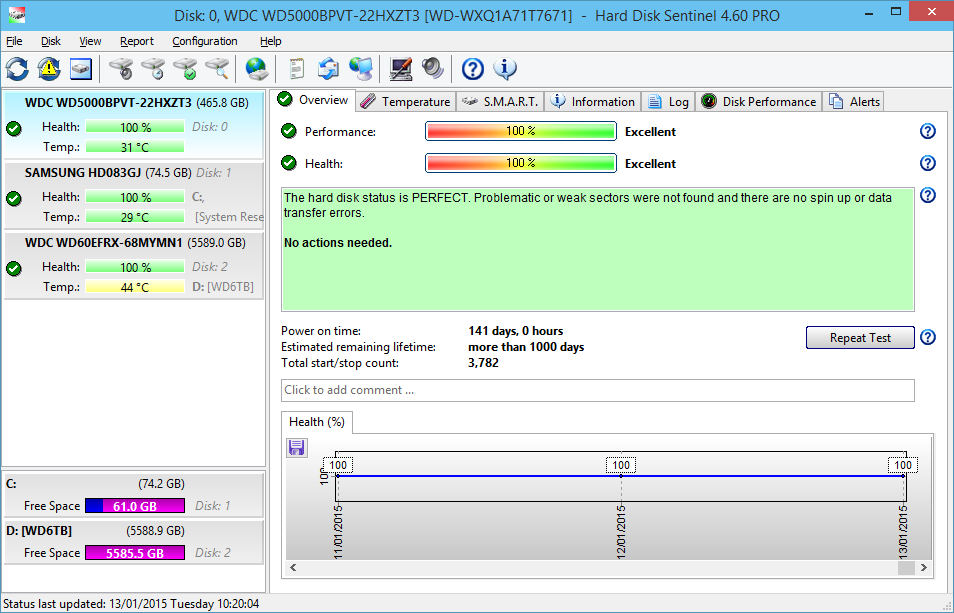
Hard Disk Sentinel is a powerful storage monitoring utility that acts like a personal doctor for your hard drives and SSDs. Instead of guessing whether your disk is healthy, this software uses a technology called SMART (Self-Monitoring, Analysis, and Reporting Technology) to give you a clear percentage score of your drive’s remaining life.
In this article, we will explore everything you need to know about Hard Disk Sentinel. We’ll look at its main features, how to install it, its pros and cons, and how it can save you from losing your valuable data. Whether you are a home user with family photos or a professional with critical work files, this guide will help you decide if this tool is right for you.
Software Overview
Hard Disk Sentinel is a comprehensive diagnostic and monitoring application designed exclusively for Windows operating systems (from Windows 95 to Windows 11). Unlike simple disk cleanup tools, Sentinel dives deep into the raw data of your storage devices.
The software runs quietly in your system tray, constantly checking the temperature, performance, and health of every connected storage device. This includes internal hard drives (HDDs), Solid-State Drives (SSDs), external USB drives, memory cards, and even older drives like IDE or SATA.
The core philosophy of the software is “prevention is better than cure.” By predicting when a drive is about to fail—sometimes weeks in advance—it gives you a critical window to back up your data. The free version is excellent for basic checks, while the Pro edition adds automatic backups and scheduled repairs. The interface is text-heavy but logical, showing you a traffic-light system (green, yellow, red) so you instantly know if your data is safe.
Main Features with Detailed Descriptions
1. Real-Time SMART Analysis and Health Prediction
The most important feature of Hard Disk Sentinel is its ability to read and interpret SMART attributes. Every modern hard drive tracks its own errors, reallocated sectors, and spin-up times. Sentinel takes this raw, confusing data and converts it into a simple Health Percentage (e.g., 92% Healthy).
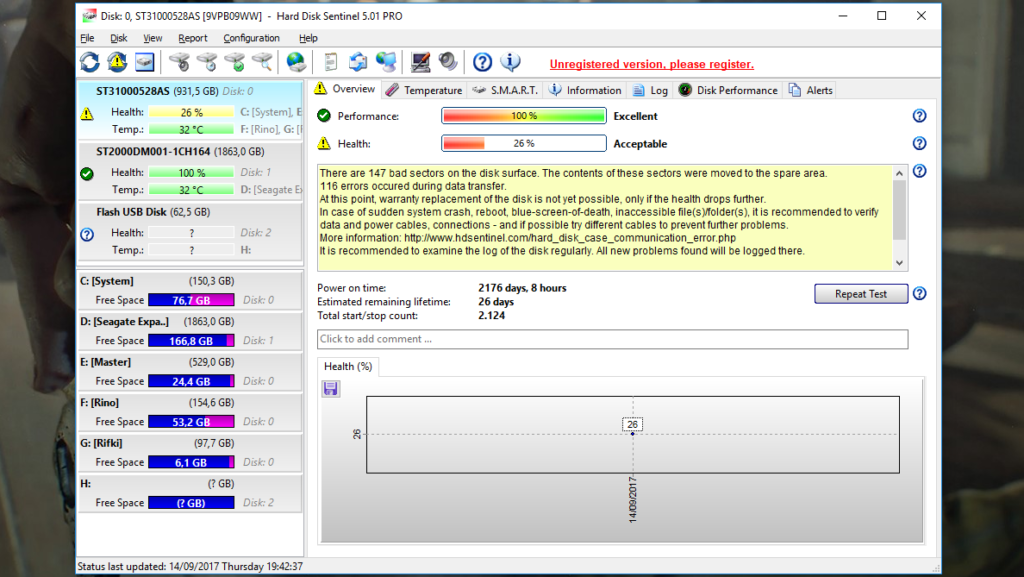
If a drive has bad sectors or failing read/write heads, the software doesn’t just show a number; it gives you a plain-English warning: “The drive is degrading. Backup immediately.” This predictive feature is the number one reason people install this software.
2. Disk Temperature Monitoring and Alerting
Heat is the biggest killer of electronics. When a hard drive runs too hot (above 50°C / 122°F), its lifespan shortens drastically. Hard Disk Sentinel continuously monitors the temperature of every drive.
You can set custom thresholds. For example, you can tell the software to shut down your computer automatically if a drive hits 55°C. This is incredibly useful for laptops with poor cooling or external drives left in the sun. If you get a pop-up warning about “High Temperature,” you know to improve airflow immediately.
3. Performance Benchmarking (Disk Transfer Speed)
Is your computer running slow? Is it the hard drive or the processor? Hard Disk Sentinel includes a real-time performance graph. It measures the current read/write speed of your disk.
If your drive is supposed to run at 150 MB/s but is currently struggling at 5 MB/s, the software flags a “Performance Degradation.” This usually means the drive is internally struggling to read data, which is a major sign of a failing mechanism. You can use this as a benchmark to see if a new drive is working as fast as advertised.
4. Surface Test and Disk Repair Tools
Beyond monitoring, Sentinel can actively test the surface of your hard disk. The Disk Surface Test scans every single sector on the drive.
If the test finds a “Weak” or “Bad” sector, the software attempts to repair it. It forces the drive to reallocate that bad sector to a spare area. While this doesn’t “fix” the physical platter, it marks the bad spot so the computer stops trying to use it. This can stabilize a dying drive long enough to copy your data off it.
5. Automatic Backup (Pro Version)
Knowing your drive is dying is useless if you don’t save your files. The Pro version includes an Automatic Backup feature. You can configure Sentinel to automatically copy specific folders (like “Documents” or “Desktop”) to another healthy drive or external USB stick as soon as a problem is detected. This ensures that even if you are away from your computer, your data is saved the moment the software detects a critical error.
6. SSD Life and Wear-Out Indicator
Solid State Drives (SSDs) work differently than old hard drives. They wear out based on how much data you write to them. Many users don’t know their SSD is dying until Windows freezes.
Hard Disk Sentinel specifically checks the Wear Leveling Count and Total Bytes Written on SSDs. It tells you exactly how much “life” your SSD has left. If your SSD is at 90% life remaining, you are fine. If it drops to 10%, you know you need to order a replacement drive before your PC starts losing data.
System Requirements
Before you download Hard Disk Sentinel, ensure your computer meets these minimal requirements to run the software smoothly.
| Requirement Category | Minimum Specification |
|---|---|
| Operating System | Windows 11, 10, 8.1, 8, 7, Vista, XP, 2000, NT, ME, 98, 95 |
| Processor (CPU) | 1 GHz or faster (any modern processor works) |
| Memory (RAM) | 512 MB (1 GB or more recommended for heavy multitasking) |
| Storage Space | 50 MB of free space for installation |
| Additional Requirements | Administrator rights (to access SMART data) |
| Supported Drives | Internal HDD/SSD, External USB/eSATA, RAID volumes, Memory cards |
Note: The software is very lightweight. It will not slow down your gaming or work performance.
How to Install Hard Disk Sentinel (Step-by-Step)
Installing Hard Disk Sentinel is straightforward, even for beginners. Follow these steps to get it running on your Windows PC.
Step 1: Download the Installer
Navigate to the official download page (or a trusted distributor like CNET Download). Click the “Download Now” button. Ensure you are downloading the version for Windows.
Step 2: Run the Installer
Once the .exe file downloads, locate it in your “Downloads” folder. Right-click the file and select “Run as Administrator.” This is important because the software needs deep access to your hardware.
Step 3: Allow Security Permissions
Windows User Account Control (UAC) may pop up asking, “Do you want to allow this app to make changes?” Click “Yes.” The software is safe and requires this permission to read drive sensors.
Step 4: Accept the License Agreement
The installation wizard will open. Read the license agreement, then click “I Agree” to proceed.
Step 5: Choose Installation Location
You can leave the default folder (usually C:\Program Files\Hard Disk Sentinel) as it is. Click “Next.” (Do not install it on an external drive you are trying to test).
Step 6: Select Components
Choose whether you want a desktop shortcut. Most users leave the default settings. Click “Next.”
Step 7: Install
Click “Install” and wait about 15 seconds for the files to copy.
Step 8: Launch the Software
Once installation finishes, uncheck “View Readme” (optional) and check “Launch Hard Disk Sentinel.” Click “Finish.”
Step 9: First Look
The main window will open. Wait 30 seconds for the software to scan all drives. You will see a green checkmark (good), yellow exclamation (warning), or red cross (danger) for each drive.
Pros and Cons Table
To give you a balanced view, here is a table summarizing the strengths and weaknesses of Hard Disk Sentinel.
| Pros (Advantages) | Cons (Disadvantages) |
|---|---|
| Excellent Failure Prediction: Catches issues weeks before failure. | Outdated Interface: Looks like a Windows XP program; can be intimidating. |
| Universal Device Support: Works with HDD, SSD, USB, and Memory cards. | Free Version Limitations: Backups and automatic repairs are locked behind Pro version. |
| Automatic Shutdown: Saves drives from overheating by turning off the PC. | Nag Screens: Free version occasionally asks you to upgrade. |
| Bootable Version: You can run it from a USB stick if Windows won’t boot. | No Mac or Linux support: Windows only. |
| Active Repair Tools: Can fix weak sectors to stabilize a dying drive. | Overwhelming Data: Shows too much technical information for casual users. |
Practical Use Cases and Benefits
Use Case 1: The Family Photo Keeper
Scenario: You have a 5-year-old laptop with all your baby photos. The laptop is running slow.
Benefit: You run Hard Disk Sentinel. It shows the health at 45% (Yellow) and warns of “Reallocated Sectors.” This tells you the drive is dying.
Action: You buy a $50 SSD, copy your photos immediately, and swap the drive. You saved your memories because of the warning.
Use Case 2: The PC Gamer
Scenario: Your games take 5 minutes to load, and textures pop in slowly.
Benefit: Use the “Performance” tab in Sentinel. It shows your current read speed is 10 MB/s, but the maximum is 150 MB/s.
Action: You realize your drive is failing. You clone your OS to a new NVMe drive before the crash happens mid-game.
Use Case 3: The Small Business Owner
Scenario: You have an external backup drive that you only plug in once a month.
Benefit: When you plug it in, Sentinel automatically scans it. It alerts you that the external drive has high temperatures and bad sectors.
Action: You buy a new external drive and copy your business invoices before the old one dies permanently.
Use Case 4: Buying Used Hard Drives
Scenario: You bought a used “cheap” hard drive from an online marketplace.
Benefit: You plug it in and run Sentinel. The health score is “20% – Fail.”
Action: You return the drive to the seller for a refund. Sentinel saved you from wasting money on junk hardware.
Frequently Asked Questions (FAQ)
Q1: Is Hard Disk Sentinel completely free?
There is a Free version available for download. It allows you to view disk health, temperature, and SMART attributes. However, advanced features like automatic backup, scheduled disk tests, and automatic repair require the Professional (Pro) version. The free version is excellent for a one-time health check.
Q2: Does the software work with SSDs (Solid State Drives)?
Yes, absolutely. Hard Disk Sentinel specifically supports SSDs. It displays different metrics than HDDs. Instead of “Reallocated Sectors,” it shows “Wear Leveling Count” and “SSD Life Remaining” (percentage). It is one of the few tools that correctly interprets SSD firmware data.
Q3: Can this software fix a clicking or dead hard drive?
No. If your hard drive is making a loud “click of death” or is not spinning up at all, it is a physical mechanical failure. Software cannot fix broken hardware. Hard Disk Sentinel can only repair “logical” bad sectors or tell you the drive is dead. If you hear clicking, turn off the PC and call a data recovery service.
Q4: Will Hard Disk Sentinel slow down my computer?
No. The software is very lightweight. It uses about 15-30 MB of RAM and virtually 0% CPU when idle in the system tray. When you manually run a “Surface Test,” it will use significant disk resources, so you should avoid gaming or heavy work during a full scan, but for normal monitoring, you won’t notice it.
Q5: How do I know if I need the Pro version?
You need the Pro version if:
- You want the software to automatically backup your data when a problem is found.
- You want to schedule disk tests to run every night.
- You want to repair bad sectors automatically.
- You want to run the software on a server or commercial setting.
For home users just checking the health of a single drive, the Free version is usually sufficient.
Q6: Why does my external USB drive not show up?
Sometimes, USB enclosures use a bridge chip that blocks SMART commands. Hard Disk Sentinel will still see the drive’s size and capacity, but might not show health data. Try updating your USB drivers or plugging the drive directly into a SATA port inside your desktop computer. The software’s help file has a list of compatible USB enclosures.
Q7: Does it work on Windows 11?
Yes. Hard Disk Sentinel is fully compatible with Windows 11, Windows 10, and even older versions like Windows 7. The developers regularly update the software (e.g., version 6.40) to ensure compatibility with new Windows updates and modern hardware like NVMe SSDs.
Conclusion
In a digital world where our lives are stored on spinning platters and silicon chips, Hard Disk Sentinel is not just a utility; it is an insurance policy. While the interface might look dated compared to modern sleek apps, its functionality is second to none. It gives you the power to look into the future of your storage devices.
The software excels at its primary job: answering the question, “Is my hard drive about to die?” It translates complex technical alarms into a simple percentage score. For the price of a coffee (for the Pro version), you can gain weeks of warning before a catastrophic failure. Even the free version provides enough data to tell you if you need to run to the store for a new drive.
If you value your family photos, work documents, or game saves, downloading a disk monitor should be your next step. Hard Disk Sentinel is a reliable, trusted veteran in the PC repair world. Don’t wait for the blue screen of death to ask you for a backup. Install Hard Disk Sentinel today, check your health score, and rest easier knowing you are in control of your data’s destiny.